



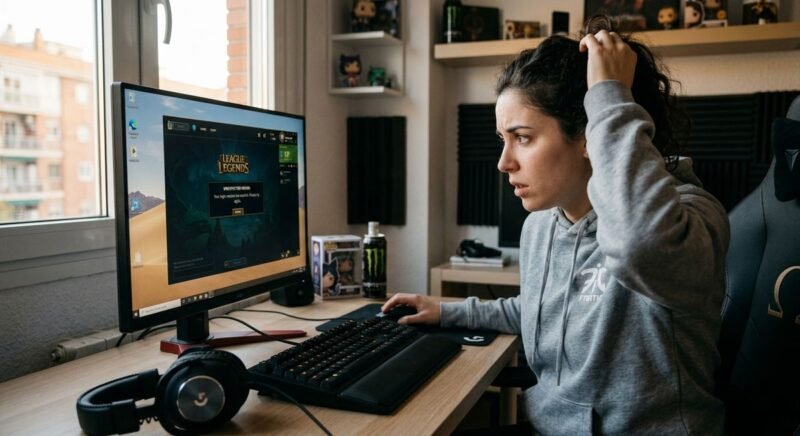
You click Play, the Riot Client loads, and then — nothing. A gray dialog box tells you there was an unexpected error with the login session. League of Legends gives you exactly one option: “Exit.” No error code, no explanation, no way forward.
Players have reported this issue since at least 2020. Across forums and Reddit threads, the complaint is nearly identical: in League of Legends there was an error with the login session, and Riot’s own support page addresses it with a single three-step fix that doesn’t always work. The actual causes range from a stale authentication token on your machine to a DNS misconfiguration to Riot’s servers quietly going down during peak hours. Each cause demands a different fix.
Below is a ranked troubleshooting sequence — fastest fixes first, nuclear options last — with platform-specific paths for both Windows and macOS. Run through the triage checklist before anything else. It takes ninety seconds and can save you an hour.
What Causes the League of Legends Login Session Error?
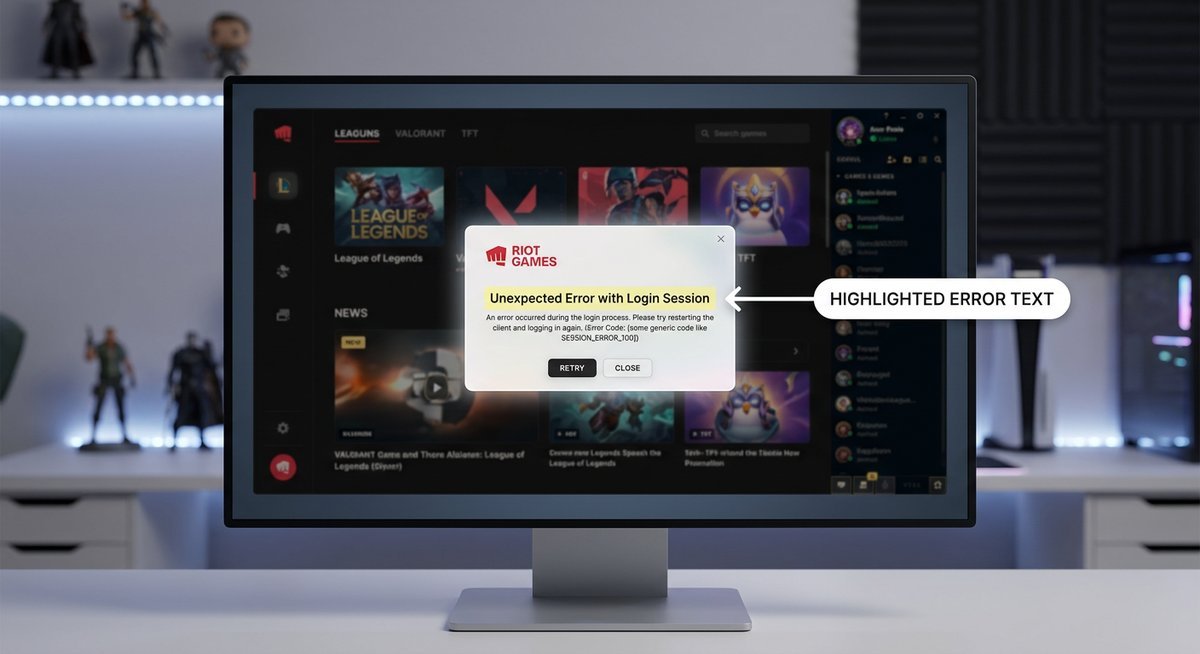
The login session error isn’t one problem — it’s four problems wearing the same mask. Riot’s client displays nearly identical wording whether the fault is a server outage in your region, a corrupted file on your hard drive, your ISP’s DNS resolver failing, or your antivirus silently quarantining a Riot process.
Server-Side Outages
Riot operates regional authentication servers that validate every login attempt. When those servers go down — scheduled maintenance, unexpected capacity spikes, or CDN failures — the client receives no valid session token and throws the error. No local fix resolves a server-side outage. You wait.
Riot publishes real-time status at status.riotgames.com, broken down by game and region. Bookmark it. Checking that page first eliminates the most common waste of time: players reinstalling a 22GB client during a Riot outage that resolves itself in twenty minutes.
Corrupted or Expired Session Token
The Riot Client stores a local session token so you don’t re-enter credentials every launch. That token corrupts after forced shutdowns, failed patches, power outages, or Windows/macOS crashes. Once stale, the client sends an invalid handshake and gets rejected immediately.
This is the single most common cause of the league unexpected error with login session on machines that were working fine yesterday. A full process kill and relaunch forces a fresh token request and resolves it roughly 60% of the time.
Network-Layer Interference
VPNs reroute your traffic through third-party servers, and Riot’s auth system can flag or reject connections from known VPN IP ranges. Misconfigured DNS is equally destructive — if your resolver can’t translate Riot’s authentication endpoints, the handshake request never arrives.
Firewalls are the stealthiest culprit. Windows Defender Firewall and third-party security suites (Norton, Bitdefender, Kaspersky) sometimes block Riot Client ports after a security update changes their default rules. The error appears with zero warning about what actually blocked the connection.
Outdated Riot Client
Riot periodically updates its authentication protocols. A client that hasn’t patched sends a handshake the server no longer recognizes. Unlike game patches, auth protocol changes don’t always trigger a forced update prompt — the client just silently fails to connect.
Error Message Variants: Same Screen, Different Causes
Players report slightly different wording, and each variant points toward a different root cause:
| Error Message | Most Likely Cause | Start Here |
|---|---|---|
| “There was an unexpected error with the login session” | Corrupted local token or server outage | Check server status, then restart client via Task Manager |
| “Session expired” | Token timeout after idle or sleep mode | Full process kill and relaunch |
| “Authentication failed” | Network interference — VPN, firewall, or DNS failure | Disable VPN, flush DNS, check firewall rules |
| “Login did not complete” | Client version mismatch with server protocol | Force client update by relaunching |
90-Second Triage Checklist (Do This First)
Three checks, ninety seconds total. They rule out the two most common causes — server outages and dead internet — before you touch any settings or delete any files.
Check 1: Riot Server Status
Go to status.riotgames.com and select your region. Look for two things: “degraded performance” on the authentication service means logins are partially broken and retrying may work. A full “outage” means the auth handshake cannot complete — stop troubleshooting and wait for Riot’s all-clear.
Check 2: Internet Connectivity
Open a browser and load a site you don’t visit often — cloudflare.com works well because it’s unlikely to be cached. On Windows, you can also open Command Prompt and run ping 8.8.8.8. Consistent replies under 100ms confirm a live connection. Timeouts or packet loss above 5% point to an ISP issue, not a Riot problem.
Check 3: Riot Client Version
Open the Riot Client, click the profile icon (top-right), and select Settings. The client version appears at the bottom of that panel. If you suspect it’s outdated, close the client fully via Task Manager and relaunch — the client auto-checks for patches on startup.
| Triage Check | What to Look For | If Problem Found | Time |
|---|---|---|---|
| Riot Server Status | Degraded or outage on auth service | Wait for Riot to resolve; no local fix works | 30 sec |
| Internet Connectivity | Failed page load or ping timeouts | Restart router; contact ISP if persistent | 30 sec |
| Client Version | Outdated build number in Settings | Close and relaunch to trigger update | 30 sec |
Step-by-Step Fixes (Ranked by Speed)
Five fixes cover virtually every client-side cause when there was an unexpected error with the login session League of Legends displays. They’re ordered fastest to slowest — start at Fix 1 and only escalate if the previous step fails. Most players are back in the client after Fix 1 or Fix 2.
| Fix | Est. Time | Targets | Platform |
|---|---|---|---|
| 1. Full Client Restart via Task Manager | 2 min | Stale session token | Windows / macOS |
| 2. Clear Riot Client Cache | 5 min | Corrupted auth data | Windows / macOS |
| 3. Flush DNS and Switch DNS Server | 5 min | DNS resolution failures | Windows / macOS |
| 4. Disable VPN / Whitelist Firewall | 3 min | Network interference | Windows / macOS |
| 5. Full Reinstall (Clean) | 30 min | Deep corruption | Windows / macOS |
Fix 1 — Full Client Restart via Task Manager (2 min)
Clicking the X on the Riot Client window does not fully close it. A background process holds onto the broken session token. You need to kill it completely.
- Press Ctrl + Shift + Esc (Windows) to open Task Manager, or open Activity Monitor on macOS.
- Find and end every process named RiotClientServices, Riot Client, and LeagueClient. End all of them — there are usually two or three running.
- Wait 10 seconds for background services to fully terminate.
- Relaunch from the Riot Client shortcut (not the League executable directly).
Killing all Riot processes forces the client to request a brand-new session token on relaunch. This alone resolves the majority of cases where the error appeared after idle time, sleep mode, or a failed patch.
Fix 2 — Clear the Riot Client Cache (5 min)
Corrupted cache data can lock the client into a broken authentication loop even after a clean restart. Deleting these folders forces the client to rebuild them from scratch.
- Close the Riot Client fully using Task Manager (Fix 1 steps).
- Navigate to the Riot Games data folder:
- Windows:
C:\Users\[YourUsername]\AppData\Local\Riot Games - macOS:
~/Library/Application Support/Riot Games
- Windows:
- Delete the Logs and Cache subfolders.
- Do not delete the Config folder. It stores your keybindings, display settings, and in-game preferences. Losing it won’t break anything, but rebuilding those settings is annoying.
- Relaunch the Riot Client and log in.
On Windows, if the AppData folder isn’t visible, type %localappdata% into the File Explorer address bar and press Enter. That opens the Local AppData directory directly.
Fix 3 — Flush DNS and Switch to a Public DNS Server (5 min)
A stale or poisoned DNS cache prevents your machine from resolving Riot’s authentication server addresses. Flushing it forces a fresh lookup.
Windows:
- Open Command Prompt as Administrator (right-click Start, select “Terminal (Admin)” on Windows 11, or search “cmd” and run as admin on Windows 10).
- Run these commands in order:
ipconfig /flushdnsipconfig /releaseipconfig /renew
macOS:
- Open Terminal.
- Run:
sudo dscacheutil -flushcache; sudo killall -HUP mDNSResponder
After flushing, switch your DNS server to Google (8.8.8.8 / 8.8.4.4) or Cloudflare (1.1.1.1 / 1.0.0.1). On Windows, go to Settings > Network & Internet > Wi-Fi > Hardware properties > DNS server assignment > Edit, switch to Manual, and enter the addresses. On macOS, go to System Settings > Wi-Fi > Details > DNS and add the servers there.
Public DNS servers are faster and more reliable than most ISP defaults. They also bypass regional DNS filtering that can silently block Riot endpoints.
Fix 4 — Disable VPN and Whitelist Riot in Your Firewall (3 min)
If you run a VPN, disable it temporarily and try logging in. Riot’s auth servers reject connections from many commercial VPN IP ranges. If disabling the VPN fixes the login, you can either play without it or configure split tunneling to exclude the Riot Client.
For firewall whitelisting on Windows:
- Open Windows Defender Firewall > Allow an app through firewall.
- Click Change settings, then Allow another app.
- Browse to
C:\Riot Games\Riot Client\RiotClientServices.exeand add it. - Ensure both Private and Public checkboxes are ticked.
Third-party antivirus suites (Norton, Bitdefender, Kaspersky, ESET) have their own firewall layers. Check their exception/exclusion lists separately — adding the Windows Firewall exception alone isn’t enough if your AV is the one blocking the connection.
Fix 5 — Full Clean Reinstall (30 min)
If none of the above works, a clean reinstall eliminates any deep file corruption. “Clean” means removing leftover data that the standard uninstaller leaves behind.
- Uninstall via Settings > Apps > Riot Client (Windows) or drag the app to Trash (macOS).
- Delete residual folders:
- Windows:
C:\Riot GamesandC:\ProgramData\Riot Games - macOS:
~/Library/Application Support/Riot Gamesand/Applications/League of Legends.app
- Windows:
- Restart your computer.
- Download a fresh installer from leagueoflegends.com and install to the default directory.
This takes the longest but guarantees a clean state. Save your keybinding preferences (screenshot your settings) before uninstalling if you’ve customized them heavily.
How to Prevent the Login Session Error from Coming Back
Fixing the error once doesn’t mean it won’t return. A few habits reduce the odds significantly:
- Always close the client properly. Use the system tray icon and select “Exit” rather than clicking the window’s X button. Better yet, right-click the Riot icon in the system tray and choose “Exit” to ensure all background processes terminate.
- Keep your Riot Client updated. Don’t skip or delay patch prompts. Auth protocol changes in the background can silently break older client versions.
- Use a reliable DNS server. Switching permanently to Google (8.8.8.8) or Cloudflare (1.1.1.1) avoids the ISP DNS issues that cause intermittent auth failures.
- Whitelist Riot in your security software proactively. Do this once after every new antivirus installation or major Windows security update.
- Avoid sleep mode mid-session. Putting your PC to sleep with the Riot Client open is the most reliable way to corrupt a session token. Close the client before sleeping your machine.
When to Contact Riot Support
If all five fixes fail and there was an unexpected error with the login session in League of Legends that persists for more than 24 hours (with Riot’s server status showing operational), the problem may be account-level or region-specific. Submit a ticket at support-leagueoflegends.riotgames.com and include:
- Your Riot ID and tagline
- Your region
- The exact error message wording
- A list of fixes you’ve already attempted
- Your Riot Client logs (found in
C:\Riot Games\Riot Client\UX\logson Windows)
Riot support typically responds within 24-48 hours. Including your log files upfront saves a back-and-forth cycle where they ask for them.
Frequently Asked Questions
Why does League of Legends say “there was an unexpected error with the login session”?
The Riot Client displays this message when it cannot establish or validate a secure session with Riot’s authentication servers. The most common triggers are a corrupted local session token (caused by improper shutdowns or failed updates), a server-side outage in your region, or network interference from a VPN, firewall, or misconfigured DNS. The client doesn’t specify which cause triggered the error, so you need to work through the triage checklist above to isolate it.
Is the login session error caused by a Riot server problem or my computer?
It can be either. Check status.riotgames.com first. If the authentication service shows degraded or down status in your region, the problem is on Riot’s end and no local fix will work. If server status is green, the issue is local — most likely a stale session token, corrupted cache, or network configuration problem on your machine.
Does reinstalling League of Legends fix the unexpected error with the login session?
A clean reinstall works as a last resort, but it’s usually overkill. The error most often stems from a corrupted session token or cache file, both of which can be fixed in under five minutes without reinstalling. Try the full client restart (Fix 1) and cache clear (Fix 2) first. Only reinstall if those fail and you’ve also ruled out DNS and firewall issues.
Can a VPN cause the League of Legends login session error?
Yes. Riot’s authentication servers flag or reject connections from many commercial VPN IP ranges. Disabling your VPN temporarily is one of the fastest diagnostic steps — if the error disappears with the VPN off, configure split tunneling to exclude the Riot Client rather than playing without VPN protection entirely.
How do I fix the login session error on Mac?
The same fixes apply, with different file paths. Kill Riot processes in Activity Monitor instead of Task Manager. Clear cache from ~/Library/Application Support/Riot Games. Flush DNS via Terminal with sudo dscacheutil -flushcache; sudo killall -HUP mDNSResponder. Change DNS in System Settings under Wi-Fi > Details > DNS.
Why does the login session error keep coming back?
Recurring errors usually indicate a persistent environmental issue rather than a one-time glitch. If you keep getting the unexpected error with the login session League players report most often, the likely culprits are an overly aggressive antivirus that re-blocks Riot after each scan cycle, an unstable ISP DNS that intermittently fails to resolve Riot’s auth endpoints, or a habit of putting your PC to sleep with the client open (which corrupts the session token). Address the root cause — whitelist Riot in your AV, switch to a public DNS, and close the client before sleep — to break the cycle.
What ports does the Riot Client need for login?
The Riot Client uses HTTPS (port 443) for authentication and ports 5000-5500 for client-to-server communication. If you manage a custom firewall or router with strict outbound rules, ensure these port ranges are open for RiotClientServices.exe. Most home routers allow outbound traffic on these ports by default, so manual configuration is typically only needed in corporate or university network environments.