




You click into a voice channel and Discord just… hangs. The status bar reads “Awaiting Endpoint,” and nothing happens. No connection, no timeout message, no helpful error code. Just a spinner and silence.
The awaiting endpoint Discord issue catches people mid-conversation, mid-game, mid-meeting. It looks identical whether Discord’s own voice servers crashed or whether something on your device quietly broke the connection. That distinction is everything, because one scenario requires patience and the other requires action.
Below: how to figure out which scenario you’re in within 60 seconds, followed by exact fix steps for Windows, Mac, iOS, Android, and browser. Plus a section on related voice errors that often get confused with this one.
What Does “Awaiting Endpoint” Mean on Discord?
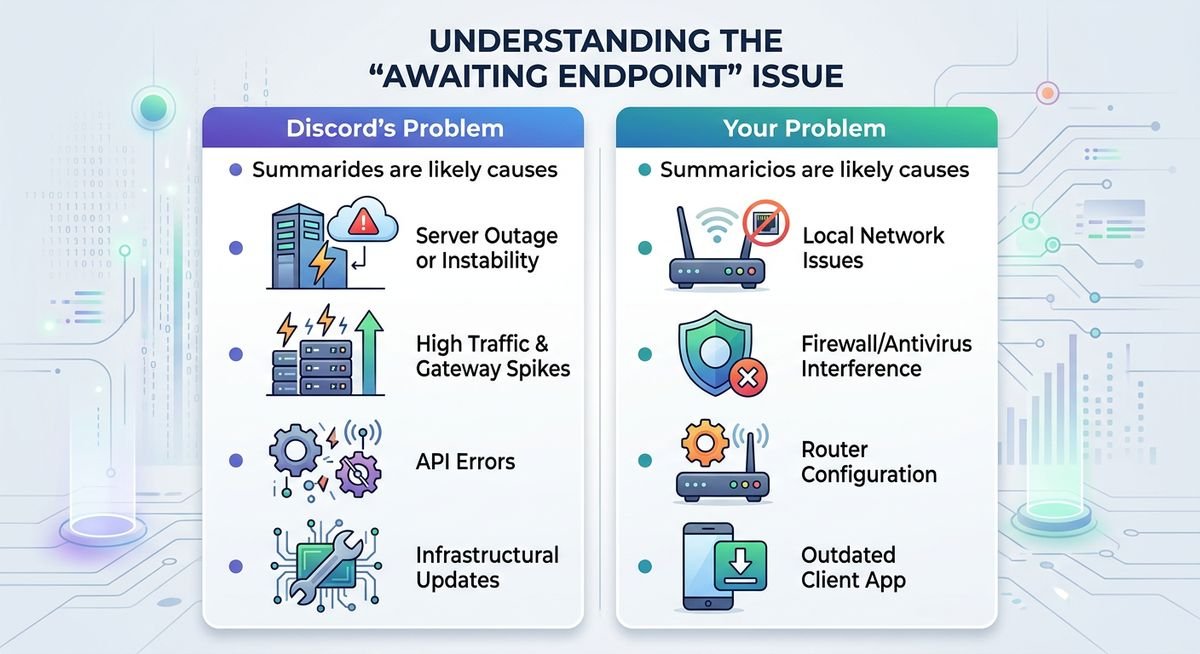
When you join a voice channel, Discord’s client sends a request to a regional voice server asking for a connection. The server responds with an endpoint — essentially an address your app uses to stream audio. “Awaiting Endpoint” means that response never arrived.
Two fundamentally different things can cause this silence.
Server-Side: Discord Is Down
Discord runs regional voice server clusters worldwide. When a cluster fails, every user routed through that region sees the same error at the same moment. Cache clearing, reinstalling, DNS flushing — none of it touches the actual problem. The server simply is not responding, and no client-side action changes that.
The hallmark of a server-side issue: multiple people in the same voice channel all hit the error simultaneously. If your entire server went quiet at once, odds are strong the fault is upstream.
Client-Side: Your Device or Network
The same error surfaces when something between your device and Discord’s servers blocks or corrupts the connection. Common culprits include VPNs rerouting traffic through endpoints Discord rejects, firewalls silently dropping UDP packets on ports 50000-65535, corrupted cache files from a previous session, or an outdated app version that lost compatibility with Discord’s current voice API.
The telltale sign: you’re the only one affected. Everyone else in the channel is talking normally while you’re stuck on the spinner.
| Cause Type | Who Is Affected | Local Fix Helps? | Common Triggers |
|---|---|---|---|
| Server-Side (Discord) | Multiple users, often region-wide | No — wait it out | Voice server outage, overload, unplanned maintenance |
| Client-Side (Your Device) | Only you, or your local network | Yes — troubleshoot locally | VPN, firewall, corrupted cache, outdated app, ISP routing |
Is Discord Down Right Now? How to Check in 60 Seconds
Spending ten minutes troubleshooting your device when Discord’s servers are down is pure wasted effort. Three quick checks give you a definitive answer.
1. Discord’s Official Status Page
Go to discordstatus.com. This is Discord’s own infrastructure dashboard, powered by Atlassian Statuspage. Look specifically at the Voice component row. Green means operational. Yellow means degraded or under investigation. Red means confirmed outage.
Timestamped incident updates appear directly below the component list. If engineers are already working a fix, you’ll see it here with a timeline.
2. DownDetector Spike Check
Visit downdetector.com/status/discord. The spike graph plots user-submitted reports over the past 24 hours. A sharp vertical spike — especially one climbing past several hundred reports — confirms a widespread problem, not a local one.
Scroll below the graph to read individual reports. A cluster of “stuck on awaiting endpoint” or “voice won’t connect” comments makes the picture unmistakable.
3. Twitter/X Real-Time Search
Search #DiscordDown on Twitter/X and sort by Latest. Community reports typically surface within two to three minutes of an outage starting — often faster than Discord’s own status page updates. Also check @discord directly for official acknowledgments.
When to Stop Troubleshooting and Wait
If two of those three sources confirm an active incident, close your troubleshooting tabs. No local fix resolves a server-side failure. Recheck discordstatus.com in 15 to 30 minutes — most Discord voice incidents resolve within that window based on historical status page data.
| Check Method | URL | What to Look For | Speed |
|---|---|---|---|
| Discord Status Page | discordstatus.com | Voice component — yellow or red | ~10 seconds |
| DownDetector | downdetector.com/status/discord | Report spike in last hour | ~15 seconds |
| Twitter/X | Search #DiscordDown | Fresh reports sorted by Latest | ~20 seconds |
How to Fix “Awaiting Endpoint” — Platform-by-Platform Steps
Confirmed Discord’s servers are fine? Then the fix is on your end. Work through the steps for your platform in order — most people resolve the awaiting endpoint Discord issue within the first three or four steps.
Quick Fix for Server Admins: Change Voice Region
If you have permission to manage channels, right-click the voice channel, select Edit Channel > Overview, and change the Region Override from Automatic to a different region (e.g., switch from US East to US Central). This forces Discord to route voice traffic through a different server cluster, bypassing the problematic endpoint entirely. It resolves the error for many users instantly.
Windows Desktop App
- Verify your internet connection. Open a browser and load any webpage. If that fails, the problem is your network, not Discord.
- Quit Discord completely. Right-click the Discord icon in the system tray and select Quit Discord. Simply closing the window leaves it running in the background.
- Clear the Discord cache. Press
Win + R, type%appdata%\discord\Cache, and delete everything inside that folder. Corrupted cache files are a surprisingly common trigger. - Disable your VPN or proxy. VPNs can reroute traffic in ways that prevent Discord from reaching its voice servers. Disconnect, relaunch Discord, and test.
- Flush DNS. Open Command Prompt as Administrator and run
ipconfig /flushdns. Stale DNS records can misdirect Discord’s connection attempts. - Check your firewall. Discord voice uses UDP on ports 50000–65535. Some antivirus suites or Windows Firewall rules silently block this range. Temporarily disable to test, then add an exception for Discord if that resolves it.
- Reinstall Discord. Uninstall via Settings > Apps, then download a fresh installer from discord.com. A clean install eliminates corrupted app files that survived the cache clear.
Mac Desktop App
- Check your connection. Open Safari or Chrome and confirm you can load pages before changing anything else.
- Force-quit Discord. Press
Cmd + Option + Esc, select Discord, and click Force Quit. Reopen normally. - Clear the cache. In Finder, press
Cmd + Shift + Gand navigate to~/Library/Application Support/discord/Cache. Delete the contents. - Disconnect your VPN. macOS VPN clients — including built-in IKEv2 profiles — can interfere with Discord’s voice routing.
- Flush DNS. Open Terminal and run:
sudo dscacheutil -flushcache; sudo killall -HUP mDNSResponder - Review macOS Firewall. Go to System Settings > Network > Firewall and verify Discord is allowed through. Add a manual exception if it isn’t.
- Reinstall. Drag Discord to Trash, empty it, download a fresh copy from discord.com.
iOS (iPhone / iPad)
- Toggle Airplane Mode. Turn it on, wait five seconds, turn it off. This forces your device to drop and re-establish its network connection cleanly.
- Force-close Discord. Swipe up from the bottom (or double-tap the Home button), find Discord in the app switcher, and swipe it away. Reopen the app.
- Check app permissions. Go to Settings > Discord and confirm Microphone and Local Network access are both enabled.
- Switch from Wi-Fi to cellular (or vice versa). A congested or misconfigured Wi-Fi network can block Discord’s voice traffic. Cellular data bypasses that entirely.
- Update the app. Open the App Store, tap your profile icon, and pull down to refresh. Install any pending Discord update.
- Offload and reinstall. Go to Settings > General > iPhone Storage > Discord > Offload App, then reinstall from the App Store. This clears cached data without removing your login.
Android
- Toggle Airplane Mode. Same principle as iOS — forces a clean network reconnection.
- Force-stop Discord. Go to Settings > Apps > Discord > Force Stop. Reopen the app.
- Clear app cache. In the same screen, tap Storage > Clear Cache. Do not tap “Clear Data” unless you’re willing to log in again.
- Disable battery optimization for Discord. Some Android skins aggressively throttle background network activity. Go to Settings > Battery > Battery Optimization and set Discord to “Not Optimized.”
- Switch networks. Try mobile data instead of Wi-Fi. If that resolves it, your router or ISP is likely the bottleneck.
- Update or reinstall. Check the Play Store for updates. If the issue persists, uninstall and reinstall.
Browser (Discord Web App)
- Try a different browser. If you’re on Chrome, test Firefox or Edge. Browser-specific extensions and settings can interfere with WebRTC, which Discord’s web app depends on for voice.
- Disable browser extensions. Ad blockers, privacy extensions, and VPN browser plugins are the most common culprits. Disable them one by one to isolate the cause.
- Clear browser cache and cookies for discord.com. In Chrome: Settings > Privacy > Clear browsing data. Select cached images and cookies, then clear.
- Check WebRTC settings. Some privacy-focused browsers or extensions block WebRTC by default. Search your browser’s settings or
about:config(Firefox) for WebRTC and ensure it is not disabled.
The awaiting endpoint error is not the only voice connection failure Discord throws. Several related errors share similar root causes but have slightly different meanings — and different fix priorities.
| Error Message | What It Means | Most Likely Cause |
|---|---|---|
| RTC Connecting | Discord found the voice server but is struggling to establish a real-time connection | Firewall blocking UDP, ISP throttling, or unstable Wi-Fi |
| No Route | Your network cannot reach Discord’s voice server at all | VPN misconfiguration, aggressive NAT, or ISP-level blocking |
| ICE Checking | Discord is testing different network paths to connect (ICE candidates) | Symmetric NAT or overly restrictive router settings |
| Voice Connection Failed | The connection attempt timed out completely | Network instability, server-side issue, or app crash |
If you’re cycling between “Awaiting Endpoint” and “RTC Connecting,” the issue is almost certainly network-related rather than a Discord server problem. Focus your troubleshooting on firewall rules, VPN settings, and router configuration.
How to Prevent the “Awaiting Endpoint” Error From Coming Back
Once you’ve resolved the immediate problem, a few proactive steps reduce the chance of hitting this error again.
- Keep Discord updated. Enable auto-updates or manually check weekly. Outdated versions lose voice API compatibility faster than you might expect.
- Whitelist Discord in your firewall. Add a permanent exception for Discord’s executable and UDP ports 50000–65535. This prevents security updates from re-blocking the connection.
- Avoid free VPNs for voice calls. Free VPN servers are overcrowded and frequently blacklisted by Discord. If you must use a VPN, split-tunnel Discord’s traffic to bypass it.
- Set a custom DNS. Public DNS providers like Cloudflare (1.1.1.1) or Google (8.8.8.8) are faster and more reliable than many ISP defaults. Less DNS resolution delay means fewer connection timeouts.
- Clear your cache periodically. Once a month, clear the Discord cache folder. It prevents stale or corrupted files from accumulating silently.
Frequently Asked Questions
Why does Discord say “Awaiting Endpoint” when my internet is working fine?
A working internet connection does not guarantee Discord’s voice servers are reachable. The error specifically means Discord’s voice endpoint did not respond. This can happen because of a Discord outage in your region, a firewall blocking UDP traffic on the specific ports Discord uses (50000–65535), or a VPN routing your traffic through a path Discord’s servers reject. Your browser and other apps may work perfectly while Discord voice fails.
How long does the “Awaiting Endpoint” error usually last?
If it is a server-side outage, most incidents resolve within 15 to 30 minutes based on Discord’s historical status page data. If it is a client-side issue on your device, it persists until you fix the underlying cause — clearing cache, disabling a VPN, or updating the app typically resolves it in under five minutes.
Does changing the voice region fix “Awaiting Endpoint”?
Yes, frequently. If you have channel management permissions, right-click the voice channel, go to Edit Channel, and change the Region Override to a different server region. This routes voice traffic through a different cluster, bypassing the problematic endpoint. It is one of the fastest fixes available when the issue affects a specific region.
Can a VPN cause the “Awaiting Endpoint” error?
Absolutely. VPNs reroute your traffic through their own servers, and Discord may reject connections arriving from VPN IP ranges or from geographically unexpected locations. Free VPNs are especially problematic due to overcrowded servers and IP blacklisting. Disconnecting the VPN or using split tunneling to exclude Discord is the fastest test.
Is “Awaiting Endpoint” the same as “RTC Connecting”?
No. “Awaiting Endpoint” means Discord has not yet received a voice server address to connect to. “RTC Connecting” means the server address was received but the real-time audio connection failed to establish. “Awaiting Endpoint” is typically a server-side or DNS issue, while “RTC Connecting” is more often a local firewall or network stability problem.
Should I reinstall Discord to fix this error?
Reinstalling is a last resort, not a first step. Try quitting Discord fully, clearing the cache, disabling your VPN, and flushing DNS first. These steps resolve the vast majority of cases. Reinstall only if nothing else works, as it forces a completely fresh connection setup and eliminates any corrupted local files.
Does this error affect Discord on mobile differently than desktop?
The root cause is the same across all platforms, but mobile devices add extra variables. Battery optimization features on Android can throttle Discord’s network access in the background. iOS restricts background networking differently. Cellular networks handle UDP traffic differently than home Wi-Fi. The fix steps differ by platform, which is why the troubleshooting section above is broken out separately for each device type.