



Clearing the app cache and restarting the device fixes roughly 70% of app crashes on any platform — Android, iPhone, iPad, Samsung, Windows PC, or Chromebook. The remaining 30% come down to storage pressure, outdated software, or a handful of platform-specific quirks that take just a few more minutes to resolve.
What makes app crashes maddening is their randomness. An app that ran fine for months suddenly starts force-closing after a system update, or works perfectly on Wi-Fi but dies on mobile data. The triggers are rarely obvious. But they are predictable — and once you understand the five or six culprits behind virtually every crash, fixing them becomes mechanical rather than mystifying.
The fixes below are organized by speed: universal quick fixes first, then platform-specific solutions for stubborn crashes on iPhone, Android, Samsung, Windows, and Chromebook. A section on individual problem apps (YouTube, Roblox, ESPN, and others) covers the edge cases that general troubleshooting misses.
Why Apps Keep Crashing: The Real Causes Behind the Problem
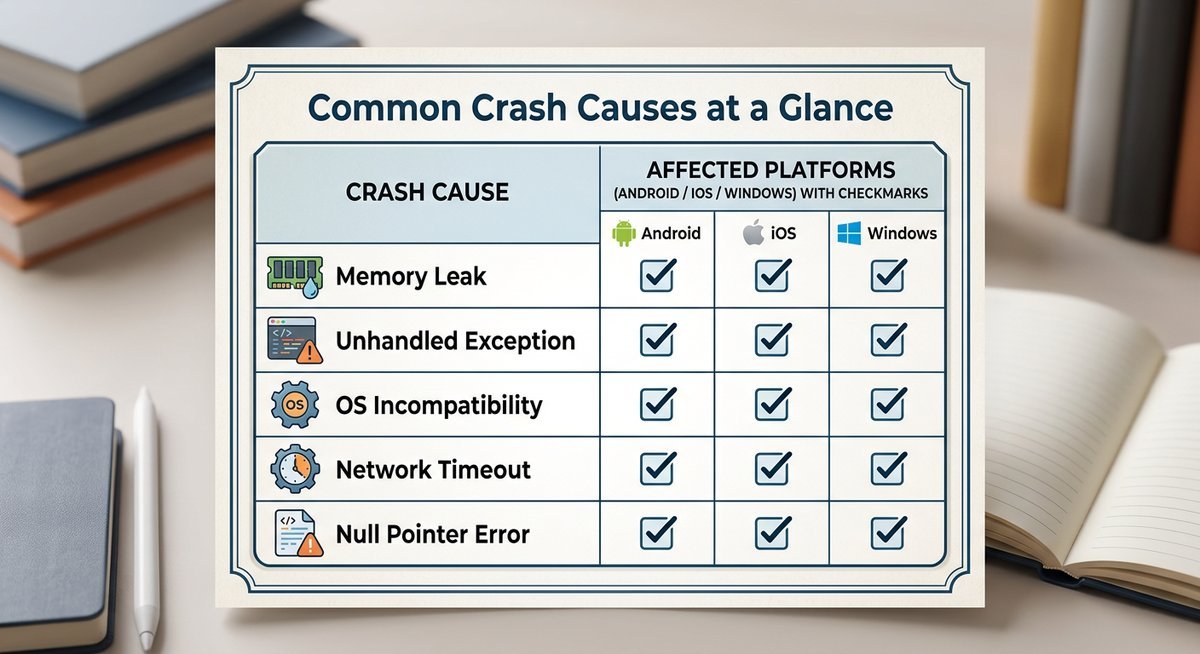
Four root causes drive the vast majority of app crashes: memory pressure, version mismatches, corrupted cached data, and unstable network connections. According to Google’s Android Vitals dashboard (2025), apps exceeding their allocated memory budget account for the single largest category of crash reports submitted through the Play Store.
Low Memory and Storage Pressure
Insufficient RAM or a nearly full storage drive is the top crash trigger across every platform. When available memory drops critically low, the operating system starts killing processes to survive — and the app you’re actively using isn’t exempt. On Android, the Low Memory Killer daemon aggressively terminates both background and foreground processes once RAM thresholds are breached.
Storage compounds the problem. Apps need temporary write space to function; when internal storage exceeds roughly 85-90% capacity, apps that attempt to write data mid-session can fail instantly. The fix is simple: keep at least 10-15% of total storage free at all times.
Outdated Apps or OS Versions
Version mismatches between an app and its host operating system produce broken API calls, deprecated system libraries, and silent compatibility failures. Apple deprecates older APIs on a rolling 18-month schedule. Google follows a similar cadence. An app that worked perfectly six months ago can start crashing after a system update without a single change to the app itself.
Corrupted Cache and App Data
Every app writes temporary files — login tokens, image thumbnails, preloaded content. Over time, those cached files accumulate write errors and outdated references. The app tries to read a file that no longer makes sense, and it crashes. Corrupt local database records are especially common in note-taking, banking, and fitness apps, where a single damaged entry can trigger a crash loop on every launch.
Network and Connectivity Issues
Connectivity problems are an underappreciated crash cause. Streaming, social media, and banking apps maintain persistent server connections. When Wi-Fi drops mid-session or switches access points, an app waiting on a server response can hit an unhandled exception and crash rather than retry gracefully. VPN interference makes this worse — rerouting traffic through an overloaded server introduces latency spikes that some apps interpret as a lost connection entirely.
Quick Fixes That Work on Every Platform
Force-closing the app, rebooting the device, updating software, and freeing storage resolve most app crashes in under five minutes — regardless of whether the device runs Android, iOS, or Windows. Start here before touching platform-specific settings.
Force-Close and Relaunch the App
When an app crashes, its process often lingers in memory in a broken state. Simply reopening it restores that corrupted state. A proper force-close wipes the slate.
- Android / Samsung: Go to Settings > Apps > [App Name] > Force Stop, then relaunch.
- iPhone / iPad: Swipe up from the bottom (or double-press Home on older models) to open the app switcher, swipe the app card up to dismiss it, then reopen.
- Windows: Press Ctrl + Shift + Esc to open Task Manager, locate the app under Processes, right-click, and select End Task.
Restart Your Device
A full reboot flushes RAM, terminates background process conflicts, resets network stack connections, and clears temporary system files. According to Microsoft’s Windows support documentation (2025), a restart resolves the majority of single-occurrence app failures because it eliminates stalled system services and memory fragmentation simultaneously. Do this before anything else when an app suddenly stops working.
Update Apps and Operating System
Check for pending app updates and OS updates at the same time. On Android, open the Play Store and tap your profile icon > Manage apps > Updates available. On iPhone, open the App Store and tap your profile to see pending updates. On Windows, check Settings > Windows Update. Running the latest versions eliminates the most common compatibility-related crashes.
Free Up Storage Space
Each platform has a built-in cleanup tool. Use it to get back above that 10-15% free space threshold:
| Platform | Built-In Cleanup Tool | Location |
|---|---|---|
| Android / Samsung | Device Care / Storage Manager | Settings > Battery and Device Care > Storage |
| iPhone / iPad | Offload Unused Apps | Settings > General > iPhone Storage |
| Windows 10 / 11 | Storage Sense | Settings > System > Storage > Storage Sense |
| Chromebook | Storage Management | Settings > Device > Storage Management |
How to Stop Apps From Crashing on iPhone and iPad
Clearing the app cache through offloading, resetting network settings, and managing Background App Refresh fix most persistent crashes on iOS devices. Apple’s closed ecosystem means fewer variables to diagnose — but the fixes that work are specific to how iOS manages memory and app containers.
Apple’s iOS 18 release notes (2025) acknowledged that apps built against older SDK versions may exhibit “unexpected termination behavior” after major updates. Translation: OS updates break old apps. Here is the step-by-step fix sequence for iPhone and iPad crashes that survive a simple restart.
- Offload and reinstall the app. Go to Settings > General > iPhone Storage, select the crashing app, and tap Offload App. Then reinstall from the App Store. Unlike a standard delete, offloading resets the app’s entire data container, clearing corrupted configuration files that a normal reinstall sometimes misses. This is the single most effective fix for apps crashing on iPhone after an iOS update.
- Reset network settings. Navigate to Settings > General > Transfer or Reset iPhone > Reset > Reset Network Settings. Saved Wi-Fi passwords will be erased, but corrupted network configurations that silently destabilize apps are wiped clean. Particularly effective when apps crash on cellular data but work on Wi-Fi.
- Disable Background App Refresh for non-essential apps. Under Settings > General > Background App Refresh, turn it off for apps that don’t need live data. Excessive background activity competes for RAM and pushes foreground apps past their memory ceiling — causing crashes that appear random but follow a clear pattern tied to how many apps are refreshing simultaneously.
- Reset All Settings as a last resort. Settings > General > Transfer or Reset iPhone > Reset > Reset All Settings. Photos and data stay intact; only system preferences revert to defaults. This resolves corrupted display, notification, or permission configurations that are otherwise invisible.
For iPad-specific crashes, the same four steps apply. The only difference: iPads running iPadOS with Stage Manager enabled should also try disabling Stage Manager temporarily (Settings > Home Screen & Multitasking) since the feature’s memory overhead can push older iPads past their limits.
How to Stop Apps From Crashing on Android and Samsung
Clearing app cache, disabling battery optimization for the affected app, and wiping the cache partition resolve most persistent Android crashes. Samsung devices have an additional layer of aggressive power management that kills apps more readily than stock Android — so Samsung owners need one extra step.
- Clear the app cache and data. Go to Settings > Apps > [App Name] > Storage, then tap Clear Cache. If crashing persists, tap Clear Data (this resets the app to a fresh state, so you’ll need to log in again). According to Samsung’s official support page (2025), corrupted cache is the most frequently cited cause of app crashes on Galaxy devices.
- Disable battery optimization for the crashing app. Navigate to Settings > Battery > Battery Optimization (or Settings > Apps > [App] > Battery on Samsung), and select “Don’t optimize” or “Unrestricted.” Aggressive battery management routinely kills app processes mid-session, which registers as a crash rather than a controlled close. This is the number-one overlooked cause on Samsung phones.
- Check app permissions. Under Settings > Apps > [App Name] > Permissions, ensure the app has the access it actually needs. Revoking a critical permission (like Storage or Network) without realizing it can make an app crash silently on launch.
- Wipe the cache partition. Power off the device, boot into recovery mode (typically Volume Up + Power on Samsung, Volume Down + Power on Pixel), and select Wipe Cache Partition. This clears system-level cached data without touching personal files — especially effective after a major Android OS update.
Samsung users should also check the “Sleeping apps” and “Deep sleeping apps” lists under Settings > Battery > Background Usage Limits. Samsung’s power management automatically restricts apps placed on these lists, causing them to crash when they attempt background operations. Remove any app that keeps crashing from both lists.
How to Stop Apps From Crashing on Windows 10 and Windows 11
Running the built-in App Troubleshooter and repairing or resetting the failing app through Settings resolves most Windows app crashes without reinstalling anything. Microsoft Store apps and traditional desktop apps fail for different reasons, so the fix depends on which type is crashing.
Microsoft Store (UWP) Apps
- Repair the app. Go to Settings > Apps > Installed Apps, click the three-dot menu next to the crashing app, select Advanced Options, and click Repair. This fixes corrupted app files without losing data.
- Reset the app. Same path as above, but click Reset instead. This restores the app to its default state — equivalent to a fresh install.
- Run the Windows App Troubleshooter. On Windows 11: Settings > System > Troubleshoot > Other Troubleshooters > Windows Store Apps. On Windows 10: Settings > Update and Security > Troubleshoot > Additional Troubleshooters.
Traditional Desktop Apps
Desktop programs (Chrome, Steam, Photoshop, the EA app) don’t have the Repair/Reset option. For these:
- Update your GPU drivers. Outdated graphics drivers cause a disproportionate number of desktop app crashes, particularly in games and creative software. Download the latest driver directly from NVIDIA, AMD, or Intel — not through Windows Update, which often lags behind by months.
- Run as Administrator. Right-click the app shortcut and select “Run as administrator.” Permission conflicts between the app and Windows security policies cause crashes that produce no useful error message.
- Check Windows Event Viewer. Press Win + X > Event Viewer > Windows Logs > Application. Look for “Error” entries timestamped when the crash occurred. The faulting module name reveals whether the crash originated in the app itself, a system DLL, or a third-party plugin.
How to Stop Apps From Crashing on Chromebook
Clearing the Android app container cache and ensuring Chrome OS is fully updated fixes most Chromebook app crashes. Chromebooks run Android apps through a compatibility layer (ARC++), and that layer introduces its own set of crash triggers that don’t exist on native Android devices.
Go to Settings > Apps > Google Play Store > Manage Android Preferences > Apps, select the crashing app, and clear its cache and data. If that fails, try disabling and re-enabling the Google Play Store entirely (Settings > Apps > Google Play Store > Turn off), which forces the ARC++ container to rebuild. Also check that Chrome OS is updated — Settings > About Chrome OS > Check for Updates — because ARC++ compatibility improvements ship with OS updates, not app updates.
Fixing Specific Apps That Keep Crashing
Some apps crash for app-specific reasons that general troubleshooting won’t catch. These are the most commonly reported crashing apps and their targeted fixes beyond the standard clear-cache-and-restart sequence.
| App | Common Crash Trigger | Targeted Fix |
|---|---|---|
| YouTube | Corrupted watch history / recommendation cache | Clear YouTube app cache, then go to YouTube Settings > History and Privacy > Clear Watch History |
| Roblox | Graphics memory overflow on low-end devices | Lower the graphics quality in Roblox Settings before launching a game; on PC, update GPU drivers |
| ESPN | Live streaming buffer conflicts on unstable connections | Disable VPN, switch to a stable Wi-Fi network, and force-stop then relaunch before a live event |
| EA App (PC) | Background overlay conflicts with antivirus software | Add the EA app to your antivirus exclusion list; disable the in-app overlay under EA App Settings |
| Files (Apple) | iCloud sync corruption | Sign out of iCloud (Settings > Apple ID > Sign Out), restart, sign back in |
| Monkey | Outdated app version with deprecated API calls | Update to the latest version from the App Store or Play Store; if no update exists, reinstall |
App Freezing vs. App Crashing: Different Problem, Different Fix
A frozen app (unresponsive but still visible on screen) and a crashed app (force-closes to the home screen) stem from different causes and need different responses. Freezing typically signals a processing bottleneck — the app is stuck waiting on a slow network response, a heavy computation, or a deadlocked thread. Crashing means the app hit a fatal error and the operating system killed it.
When an app freezes, wait 15-20 seconds before force-closing. Many apps recover on their own once the blocking operation completes. If it stays frozen, force-close using the methods described above and clear the app cache before relaunching. Persistent freezing — where the same app freezes repeatedly — usually points to insufficient RAM. Close other running apps to free memory, or restart the device entirely. If apps freeze across the board (not just one specific app), the device itself may be overheating; let it cool down for a few minutes before resuming.
Frequently Asked Questions
Why do all my apps keep crashing at once?
A system-wide crash wave almost always traces back to a bad OS update or critically low storage. Check for a pending system update (or a recent one that needs a reboot to finalize), and verify that storage isn’t above 90% capacity. On Android, a corrupted WebView component can also crash every app that displays web content — update Android System WebView through the Play Store to fix it.
How do developers prevent app crashes in Android Studio?
Developers use crash reporting tools like Firebase Crashlytics and structured exception handling (try-catch blocks) to capture and prevent crashes programmatically. Android Studio’s built-in profiler identifies memory leaks and ANR (Application Not Responding) events during development. The key practice is testing against multiple API levels and screen sizes before release, since fragmentation across Android devices is the primary source of production crashes.
How do you avoid app crashes in Android programmatically?
Implement a global uncaught exception handler using Thread.setDefaultUncaughtExceptionHandler() to catch fatal exceptions before they crash the app. Combine this with proper null safety checks, lifecycle-aware components (using Android Jetpack), and background thread management via Kotlin Coroutines or WorkManager. Memory-intensive operations should use onTrimMemory() callbacks to release resources before the system kills the process.
Will a factory reset fix crashing apps?
A factory reset eliminates virtually every software-related crash cause — but it also erases all data, so it should be the absolute last resort. Before going that far, try every platform-specific fix listed above. If multiple apps crash persistently after exhausting all other options, back up your data and perform the reset. Crashes that survive a factory reset point to a hardware problem (failing storage, overheating processor) rather than a software issue.
Do too many installed apps cause crashes?
Installed apps alone don’t cause crashes — but apps running simultaneously do. Each open app consumes RAM, and when total memory usage exceeds what the device can handle, the OS starts terminating processes. The fix isn’t uninstalling apps; it’s closing the ones you aren’t actively using. On Android, also check which apps have Background App Refresh or background data enabled, since those consume memory even when not in the foreground.
Should I use third-party cleaner or booster apps?
No. According to security researchers at AV-TEST Institute (2024), most “RAM booster” and “phone cleaner” apps provide no measurable performance benefit and many introduce their own stability issues by aggressively killing system processes. Use the built-in storage management tools provided by Android, iOS, and Windows instead — they are more effective and carry zero risk of making the problem worse.