



FreeTube is a free, open-source desktop application that lets you watch YouTube content without handing Google your viewing habits, search history, or personal data. No Google account required — not for browsing, not for subscriptions, not for anything. That surprises a lot of people who assume YouTube is simply inaccessible without logging in.
The application runs natively on Windows, macOS, and Linux, pulling video data through either YouTube’s internal endpoints or a community-run Invidious instance — your choice, depending on how seriously you take privacy. Either way, your activity never touches Google’s standard tracking infrastructure.
This freetube setup guide walks through everything from downloading the correct installer for your operating system to configuring the Local API versus Invidious API, importing your existing YouTube subscriptions, enabling SponsorBlock, integrating external players like VLC or mpv, and locking down the settings most users never find on their own. Whether you’re migrating from NewPipe on Android or escaping YouTube’s increasingly aggressive data collection on desktop, the full picture is here — installation, configuration, and the features that make FreeTube genuinely worth using.
What Is FreeTube and Why Use It?
FreeTube is a free, open-source desktop application that lets you watch YouTube content on Windows, macOS, and Linux — without a Google account, without ads, and without YouTube’s tracking infrastructure logging your every click. The project is maintained on GitHub and built on Electron, meaning it runs as a native desktop app rather than inside a browser tab.
How FreeTube Works
FreeTube never sends requests through Google’s standard web interface. Instead, it fetches video data through one of two methods: the Local API, which pulls directly from YouTube’s internal endpoints, or the Invidious API, which routes requests through a community-operated Invidious proxy server. Either way, your subscriptions, watch history, and saved playlists are stored locally on your device — not on Google’s servers.
No Google login is required at any point. FreeTube handles account-like features — subscriptions, playlists, watch progress — entirely through local storage files. That distinction matters: most YouTube alternatives still phone home in some capacity, but FreeTube’s data never leaves your machine unless you explicitly choose the Invidious API route.
FreeTube vs. NewPipe vs. Invidious
Choosing between FreeTube, NewPipe, and Invidious comes down to your device and how much control you want. They solve similar problems but operate in fundamentally different contexts.
| App | Platform | Type | Local Data Storage | No Google Account Needed |
|---|---|---|---|---|
| FreeTube | Windows, macOS, Linux | Desktop app | Yes | Yes |
| NewPipe | Android only | Mobile app | Yes | Yes |
| Invidious | Any (browser-based) | Web proxy | No (server-side) | Yes (optional account) |
NewPipe is the go-to option on Android and even supports subscription import formats that FreeTube can read — a useful detail if you’re running both. Invidious requires no installation but depends entirely on whichever public instance you’re using staying online and well-maintained. FreeTube is the strongest choice for desktop users who want a persistent, locally managed experience with no browser dependency.
How to Download and Install FreeTube
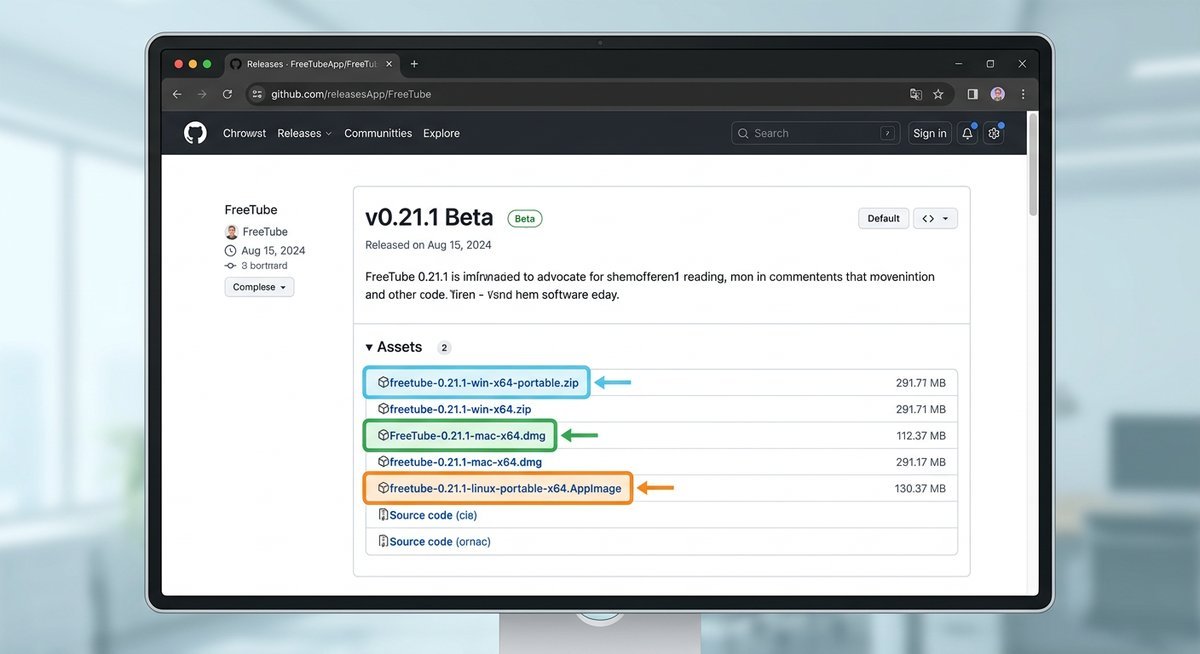
FreeTube is available as a free download from its official GitHub releases page at github.com/FreeTubeApp/FreeTube/releases — no account, no installer fee, no bundled software. The project publishes pre-built binaries for Windows, macOS, and Linux, so most users are up and running in under five minutes regardless of platform.
Windows Installation
On the GitHub releases page, download the file ending in -setup.exe for a standard installation, or the .zip portable version if you’d rather run FreeTube without touching the registry. Run the .exe, click through the two-step installer prompt, and FreeTube will place a shortcut on your desktop automatically.
Windows SmartScreen may flag the installer as unrecognized — this is expected for open-source apps that aren’t commercially code-signed. Click More info → Run anyway to proceed. The FreeTube source code is fully auditable on GitHub, so the warning reflects SmartScreen’s commercial signing policy, not an actual security risk.
macOS Installation
Download the .dmg file from the releases page, open it, and drag the FreeTube icon into your Applications folder — standard macOS procedure. The catch: FreeTube is not notarized through Apple’s paid developer program, so macOS Gatekeeper will block it on first launch.
The fix is straightforward. Instead of double-clicking, right-click the app icon → Open → Open in the confirmation dialog. macOS stores this exception permanently, so subsequent launches work normally. This is a one-time workaround, not an ongoing inconvenience.
Linux Installation (Flatpak, AppImage, .deb/.rpm)
Flatpak is the recommended installation method for Linux — it works across virtually every distribution and keeps FreeTube sandboxed from the rest of the system. With Flatpak and Flathub configured, a single command handles everything:
- Open a terminal.
- Run:
flatpak install flathub io.freetubeapp.FreeTube - Launch with:
flatpak run io.freetubeapp.FreeTube
Prefer portability? The .AppImage file requires no installation at all — download it, mark it executable (chmod +x FreeTube*.AppImage), and run it directly. Distro-specific packages are also available: .deb for Debian and Ubuntu-based systems, and .rpm for Fedora and openSUSE.
| Platform | Recommended Format | Alternative | Notes |
|---|---|---|---|
| Windows | -setup.exe | .zip portable | SmartScreen warning — click “Run anyway” |
| macOS | .dmg | — | Right-click → Open to bypass Gatekeeper |
| Linux | Flatpak (Flathub) | .AppImage, .deb, .rpm | Flatpak auto-updates; AppImage needs manual updates |
First-Time Configuration: Privacy, API, and Core Settings
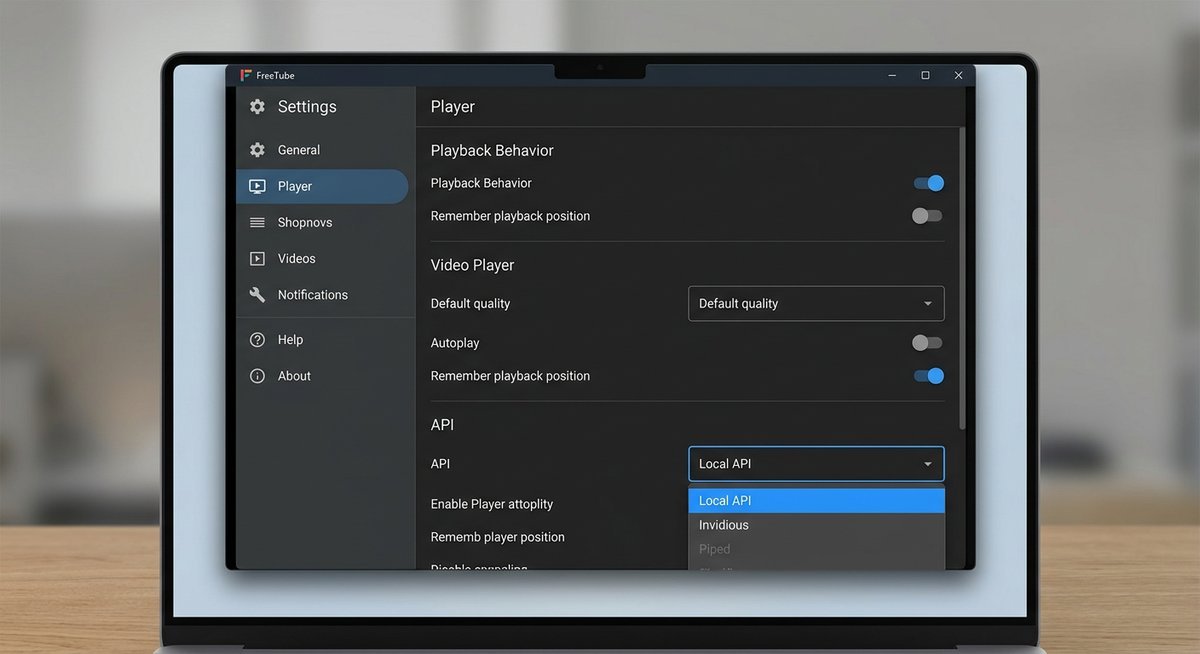
The single most important decision in FreeTube’s settings is which API it uses to fetch YouTube content — and most users skip past it without understanding the privacy implications. Open Settings → Player immediately after installation and make this choice deliberately before you watch anything.
Local API vs. Invidious API
The Local API pulls data directly from YouTube’s internal endpoints — the same ones the official app uses — without routing through any third-party server. Responses are fast and reliable, but your IP address is still visible to YouTube’s infrastructure on every request.
The Invidious API routes those same requests through a community-run Invidious instance, putting a proxy server between your IP and YouTube. That adds a meaningful privacy layer, but you’re now trusting whoever operates that instance, and uptime varies. In practice, popular public instances can be slow or temporarily unavailable during peak hours.
| API Option | Speed | IP Exposed To | Third-Party Dependency | Best For |
|---|---|---|---|---|
| Local API | Fast, consistent | YouTube/Google | None | Reliability-first users |
| Invidious API | Variable | Invidious instance operator | Yes (instance uptime) | Privacy-first users |
Neither option is wrong — they reflect different threat models. If avoiding Google tracking is the priority, choose Invidious and self-host an instance if you’re technically inclined. If consistent playback matters more, the Local API is the pragmatic pick.
Pairing FreeTube with a VPN
No API selection alone hides your IP from every party in the chain. The Local API exposes you to Google; the Invidious API exposes you to the instance operator. A VPN running at the system level covers both scenarios simultaneously.
FreeTube respects system-level proxy settings, so any VPN or SOCKS5 proxy active on your machine will automatically apply to FreeTube’s traffic — no in-app configuration required. For users on Linux, setting the http_proxy environment variable before launching FreeTube achieves the same result without a full VPN client.
Other Essential First-Run Settings
Beyond the API choice, a handful of settings meaningfully change the day-to-day experience. Navigate to Settings → Player to set a default playback quality — 1080p is a reasonable baseline, though bandwidth-constrained users should drop to 720p to avoid buffering. Autoplay is enabled by default and worth disabling immediately if you’d rather not fall into a queue you didn’t choose.
Appearance is under Settings → General: FreeTube ships with light, dark, and black (true dark) themes. The default home page can be switched from Trending — which still pulls YouTube’s trending feed — to Subscriptions, which is far more useful once your channels are imported.
| Setting | Location | Recommended Value |
|---|---|---|
| Default Playback Quality | Settings → Player | 1080p (720p for slow connections) |
| Autoplay | Settings → Player | Off |
| Theme | Settings → General | Dark or Black (true dark for OLED) |
| Default Landing Page | Settings → General | Subscriptions (instead of Trending) |
| API Mode | Settings → Player | Local API (default) or Invidious for IP privacy |
Importing Subscriptions, Playlists, and Watch History
FreeTube supports direct import from Google Takeout (JSON), OPML subscription files, and NewPipe database exports — meaning you can migrate years of YouTube subscriptions in under five minutes without logging into a Google account. No competitor documentation covers this workflow end-to-end, which is exactly why users get stuck here after installation.
Importing YouTube Subscriptions via Google Takeout
Google Takeout exports your subscription list as a JSON file that FreeTube reads natively. The process takes about two minutes once you know where to look.
- Go to takeout.google.com and sign in with your Google account.
- Click Deselect all, then scroll down and check only YouTube and YouTube Music.
- Click All YouTube data included, deselect everything except subscriptions, then confirm.
- Export and download the archive. Inside, locate subscriptions.json under the YouTube folder.
- Open FreeTube, navigate to Settings → Subscriptions → Import Subscriptions, and select that JSON file.
FreeTube will populate your subscription list immediately. No Google account remains connected — the import is a one-time data transfer, not an ongoing sync.
Importing from NewPipe and OPML Files
Users migrating from NewPipe on Android can export a NewPipe database backup directly from the NewPipe app (Settings → Content → Export Database) and import it into FreeTube via the same Subscriptions import panel. FreeTube recognizes the NewPipe JSON format without any conversion step.
OPML files — commonly generated by RSS readers that track YouTube channels — are also supported. This covers edge cases like Invidious subscription exports, which can be downloaded as OPML from any Invidious instance’s settings page.
| Import Source | File Format | Where to Find It |
|---|---|---|
| Google Takeout | JSON | takeout.google.com → YouTube → subscriptions.json |
| NewPipe (Android) | JSON (NewPipe DB) | NewPipe → Settings → Content → Export Database |
| Invidious instance | OPML | Invidious → Settings → Export Subscriptions |
| Generic RSS reader | OPML | Varies by app; look for “Export” in subscription settings |
Watch history import is not currently supported natively. The FreeTube overview covers the broader privacy architecture behind these local-only data storage decisions. — FreeTube builds a local history from the point of installation forward. Playlists created on YouTube must be recreated manually inside FreeTube, though any playlist URL can be saved directly to a local FreeTube playlist using the Save to Playlist option on any video page.
Power Features: SponsorBlock, External Players, and Themes
FreeTube’s SponsorBlock integration automatically skips sponsored segments, self-promotion, and filler intros using community-sourced timestamps from the SponsorBlock database. Enable it in Settings → SponsorBlock Settings and select which segment types to skip — most users enable all categories except “highlight” segments.
External Player Support (VLC, mpv)
FreeTube can hand off video playback to an external media player like VLC or mpv. If you haven’t installed FreeTube yet, the platform-specific download and installation guide covers Windows, Mac, Linux, Chromebook, and Steam Deck. Navigate to Settings → External Player Settings, select your player, and provide the executable path. Once configured, right-click any video and choose “Open in External Player.” This is particularly useful for hardware-accelerated decoding, casting to other devices via VLC’s stream output, or converting video to MP3 audio through VLC’s convert function.
Custom Themes and Keyboard Shortcuts
FreeTube ships with light, dark, black (OLED), Catppuccin, and system-default themes. Switch themes in Settings → Theme Settings. Power users can create custom CSS themes by editing the theme files in FreeTube’s configuration directory.
Keyboard shortcuts (hotkeys) follow standard media player conventions: Space for play/pause, F for fullscreen, left/right arrows for seek, up/down for volume. Picture-in-picture mode activates with the PiP button in the player controls, allowing FreeTube video to float above other windows. Tab management lets you open multiple videos or channels in separate tabs within the same FreeTube window.
Downloading Videos and Audio with yt-dlp
FreeTube does not have a built-in download button for saving videos locally, but it integrates cleanly with yt-dlp — the most capable open-source YouTube downloader. Install yt-dlp separately, then use it from command line: yt-dlp [video-url] for video, or yt-dlp -x --audio-format mp3 [video-url] to extract audio as MP3. FreeTube’s “Copy URL” function provides the direct video link yt-dlp needs.
Frequently Asked Questions
How do I import my YouTube subscriptions into FreeTube?
Export your subscriptions from Google Takeout as a JSON file, then import them in FreeTube via Settings → Data Settings → Import Subscriptions. FreeTube also accepts OPML files from Invidious and NewPipe database exports. The entire process takes under five minutes.
Do I need to sign into a Google account to use FreeTube?
No. FreeTube works entirely without a Google account. Signing in is technically possible through the Invidious API for accessing private playlists or age-restricted content, but the core experience — subscriptions, history, playback — requires no login whatsoever.
How do I change the language in FreeTube?
Open Settings → General Settings → Current Locale and select your preferred language from the dropdown. FreeTube supports over 30 languages. To change a video’s audio track or subtitles, use the player controls during playback — the gear icon offers audio track and caption selection.
Can FreeTube bypass YouTube age restrictions?
Partially. The Invidious API can sometimes fetch age-restricted content without authentication, depending on the instance configuration. For consistent access to age-restricted videos, you may need to provide a YouTube authentication token in FreeTube’s settings — though this reduces privacy since it links requests to a Google account.
Should I use a VPN with FreeTube?
A VPN is not required but adds an extra privacy layer, especially with Local API mode where your IP address is visible to YouTube’s servers. Any standard VPN works — route all traffic through the VPN before launching FreeTube. For maximum privacy, combine Invidious API mode with a VPN so neither YouTube nor the Invidious instance sees your real IP.
How do I reset FreeTube settings?
Delete the FreeTube configuration folder: ~/.config/FreeTube/ on Linux, %APPDATA%/FreeTube/ on Windows, ~/Library/Application Support/FreeTube/ on macOS. Restart the app and it will regenerate default settings. Back up your subscription data first if you want to reimport it.