




Chatrandom’s most common failure mode is frustratingly simple: the site loads, the Start button works, but the video connection either never establishes or drops within seconds. The isitdownrightnow.com status tracker for chatrandom.com logs intermittent outages multiple times per month, and user reports on Reddit confirm that connection problems spike during peak traffic hours in North America and Europe. The fix depends entirely on whether the problem is on Chatrandom’s end, your browser’s end, or your network’s end.
Before troubleshooting anything else, run one quick diagnostic: open chatrandom.com in an incognito/private browser window. If it works there but not in your normal browser, the problem is a cached setting, a conflicting extension, or a stale permission — not a platform-wide outage.
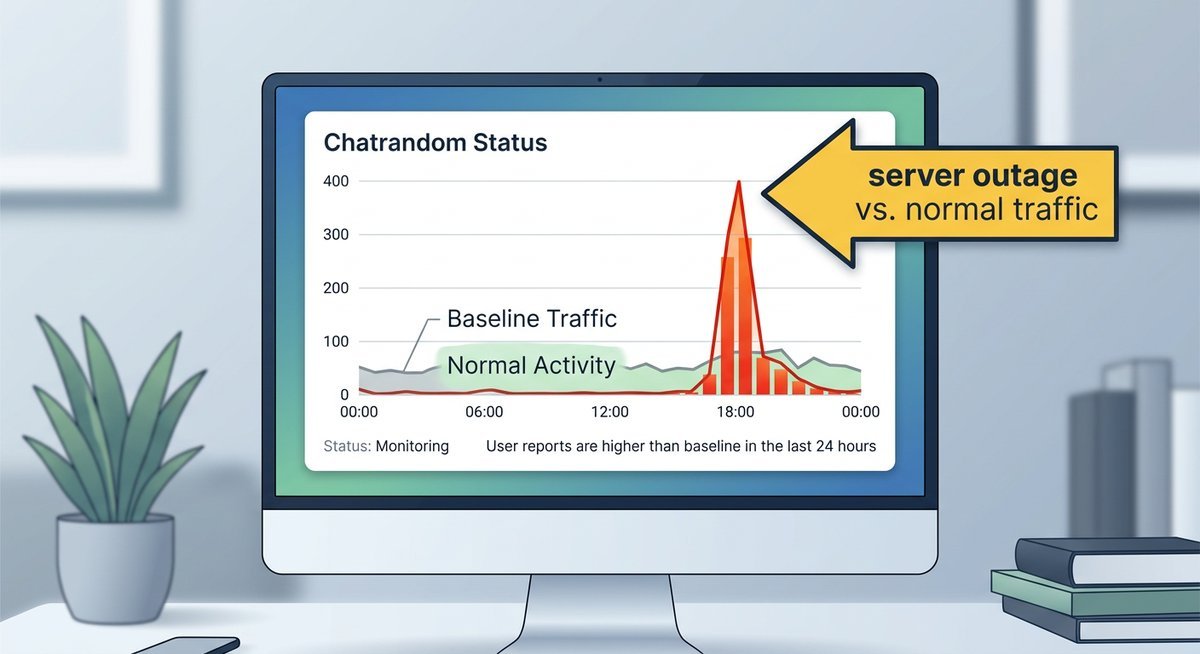
Is Chatrandom Down Right Now? How to Check Server Status
Chatrandom does not publish an official status page, so confirming whether the platform is down requires third-party tools. The most reliable approach uses two checks that take under 30 seconds combined.
Real-Time Status Check
- isitdownrightnow.com/chatrandom.com.html — This monitoring service pings Chatrandom’s servers at regular intervals and reports current uptime status, response time, and historical outage data. If the site shows “DOWN” here, the problem is server-side and no local fix will help.
- DownDetector’s Chatrandom page — User-submitted outage reports plotted on a timeline graph. Spikes in reports correlate strongly with actual outages. DownDetector also shows which geographic regions are reporting problems, which helps distinguish between a global outage and a regional network issue.
- Twitter/X search: “chatrandom down” — Real-time user complaints surface faster on social media than on monitoring tools. If dozens of people are posting about Chatrandom being down within the same hour, the outage is confirmed.
If none of these sources indicate a platform-wide problem, the issue is local to your device, browser, or network. Proceed to the browser and network fixes below.
Camera, Microphone & Browser Permission Fixes
Browser permission errors are the single most common cause of Chatrandom not working on desktop. The platform requires both camera and microphone access through the browser’s WebRTC interface — if either permission is blocked, denied, or stuck in a “prompt” state, the video connection silently fails without a clear error message.
Resetting Camera & Microphone Permissions
The fix differs slightly by browser but follows the same logic: clear the existing permission for chatrandom.com and allow the site to re-request access.
| Browser | How to Reset Permissions |
|---|---|
| Chrome | Click the lock icon in the address bar > Site settings > Reset camera and microphone to “Ask” |
| Firefox | Click the shield icon in the address bar > Clear cookies and site data > Reload the page |
| Safari | Safari menu > Settings > Websites > Camera/Microphone > Find chatrandom.com > Set to “Ask” |
| Edge | Click the lock icon > Permissions for this site > Reset camera and microphone |
After resetting permissions, reload chatrandom.com and click Start. The browser should display a fresh permission prompt. Click “Allow” for both camera and microphone. If the permission prompt does not appear at all, another application may be holding exclusive access to the camera — close Zoom, Teams, Discord, or any other video app that might have the camera locked.
Stale cache data causes a specific Chatrandom failure pattern: the interface loads normally but the video feed shows a black screen or infinite loading spinner. Clearing browser cache and cookies for chatrandom.com specifically (rather than all sites) resolves this without logging you out of other services. In Chrome: Settings > Privacy and Security > Delete browsing data > select “Cookies and other site data” and “Cached images and files” > Delete.
Browser Updates & Compatibility
Chatrandom relies on WebRTC, which receives frequent updates in major browsers. Running an outdated browser version can cause connection handshake failures that produce no visible error — the video simply never connects. Chrome, Firefox, Edge, and Safari all auto-update by default, but corporate or school networks sometimes block automatic updates. Check your browser version: Chrome users can navigate to chrome://settings/help to confirm they are on the latest release. Chatroulette and other WebRTC-based video chat platforms will show the same connection problems if the browser is outdated, since the underlying protocol is shared.
Repeated disconnections mid-chat and a non-responsive Next button are the two most-reported Chatrandom-specific bugs on Reddit and Google Play reviews. These are distinct from general connection failures because the initial match succeeds — the problem occurs during or between active sessions.
Chatrandom Keeps Disconnecting — Causes & Fixes
Constant disconnection during active chats usually stems from one of three causes, listed from most to least common:
- Unstable network connection: WebRTC video requires consistent bandwidth of at least 1.5 Mbps upstream. Wi-Fi signal drops, cellular handoffs between towers, or network congestion during peak hours cause the WebRTC connection to tear down and attempt renegotiation — which Chatrandom handles poorly, resulting in a full disconnection rather than a graceful reconnect. Run a speed test at fast.com during an active session to check for bandwidth instability.
- Server-side load balancing: During high-traffic periods, Chatrandom’s matchmaking servers redistribute connections across nodes. If a rebalance occurs mid-session, the connection drops. This is platform-side and not fixable by the user — but it correlates with peak hours (evenings in North America and Europe, typically 7 PM to 11 PM local time).
- IP-based soft ban: Users who receive multiple reports accumulate strikes that can trigger connection throttling before a full ban. The platform does not notify users of this throttling explicitly — it manifests as frequent disconnections and slow matching. Switching networks (from Wi-Fi to mobile data, or using a VPN) can help determine whether the issue is IP-specific.
The Next button becoming unresponsive mid-session is a known Chatrandom client-side bug that occurs when the WebRTC session state gets out of sync with the platform’s UI. The button appears clickable but produces no response — no new match, no queue re-entry.
Fixes in order of escalation:
- Refresh the page (F5 or Ctrl+R). This clears the stale session state and restarts the matching process from scratch. The fastest fix and works in roughly 80% of cases.
- Clear site data for chatrandom.com specifically, then reload. This eliminates any cached session tokens that might be conflicting.
- Switch browsers. If the Next button fails repeatedly in Chrome, try Firefox or Edge. The bug is often browser-specific and tied to a particular WebRTC implementation detail.
- Update the Chatrandom app. On mobile, an outdated app version is the most common cause of UI bugs. Check Google Play or the App Store for pending updates and reinstallation steps.
VPN, Firewall & Network-Level Blocks
Some Chatrandom connection failures originate at the network level rather than in the browser or on Chatrandom’s servers. Corporate networks, school Wi-Fi, and certain ISPs in restrictive regions actively block WebRTC connections or the domains Chatrandom uses for signaling and media relay.
How to Detect Network-Level Blocking
If Chatrandom loads but video never connects — and other WebRTC services (Google Meet, Discord voice) work fine on the same network — the issue is likely a targeted block on Chatrandom’s specific domains. Test by switching to a mobile data connection: if Chatrandom works on cellular but not on Wi-Fi, the Wi-Fi network is filtering the traffic.
Using a VPN to Bypass Blocks
A VPN routes all traffic through an encrypted tunnel, bypassing local network filters. Connect to a VPN server in a country where Chatrandom is fully accessible (US, UK, Germany are reliable choices) before opening chatrandom.com. Keep in mind that VPNs add latency — choose a server geographically close to your actual location to minimize video call quality degradation. Free VPNs often throttle bandwidth below the 1.5 Mbps minimum WebRTC requires, so a paid service is recommended for consistent video chat performance.
Firewall & Antivirus Interference
Desktop antivirus software and Windows Firewall sometimes flag WebRTC peer-to-peer connections as suspicious and block them silently. If Chatrandom doesn’t work but no error message appears, temporarily disable your antivirus’s web shield or real-time protection to test. If the connection succeeds with the antivirus disabled, add chatrandom.com as an exception in your security software’s settings rather than leaving protection permanently off.
Frequently Asked Questions
Can Chatrandom reveal my IP address to other users?
Chatrandom uses a server-mediated WebRTC connection, which means video traffic passes through Chatrandom’s relay servers rather than connecting peer-to-peer directly. Under normal operation, your IP address is not exposed to the other user. However, WebRTC can leak local IP addresses through browser STUN requests — using a VPN eliminates this risk entirely by masking your real IP at the network level.
What should you do if you are banned from Chatrandom?
Chatrandom bans are typically IP-based rather than account-based. If you receive a ban that you believe is unjustified, contact Chatrandom’s support team through chatrandom.com/contactus/ with your details. Switching to a different network (mobile data instead of Wi-Fi) or using a VPN will bypass an IP ban, though this does not reverse the underlying account flag if one exists.
Does Chatrandom require a specific app version to work?
Chatrandom periodically requires app updates to maintain compatibility with their servers. If the mobile app stops working after a period of inactivity, check Google Play or the App Store for a pending update. On the web, Chatrandom does not require any specific browser version but works best on the latest releases of Chrome, Firefox, Safari, or Edge. Outdated browsers may fail to establish WebRTC connections silently.
Why is Chatroulette also not working at the same time as Chatrandom?
Chatroulette and Chatrandom are separate platforms with independent infrastructure, but both rely on WebRTC for video connections. If both fail simultaneously on your device, the problem is almost certainly on your end — most likely a browser WebRTC issue, a network-level block, or antivirus software interfering with peer-to-peer connections. Fixing the WebRTC or network issue resolves problems on both platforms at once.