




FictionLab not working is almost always caused by one of two things: a server-side outage or queue overload on FictionLab’s infrastructure, or a browser and account configuration issue on your end. Knowing which one you’re dealing with cuts the troubleshooting time in half.
The frustration is real. Mid-story, the generation stalls. Memory cards stop persisting. A draft suddenly becomes unplayable with no explanation. These aren’t random glitches — each symptom has a specific cause and a specific fix.
Server problems are outside your control, but they’re also the easiest to confirm. User-side issues — corrupted session tokens, bloated context windows, the wrong model selected for current server load — take a few more steps to isolate but are almost always fixable within minutes.
What follows covers the full diagnostic chain: how to verify whether FictionLab is actually down right now, why slow response times often trace back to model selection rather than your connection, and dedicated fixes for the issues competitors consistently ignore — memory card failures, repetitive outputs, and the “draft not playable” error that leaves most users completely stuck.
Is FictionLab Down Right Now? How to Check Server Status
Before changing a single setting on your end, confirm whether FictionLab’s servers are the actual problem. A server-side outage will make every local fix you attempt completely pointless — and the fastest way to rule it out takes under two minutes.
Official and Community Status Channels
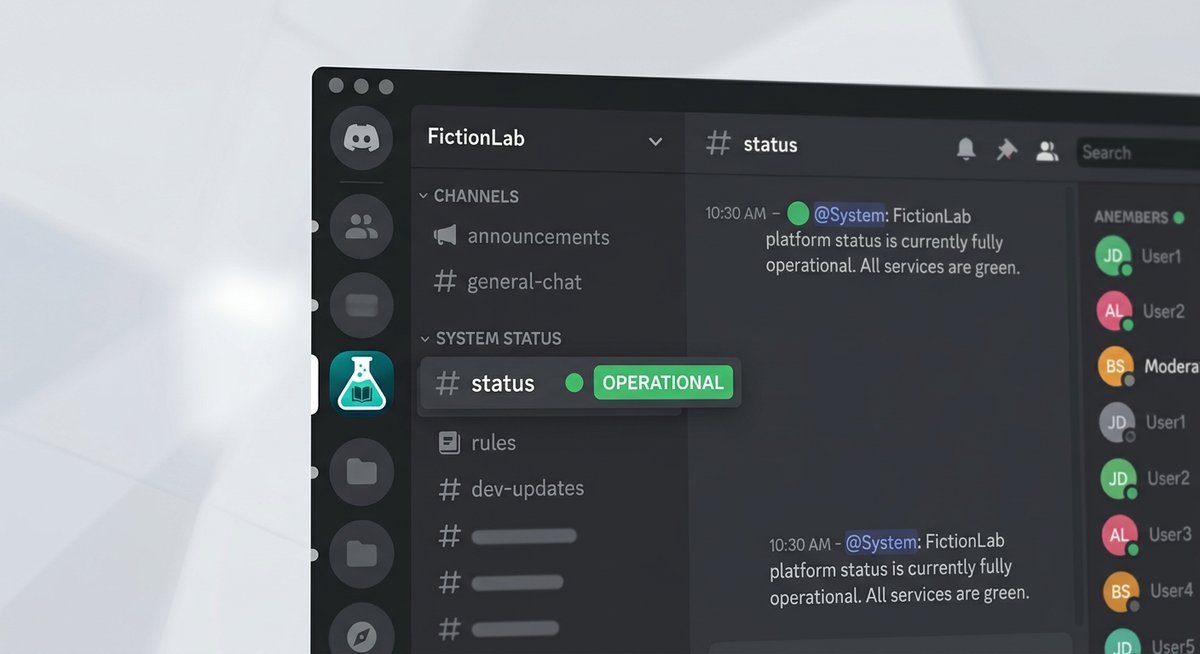
FictionLab’s primary real-time communication happens through its official Discord server. Once inside, head directly to the #announcements channel — this is where the team posts confirmed outages, scheduled maintenance windows, and service restoration notices. If there’s a known problem, it will almost always appear here first.
If #announcements is quiet, check #general or any dedicated #bugs / #support channel. Search the phrase “down” or “not working” filtered to the last 24 hours. A cluster of identical complaints appearing within the same hour is a reliable signal of a platform-wide issue rather than an isolated glitch on your device.
No pinned message and no complaint cluster? The problem is almost certainly on your side — which means the fixes in the sections below will actually help.
Third-Party Uptime Tools
Cross-reference what you find on Discord with an independent uptime checker. Downdetector and IsItDownRightNow both aggregate user-reported outages in real time, giving you a second data point that isn’t filtered through FictionLab’s own channels.
On Downdetector, focus on the spike graph rather than the raw report count. A sharp vertical spike in the last one to three hours — especially one that correlates with the timestamp of complaints you saw on Discord — confirms a genuine outage. A flat baseline with one or two scattered reports points to an isolated issue, not a server failure.
| Check Method | Where to Look | What Confirms an Outage |
|---|---|---|
| FictionLab Discord | #announcements, #bugs, #general | Pinned outage post or surge of identical complaints within 1 hour |
| Downdetector | downdetector.com → search “FictionLab” | Sharp spike in the report graph within the last 1–3 hours |
| IsItDownRightNow | isitdownrightnow.com → enter FictionLab URL | Red “DOWN” status with recent response failure timestamp |
If all three sources point to a live outage, there’s nothing to fix locally. The only action worth taking is monitoring the Discord #announcements channel for a restoration notice.
FictionLab Running Slow or Taking Too Long to Respond
Slow FictionLab responses almost always trace back to one of three sources: server-side inference queue congestion during peak hours, a compute-heavy model struggling under load, or browser-side bloat adding latency before the request even reaches FictionLab’s servers. Identifying which category applies cuts troubleshooting time in half.
Server-Side Causes: Peak Hours and Model Queue Congestion
AI inference platforms share GPU resources across all active users simultaneously. When demand spikes — typically evenings in North American and European time zones — generation queues back up and response times can stretch from seconds to well over a minute per output.
The fastest way to confirm congestion is active is to check FictionLab’s official Discord server. Look specifically in the #announcements and #status channels for any pinned notices about degraded performance. If nothing is pinned, search recent messages in #general or #support for the word “slow” — a cluster of complaints posted within the last hour is a reliable signal that the bottleneck is on FictionLab’s end, not yours.
If congestion is confirmed, the practical fix is simply timing. Trying again during off-peak hours — early mornings UTC, for instance — typically restores normal response speeds without any other changes required.
Model-Specific Slowness: Switching to a Lighter Model
This is the fix most troubleshooting resources skip entirely, and it’s often the most effective one. Larger parameter models demand significantly more GPU compute per token generated. Under queue pressure, those requests either time out or sit waiting far longer than lightweight alternatives.
FictionLab allows users to select the active model from within the scenario or settings interface. If the platform currently offers multiple model tiers, switching from the largest available model to a mid-tier or fast option can reduce generation latency dramatically — in some cases from 60+ seconds down to under 10. Use the heavier model when the platform is running smoothly; default to a lighter one when speed matters or congestion is active.
| Model Type | Typical Response Speed | Best Used When | Timeout Risk Under Load |
|---|---|---|---|
| Large / flagship model | Slow (30–90+ seconds) | Off-peak, quality-focused sessions | High |
| Mid-tier model | Moderate (10–30 seconds) | Balanced quality and speed | Medium |
| Lightweight / fast model | Fast (under 10 seconds) | Peak hours, testing prompts | Low |
Browser-Side Fixes: Cache, Extensions, and Prompt Length
Browser-side issues are responsible for a surprising share of slowness reports. Stale cached data, conflicting extensions, and bloated prompts all add friction before a single token is generated.
Start with a hard refresh (Ctrl+Shift+R on desktop, or force-close and reopen the app on mobile) to eliminate stale cached scripts. If that doesn’t help, disable browser extensions one by one — ad blockers and privacy extensions are the most common culprits, as they can interfere with FictionLab’s API calls. Finally, check your prompt length: a scenario with thousands of words of context, multiple active memory cards, and a long chat history can push past the model’s token limit before your actual message is even processed.
FictionLab Not Generating Responses — Diagnosis and Fixes
When FictionLab loads normally but produces no output at all, the fault almost always traces back to one of three layers: account status, prompt configuration, or a corrupted session token. Identifying which layer is responsible takes less than five minutes if you work through them in order.
Account and Subscription Checks
A lapsed subscription or exhausted credit balance is one of the most common silent blockers — FictionLab won’t throw a dramatic error, it simply stops generating. Navigate to your account dashboard (typically under Settings → Subscription or Account → Usage) and confirm your tier is active and your generation credits haven’t hit their monthly ceiling.
Also verify you’re logged into the correct account. Users who maintain multiple FictionLab accounts sometimes authenticate under a free-tier profile without realizing it, which immediately caps available generation capacity.
| Check | Where to Find It | What to Look For |
|---|---|---|
| Subscription status | Settings → Subscription | “Active” label; no expired billing notice |
| Credit / usage limit | Account → Usage Dashboard | Remaining credits above zero |
| Logged-in account | Profile icon → Account Info | Correct email address displayed |
Prompt Configuration Issues
Malformed prompts and conflicting scenario instructions can silently block generation — FictionLab’s inference engine may simply refuse to proceed rather than return an error message. Excessively long context windows compound the problem; when the total token count of your scenario setup, memory cards, and active prompt exceeds the model’s context limit, output stalls entirely.
The fastest diagnostic is a minimal prompt test: strip the scenario back to a single plain-text sentence with no special formatting, no memory cards active, and default settings. If that generates successfully, reintroduce elements one at a time to isolate the conflicting instruction. Resetting scenario settings to default via Scenario → Edit → Restore Defaults resolves most configuration-level blocks without requiring a full restart.
Clearing Session State and Re-authenticating
Corrupted session tokens are a less obvious culprit but a real one — a stale token can leave FictionLab in a state where requests are sent but never processed. A standard cache clear won’t fix this; you need to wipe the full site data.
- Click your profile icon and select Log Out fully — don’t just close the tab.
- Open browser settings and navigate to Privacy → Site Data (or equivalent).
- Search for FictionLab and delete all stored site data, including cookies and local storage.
- Close and reopen the browser completely before navigating back to FictionLab.
- Log back in and create a brand-new draft rather than reopening an existing one.
Starting a fresh draft rules out scenario-level corruption as a variable. If generation works in the new draft but not the original, the issue is almost certainly tied to corrupted state in the original draft rather than an account or server problem. In that case, manually transfer essential story context — character descriptions, key plot points, active memory card content — into the new draft and continue from there.
FictionLab Memory Cards Not Working — Deep-Dive Fix Guide
Memory card failures on FictionLab almost always trace back to one root cause: context window saturation. When the active context is full, new memory entries are silently dropped — no error message, no warning, just missing persistence. Recognizing this mechanic is the first step toward fixing it reliably.
Why Memory Cards Stop Generating or Persisting
Every FictionLab generation runs inside a finite context window — a hard token limit that includes your scenario setup, chat history, active memory cards, and the current prompt simultaneously. When that window fills up, the model deprioritizes memory card content because it sits lower in the instruction hierarchy than the immediate prompt. The result: cards that appear saved in the UI but never actually influence generation output.
Long-running stories are the most common trigger. As chat history accumulates, it quietly consumes the token budget that memory cards depend on. In practice, a story with 40-plus exchanges can exhaust enough context space that even well-written memory cards become effectively invisible to the model.
| Symptom | Most Likely Cause | Fix |
|---|---|---|
| Card saved but ignored in output | Context window full — card dropped silently | Trim chat history or start a fresh draft |
| Card fails to generate content | Conflicting scenario instructions blocking card logic | Reset scenario to default, re-add card |
| Card works intermittently | Model switching between sessions changing token limits | Lock to a single model; avoid mid-story switches |
| All cards stop persisting suddenly | Corrupted session state | Log out, clear site data, log back in |
The most effective repair workflow is to archive the existing chat history, start a new draft, and manually re-inject only the essential context as a condensed author’s note rather than raw dialogue. This frees up token space for memory cards to operate as intended. Switching to a lighter model — one with a comparatively more efficient context handling — can also restore card functionality without losing story progress.
Frequently Asked Questions
Is FictionLab Down Right Now?
Check three sources in order: the FictionLab Discord #announcements channel for official outage notices, Downdetector for user-reported spike graphs, and r/fictionlab for community complaints clustering within the same hour. No cluster means the problem is likely on your end.
Why Is FictionLab So Slow?
Slow responses trace to three causes: server congestion during peak hours (evenings in US/EU time zones), a compute-heavy model struggling under load, or browser-side bloat. Switch to a lighter model as the fastest fix during congestion.
What Does ‘Draft Not Playable’ Mean in FictionLab?
The draft not playable error typically indicates corrupted scenario state or a configuration conflict that prevents the inference engine from processing the draft. Log out fully, clear all FictionLab site data from your browser, log back in, and create a fresh draft with the same scenario setup.
Why Are FictionLab Responses Repetitive?
Repetitive output usually stems from an overly narrow scenario instruction set or a context window that’s filled with repetitive chat history. Trim the chat history, add more specific scenario instructions that encourage variety, or switch to a higher-tier model with better creative range.
Why Is FictionLab Not Generating Memory Cards?
Memory card generation failures are almost always caused by context window saturation. When the active context is full, memory entries are silently dropped. Archive old chat history, start a fresh draft, and re-inject only essential context to free up token budget for card persistence.
How Do I Fix FictionLab Timeout Errors?
Timeout errors occur when the server takes too long to generate a response, usually because a heavy model is overloaded. Switch to a lighter, faster model. If timeouts persist across all models, check FictionLab’s Discord for server status updates — the issue is likely infrastructure-side.
When Nothing Works — Contacting Support
If you’ve worked through every fix above and FictionLab still isn’t functioning, the issue is likely server-side or account-specific. Contact FictionLab support through their official Discord server or the in-app help channel. Include your browser/device, account tier, the specific error or behavior, and the troubleshooting steps you’ve already tried.
Most support-escalated issues get resolved within 24-48 hours during normal operating periods.