


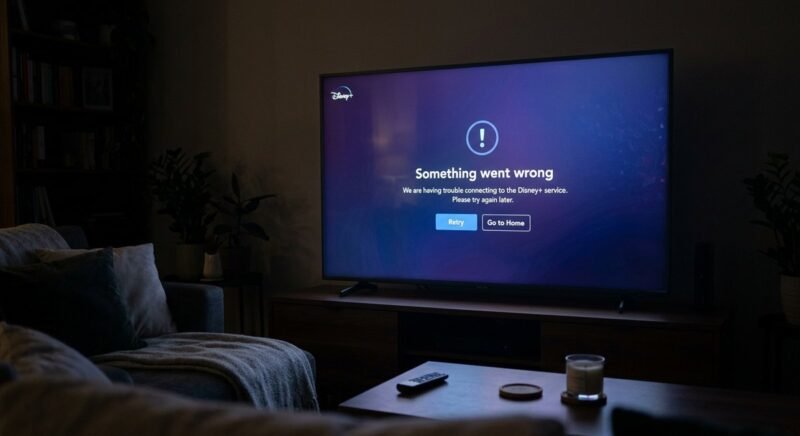
Disney Plus error code 41 means the platform cannot verify your right to watch a specific piece of content. The on-screen message reads “We’re sorry, but we cannot play the video you requested,” and the root cause traces back to a failed digital rights management (DRM) handshake between your device and Disney’s servers. Server overloads, expired DRM tokens, network drops, and incorrect date/time settings can all trigger it.
When Disney Plus is not working and error code 41 appears, the fix is usually straightforward. The exact steps depend on whether the problem is server-side, device-specific, related to downloaded offline content, or tied to VPN and regional restrictions.
What Disney Plus Error Code 41 Actually Means
The Disney Plus error code 41 meaning is a DRM verification failure: the platform could not confirm that your device, account, and the content’s licensing terms all align. According to the Disney Plus Help Center, the official description is “We’re having trouble playing this right now.” Every video on Disney Plus is encrypted with Widevine (Android, Chrome, Fire TV) or FairPlay (Apple devices) DRM, and error 41 fires when the license handshake fails.
That failure can happen for reasons unrelated to internet speed. An expired authentication token, a clock set to the wrong time zone, or a title whose licensing window just closed all produce the same error screen.
Error 41 vs Other Disney Plus Error Codes
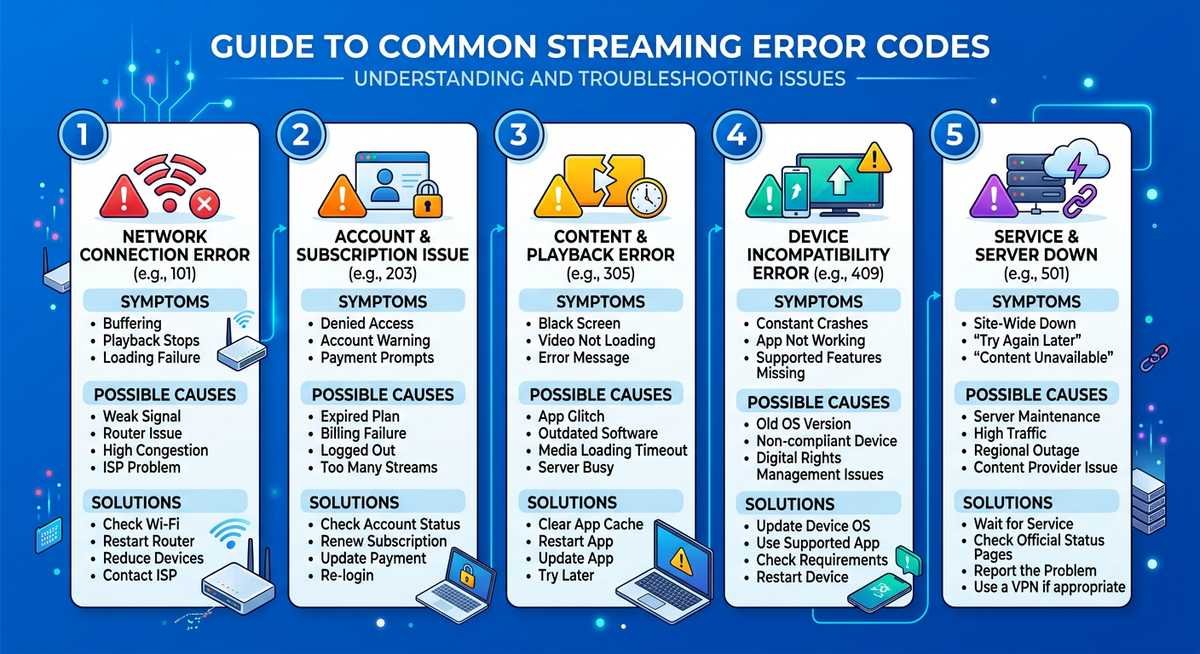
Disney Plus throws dozens of numbered errors, and confusing them leads to wasted troubleshooting. Error 41 is specifically a content playback and rights verification issue. Error 73 is a geographic restriction (“not available in your region”). Error 83 is a device compatibility problem. Mixing them up sends you down the wrong fix path.
| Error Code | Root Cause | Typical Message | First Fix to Try |
|---|---|---|---|
| 41 | DRM verification / content unavailable | “We’re sorry, but we cannot play the video” | Restart app, check server status |
| 73 | Geographic restriction | “Not available in your region” | Disable VPN or connect from supported country |
| 83 | Device compatibility | “Something went wrong, please try again” | Update device firmware and app |
| 43 | Network timeout during playback | “We’re having trouble playing this” | Check internet connection, restart router |
| 42 | Internet connectivity failure | “Trouble connecting to your internet” | Test Wi-Fi, power cycle router |
Common Triggers Behind Error 41
Five scenarios account for nearly all error 41 occurrences. Server-side issues rank first: when a popular title launches and millions hit the same stream, Disney’s CDN can temporarily fail the DRM check. According to Downdetector outage data, Disney Plus experiences notable disruptions several times per year, correlating with major franchise premieres.
After server load, the most common triggers are an outdated app version, corrupted local DRM tokens, incorrect device date/time settings (which break the cryptographic timestamp in the DRM handshake), and expired payment methods. VPN or proxy use can also cause a DRM mismatch when your IP suggests one region while your account is registered in another.
How to Fix Disney Plus Error Code 41 on Any Device
Most Disney Plus error code 41 cases resolve with four steps performed in order, starting with the fastest fix and escalating only if needed. The first two steps alone clear the majority of cases.
Check Disney Plus Server Status First
Before touching any settings, verify that Disney Plus itself is operational. Visit Downdetector’s Disney Plus page or check @DisneyPlusHelp on X for real-time outage reports. If thousands of users report problems simultaneously, the error is server-side. Wait 15 to 30 minutes and retry. Attempting a different title is another fast diagnostic; if a second show plays fine, the problem is title-specific.
Restart the App and Your Device
Force-close the Disney Plus app completely (not just minimize it) and relaunch. On mobile devices, swipe the app away from the recent apps tray. On smart TVs and streaming sticks, select “Force Stop” in app settings before reopening. A clean restart clears the in-memory DRM session token and forces a fresh server request.
If restarting the app alone does not resolve it, power off your device entirely. Unplug smart TVs and streaming devices from the wall for 30 seconds. This drains residual charge and resets both the network stack and app state.
Test Your Internet Connection
Disney Plus requires a minimum of 5.0 Mbps for HD streaming and 25.0 Mbps for 4K UHD content. Run a speed test from the same device showing the error. If the result falls below these thresholds, power cycle your modem and router: unplug both, wait 60 seconds, plug the modem in first, let it fully boot, then reconnect the router.
Weak Wi-Fi is a frequent hidden cause. Moving closer to the router, switching from 5 GHz to 2.4 GHz for better range, or connecting via Ethernet eliminates intermittent DRM handshake failures caused by packet loss.
Reinstall the Disney Plus App
Uninstalling and reinstalling the Disney Plus app wipes corrupted DRM tokens, cached session data, and outdated code in one step. Delete the app, restart your device, then download the latest version from the App Store, Google Play, or your platform’s marketplace. This also guarantees the most current app version, which matters because Disney occasionally patches DRM protocol changes that older builds cannot negotiate.
Device-Specific Fixes for Error 41
Each streaming platform handles DRM differently, and a fix that works on an iPad may not apply to a Firestick. The table below maps device-specific actions for Disney Plus error code 41.
| Device | DRM System | Primary Fix | Secondary Fix |
|---|---|---|---|
| Amazon Firestick / Fire TV | Widevine L1 | Clear app cache: Settings > Applications > Manage > Disney+ > Clear Cache | Check date/time: Settings > Preferences > Time Zone |
| iPad / iPhone | FairPlay | Force close + offload app: Settings > General > iPad Storage > Disney+ | Toggle Automatic Date & Time off and on |
| Samsung / LG Smart TV | Widevine L1 | Power cycle: unplug TV 60 seconds, reboot, update app | Reset Smart Hub (Samsung) or reinstall from LG Content Store |
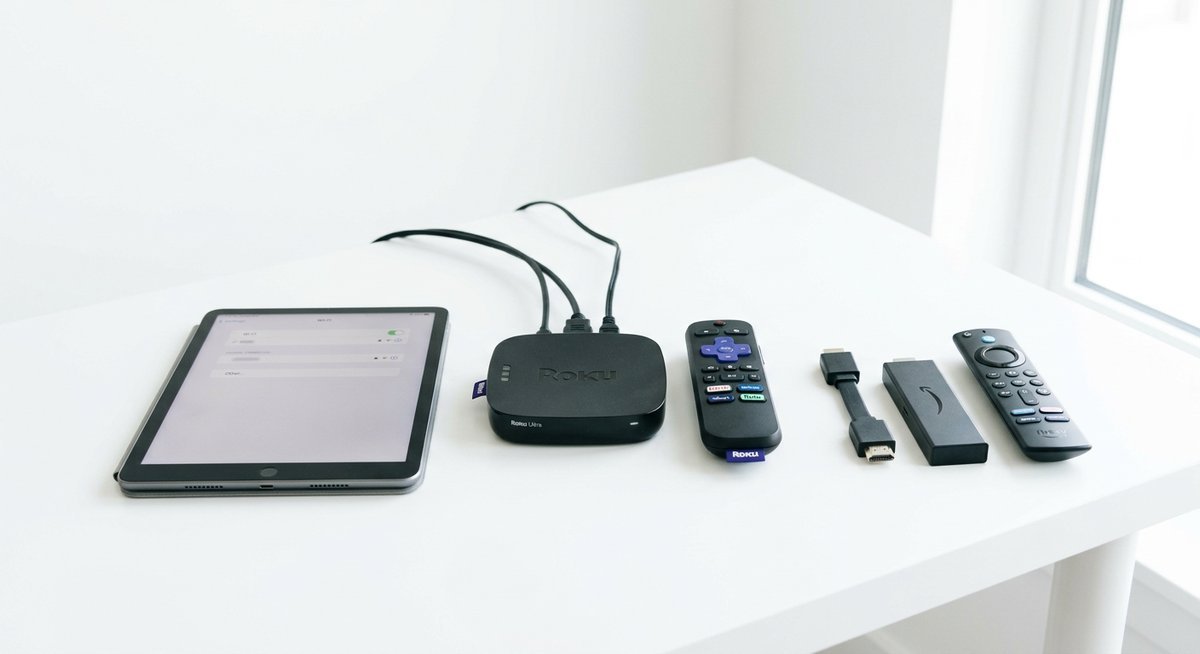
| Roku | Widevine L3 | Remove channel, restart: Settings > System > System Restart | Update Roku OS, reinstall Disney+ channel |
| Web browser | Widevine CDM | Clear cookies and cache for disneyplus.com | Try incognito mode or a different browser |
Amazon Firestick and Fire TV
Disney Plus error 41 on Firestick is the most common device-specific variant. Fire OS stores aggressive DRM caches that fail to refresh after updates. Go to Settings, then Applications, then Manage Installed Applications, then Disney+, and select “Clear Cache” and “Clear Data.” Verify Fire OS is current under Settings, then My Fire TV, then About. Outdated firmware creates Widevine DRM mismatches.
iPad and iPhone
On iPad and iPhone, error 41 typically stems from a stale FairPlay DRM session. Apple’s FairPlay ties the DRM license to both the device and the Apple ID. Sign out of Disney Plus within the app, then sign back in to force a fresh license request. Check Settings, then General, then Date & Time, and confirm “Set Automatically” is enabled; FairPlay uses the system clock for validation, and even a slight drift triggers error 41.
Samsung and LG Smart TVs
Smart TVs handle DRM through a hardware Trusted Execution Environment. When this secure enclave hits a certificate mismatch, error code 41 on TV appears. Unplug the TV from the wall for 60 seconds to force a TEE reinitialize. If the error persists, reset Samsung Smart Hub (Settings, Support, Self Diagnosis, Reset Smart Hub) or reinstall from the LG Content Store.
Roku and Web Browser
Roku uses Widevine L3, a software-based DRM tier more susceptible to token corruption. Remove the Disney Plus channel entirely, perform a system restart (Settings, then System, then System Restart), and reinstall. On desktop browsers, clear cookies and site data for disneyplus.com. If error 41 only appears in one browser, try incognito mode or a different browser to rule out extension conflicts with Widevine.
Error 41 on Downloaded Movies and Offline Content
Disney Plus error code 41 on downloaded movies means the offline DRM license stored on your device has expired or become corrupted. Downloads carry a DRM lease that must be refreshed periodically. Disney Plus sets a 30-day offline window for most titles, after which the app must reconnect to verify your subscription and the content’s licensing status.
Why Downloads Trigger Error 41
Three conditions cause error 41 on downloaded content. First, the 30-day license expiration: if offline for more than 30 days, every download’s DRM lease expires. Second, signing out or switching devices invalidates all download licenses, because each is bound to a specific device-account pair. Third, the title may have left the Disney Plus library due to a licensing change, making the download unplayable even if the file still exists on your device.
The Airplane Mode Workaround
A lesser-known fix involves airplane mode. Close the Disney Plus app completely, enable airplane mode, then reopen and play the downloaded content. This forces the app to use the locally stored DRM license without attempting an online check that might fail.
If airplane mode does not work, the license itself has expired. Reconnect to Wi-Fi, delete the download, and re-download the title for a fresh 30-day DRM lease. Connecting to Wi-Fi at least once every two weeks prevents mass license expirations for frequent offline viewers.
VPN and Region Restrictions Behind Error 41
A VPN can trigger Disney Plus error code 41 when the encrypted tunnel creates a mismatch between your apparent location and your account’s registered region. When the VPN’s IP suggests one country while your account belongs to another, the DRM server may refuse to issue a playback license. This produces error 41 rather than the more specific error 73 (region block) because the failure happens at the DRM layer, not the geographic filter.
DNS leaks are the most common culprit. Even with an active VPN, a DNS leak exposes your real ISP’s DNS resolver, giving Disney’s servers conflicting geographic signals. Premium VPN services with built-in DNS leak protection and IPv6 leak prevention reduce this risk significantly. Free VPNs almost universally fail because Disney Plus actively blocks their IP ranges. Disabling the VPN entirely is the fastest diagnostic; if error 41 disappears, switch to a VPN with dedicated streaming servers or connect from your actual region.
For users in Japan where Disney Plus is not working due to regional content management through a separate Disney Plus Japan service, or in Canada where the library differs from the US catalog, error 41 sometimes appears when switching between regional servers. Disney Plus is not available in every country, so users traveling to unsupported regions need a VPN connected to a supported market. Enabling the VPN’s streaming-optimized mode and checking for DNS leaks typically resolves the conflict.
Subscription and Account Issues Causing Error 41
A Disney Plus subscription error 41 can stem from billing failures that prevent the DRM system from confirming an active account. When a credit card expires, a PayPal authorization lapses, or a trial period ends, Disney’s backend flags the account and playback requests fail the DRM verification.
Verify your subscription status at disneyplus.com/account in a web browser. Check the billing section for payment errors, expired cards, or “subscription paused” notices. Updating the payment method resolves error 41 within minutes. Disney Plus also limits simultaneous streams by subscription tier; if other household members are streaming on the maximum allowed devices, new playback requests may return error 41 instead of the expected “too many streams” message.
Frequently Asked Questions
What does Disney Plus error code 41 mean?
Error code 41 means Disney Plus cannot verify your right to play a specific video due to a DRM handshake failure. Common causes include server overloads during premieres, expired DRM tokens, incorrect date/time settings, and outdated app versions. Reddit threads on r/DisneyPlus confirm this is one of the most frequently reported playback errors, with the on-screen message reading “We’re sorry, but we cannot play the video you requested.”
How do I fix error 41 on Disney Plus Firestick?
Clear the app cache: Settings, then Applications, then Manage Installed Applications, then Disney+, then Clear Cache and Clear Data. Restart the Firestick by unplugging for 30 seconds. Verify Fire OS is updated under Settings, then My Fire TV, then About. If the error persists, uninstall and reinstall the Disney Plus app.
Why does error 41 appear on downloaded movies?
Downloaded content carries a DRM license that expires after 30 days offline. Error 41 appears when this license lapses, when you sign out, or when the title leaves the Disney Plus library. Reconnect to Wi-Fi and re-download for a fresh license. The airplane mode workaround (force-close app, enable airplane mode, reopen and play) can bypass temporary verification issues.
Error 41 is not a region-lock error (that is error code 73), but VPN use can trigger it indirectly. DNS leaks, IP address conflicts between your VPN server location and your account region, and blocked VPN IP ranges all cause DRM verification to fail. Disconnecting the VPN is the fastest test. If the error disappears, switch to a premium VPN with dedicated streaming servers and DNS leak protection.
What is the difference between Disney Plus error 41 and error 73?
Error 41 is a DRM verification failure: the platform cannot confirm your right to watch a specific title. Error 73 explicitly blocks content based on geographic region. Error 41 can appear anywhere for multiple reasons (server issues, expired tokens, bad connection), while error 73 only fires when Disney Plus detects an unsupported territory or blocked VPN.
Does Disney Plus error 41 mean my subscription expired?
Not necessarily, but an expired or lapsed payment method is one possible trigger. The DRM system checks subscription status during the playback license handshake. Log into disneyplus.com/account in a web browser to verify your billing status. If you see a payment failure or expired card, update your payment method. The fix takes effect within minutes on your next playback attempt.
How do I contact Disney Plus support for error code 41?
Disney Plus offers 24/7 live chat through the Disney Plus Help Center. Phone support: 888-905-7888 (US), 888-282-0520 (Canada), 020 3936 2903 (UK), 1800-965-160 (Australia). No email support is available. Have your account email, device type, and the title that triggered error 41 ready before contacting them.
Does Disney Plus work in Japan?
Disney Plus operates in Japan through a dedicated Disney Plus Japan service with a separate content library and pricing. Users traveling between Japan and other regions may encounter error 41 if the app attempts region-locked content. Switching to a Japanese IP (or back to your home country’s IP) and restarting the app resolves most cases. Disney Plus error codes 1 151 and 1 155, which relate to different authentication failures, are sometimes confused with error 41 by Japanese users.