



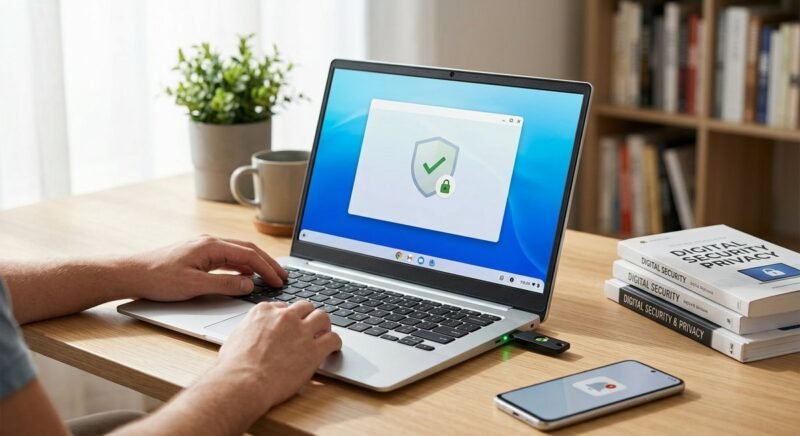
Chromebooks have a well-earned reputation for security — and for most users, that reputation is justified. ChromeOS is built with multiple layers of protection baked in, which is exactly why the question of anti virus software for Chromebook gets a nuanced answer rather than a simple yes or no.
The short version: you probably don’t need traditional anti virus software for Chromebook the way you would on a Windows PC. The architecture is genuinely different, and Google has made it difficult for conventional malware to take hold.
But “difficult” is not the same as “impossible.” Phishing attacks don’t care what operating system you’re running. Malicious Chrome extensions have slipped past Google’s defenses before. Android app integration has quietly expanded the attack surface for millions of Chromebook users. And if your device has passed its Auto Update Expiry date, those built-in protections are quietly degrading with every passing month.
The real picture is more complicated than either “Chromebooks are immune” or “you need to buy antivirus immediately.” What follows breaks down exactly where the risks live — and what, if anything, you should do about them.
How ChromeOS Security Actually Works
ChromeOS is genuinely more secure than Windows or macOS out of the box — not because Google says so, but because the architecture is structurally different. The operating system was built from the ground up with a layered security model that makes traditional malware attacks largely ineffective. Understanding those layers explains why most Chromebook users never encounter a virus, and why a small subset absolutely should be worried anyway.

Sandboxing, Verified Boot, and Automatic Updates
Every tab and every app on a Chromebook runs inside its own isolated sandbox. If a malicious website manages to exploit a browser vulnerability, the damage is contained — it cannot reach the operating system, other tabs, or your files. The sandbox is not a feature you toggle on; it’s the default execution environment for everything.
Verified Boot runs silently every time the device powers on. ChromeOS checks its own code against a known-good cryptographic signature, and if anything has been tampered with — even a single modified system file — the OS either self-repairs using a backup partition or alerts you before loading. In practice, this makes persistent rootkits and firmware-level attacks extremely difficult to pull off.
Automatic updates are the third pillar, and they work differently than on most platforms. ChromeOS downloads and installs security patches in the background while you work, then applies them on the next reboot — no prompts, no “remind me later,” no month-old patch backlog. According to Google’s ChromeOS security documentation, updates typically reach devices within days of release, not weeks.
| Security Layer | What It Does | Threat It Blocks |
|---|---|---|
| Sandboxing | Isolates each tab and app in its own container | Browser exploits, malware spread |
| Verified Boot | Checks OS integrity on every startup | Rootkits, firmware tampering |
| Automatic Updates | Silently patches vulnerabilities in the background | Known CVE exploits |
| Encryption | Encrypts user data stored on the device by default | Physical theft, data extraction |
The Auto Update Expiry (AUE) Problem
Every single Chromebook ever manufactured has a hard-coded Auto Update Expiry date — the day Google permanently stops sending security updates to that device. After that date, all three of the security layers described above begin to degrade in real time. Sandboxing still works, but unpatched vulnerabilities in the browser and OS accumulate with no fixes coming.
This is a genuine security cliff-edge, not a theoretical concern. A Chromebook past its AUE date is running software with known, publicly documented vulnerabilities that will never be fixed. Attackers actively target end-of-life software because the math is simple: the exploit works forever.
Older devices are especially exposed. Some Chromebooks released in 2016 and 2017 reached their AUE dates as early as 2024, meaning millions of devices in homes, schools, and small businesses are now receiving zero security coverage from Google. You can check your own device’s AUE date by navigating to Settings > About ChromeOS > Additional details or searching Google’s official AUE lookup page. If that date has passed, third-party security software stops being optional — it becomes necessary.
Real Threats Chromebook Users Face in 2025
ChromeOS’s built-in defenses are genuinely strong — but they protect the operating system, not the user. Phishing attacks, malicious extensions, rogue Android apps, and account hijacking all bypass ChromeOS’s sandboxing entirely because they target your behavior and your credentials, not the kernel. These four threat categories are responsible for the overwhelming majority of real-world harm Chromebook users experience today.
Phishing and Malicious Websites
A phishing page doesn’t care what OS you’re running. It just needs a browser and a distracted user. According to Google’s Transparency Report, Google Safe Browsing detects and warns against tens of thousands of new phishing sites every week — and Chromebook users hit those pages just as often as Windows or macOS users do.
Safe Browsing’s standard protection mode is reactive: it checks URLs against a list that updates every 30 to 60 minutes. Enhanced Protection mode, which uses real-time checks, catches significantly more threats — but it’s opt-in and most users never enable it. That gap is where attackers operate.
Social engineering campaigns increasingly impersonate Google Workspace login pages, targeting the exact accounts Chromebook users depend on most. A convincing fake sign-in page is all it takes to hand over credentials voluntarily.
Fake Chrome Extensions and Malicious Add-ons
The Chrome Web Store has a vetting process, but it’s not airtight. In early 2025, security researcher John Tuckner of Secure Annex identified a network of 35 Chrome extensions with a combined install base exceeding four million users that were quietly exfiltrating browsing data and injecting affiliate codes into e-commerce sessions. Several had near-perfect review scores and had been listed in the Chrome Web Store for over a year before discovery.
Malicious extensions are particularly dangerous on Chromebooks because users tend to trust the Chrome Web Store implicitly. An extension granted broad permissions — access to all site data, for instance — can intercept banking sessions, harvest saved form data, and redirect searches without triggering any OS-level alert. ChromeOS’s sandbox protects processes from each other; it doesn’t protect you from a permission you voluntarily granted.
Android App Risks via Google Play Integration
Most Chromebooks sold since 2019 support Android apps through Google Play Store integration — and that capability dramatically expands the attack surface. The Play Store has a well-documented history of hosting apps that abuse permissions, display fraudulent ads, or subscribe users to premium SMS services without consent. A Chromebook running a malicious Android app is exposed to the same risks as an Android phone running that same app.
Sideloading — installing Android APKs from outside the Play Store — amplifies the risk further. ChromeOS’s Linux (Crostini) environment makes sideloading technically accessible to moderately experienced users, and threat actors know it. Apps installed this way receive zero Play Protect scanning.
Permission abuse is the subtler danger. An Android flashlight app requesting microphone access looks suspicious on a phone; on a Chromebook, where users are less conditioned to scrutinize Android app permissions, it often slips through unquestioned.
Account Hijacking and Data Theft
Chromebooks are, by design, Google account delivery devices. Every file, every email, every saved password, every photo — it all flows through a single Google account. That architecture is convenient and efficient. It also means that compromising the account is functionally equivalent to compromising the device.
Credential-stuffing attacks, SIM-swapping, and session cookie theft (a technique sometimes called “pass-the-cookie”) can hand an attacker full access to your Google account without ever touching your Chromebook’s operating system. Once inside the account, an attacker can read your email, access your Drive files, view saved passwords in Chrome, and even track your physical location through Google Maps history.
Two-factor authentication blocks most of these attacks — but only when it’s enabled and properly configured. Google’s own security research shows that a hardware security key (FIDO2) stops 100% of automated phishing attacks, while SMS-based 2FA blocks roughly 96%. Enabling Advanced Protection Program for high-risk accounts is the single most effective security action a Chromebook user can take.
Top Antivirus and Security Tools for Chromebook (Free vs. Paid)
Most Chromebook users don’t need a full-blown anti virus software suite — but targeted security tools that cover web threats, Android app risks, and VPN privacy fill genuine gaps in ChromeOS’s native defenses. The five options below represent the strongest choices available in 2025, spanning free tiers through premium subscriptions, and each addresses a different slice of the threat landscape.
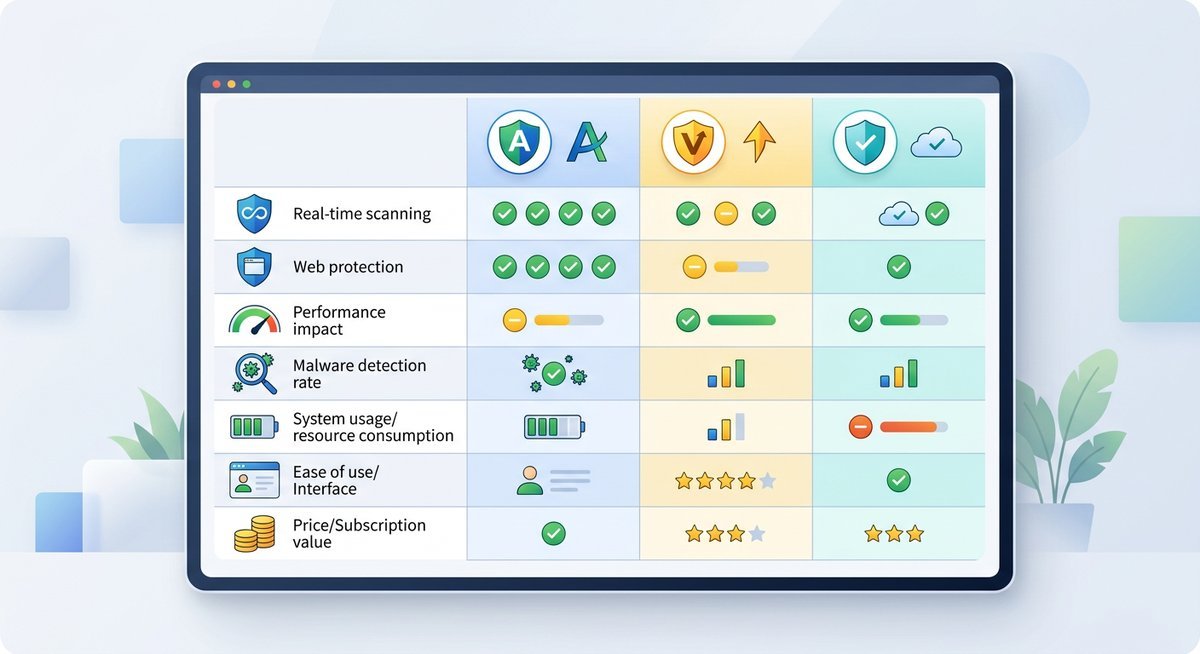
Comparison Table: Top 5 Security Tools for ChromeOS
No single tool does everything equally well. The table below maps each option against the features that matter most for ChromeOS specifically — not Windows-centric capabilities that simply don’t apply on this platform.
| Tool Name | Free Tier? | Real-Time Web Protection | Android App Scanning | VPN Included | Price (Paid Tier) | Best For |
|---|---|---|---|---|---|---|
| Malwarebytes | Yes | Yes (paid only) | Yes | Yes (paid only) | From ~$3.75/mo | Home users wanting lightweight malware and ad-threat protection |
| Bitdefender Mobile Security | No (14-day trial) | Yes | Yes | Yes (200 MB/day free; unlimited paid) | From ~$14.99/yr | Users who prioritize Android app scanning and anti-phishing accuracy |
| Norton 360 | No | Yes | Yes | Yes (unlimited) | From ~$29.99/yr (first year) | Families and users wanting an all-in-one suite with dark web monitoring |
| Total WebShield | Yes (limited) | Yes | No | No | From ~$19.99/yr | Students and budget users who primarily need browser-layer threat blocking |
| Avast One | Yes | Yes | Yes | Yes (5 GB/week free; unlimited paid) | From ~$2.99/mo | Users wanting a generous free tier with optional upgrade path |
Quick Verdict on Each Tool
Malwarebytes earns its reputation through consistently low false-positive rates and a genuinely lightweight footprint. The free tier handles on-demand scanning well, and the paid tier adds real-time web protection and a VPN. It installs via Google Play and runs quietly in the background. Best fit: home users who want solid protection without a complicated setup.
Bitdefender Mobile Security leads the field in anti-phishing detection accuracy, consistently scoring near the top in independent lab tests by AV-TEST and AV-Comparatives. Its Android app scanner is aggressive — sometimes flagging benign apps as suspicious — but better a false alarm than a missed threat. The 14-day trial lets you evaluate before committing. Best fit: users who install multiple Android apps and want tight phishing coverage.
Norton 360 is the premium option. You get unlimited VPN data, dark web monitoring for your email addresses, and multi-device coverage under a single subscription. The trade-off is price — it’s the most expensive tool on this list by a significant margin. Best fit: families with multiple devices who want centralized security management.
Total WebShield operates entirely as a Chrome extension, which means zero Play Store dependency and nothing to install outside the browser. It blocks malicious URLs, flags phishing attempts, and monitors downloads in real time. The limitation is clear: it can’t scan Android apps or protect anything outside Chrome. Best fit: students and minimalists who use their Chromebook almost exclusively through the browser.
Avast One offers the most generous free tier in this category — real-time web protection, basic Android app scanning, and 5 GB per week of VPN data at no cost. The paid tier removes limits and adds breach monitoring. Its interface is clean and straightforward. Best fit: budget-conscious users who want decent all-around coverage without paying upfront.
How to Install and Configure Security Software on Your Chromebook
Most security tools for ChromeOS install in under three minutes, through one of two paths: a Chrome Web Store extension or a Google Play Android app. Which route you take depends entirely on the tool — Malwarebytes and Bitdefender Mobile Security, for example, live in the Play Store, while Total WebShield operates as a browser extension.
Installing a Security Extension from the Chrome Web Store
- Open Google Chrome and navigate to the Chrome Web Store (chrome.google.com/webstore).
- Type the tool’s exact name into the search bar — for example, “Total WebShield” or “Avast Online Security.”
- Before clicking anything, check the publisher name and review count. Legitimate security extensions typically carry tens of thousands of reviews and display the developer’s verified domain. A low review count or a publisher name that doesn’t match the official vendor is a red flag.
- Click Add to Chrome, then review the permissions list carefully. A web-protection extension legitimately needs to read browsing history; it does not need access to your clipboard or microphone.
- Click Add extension to confirm.
- Pin the extension to your toolbar by clicking the puzzle-piece icon in Chrome, finding the extension, and selecting the pin icon — this keeps one-click access visible at all times.
Installing an Android Security App via Google Play
- Open ChromeOS Settings, navigate to Apps, and confirm that Google Play Store is enabled. On managed school or enterprise devices, an administrator may have disabled this — check with your IT contact if the toggle is greyed out.
- Open the Play Store from your app launcher.
- Search for the security app by its exact name to avoid lookalike scam apps — a documented and growing problem in the Play Store ecosystem.
- Before tapping Install, tap the app listing and review the Permissions section. A mobile security app needs storage and network access; requests for SMS or call-log access on a Chromebook are unnecessary and suspicious.
- After installation, open the app and complete any initial scan or account setup it prompts.
One practical note: Android security apps run inside ChromeOS’s Android container, which means they scan Android app activity effectively but cannot inspect ChromeOS system processes or browser tabs. For full-spectrum coverage, pairing a Play Store security app with a Chrome extension gives you both layers simultaneously.
Who Actually Needs Antivirus on a Chromebook
Not every Chromebook user faces the same risk profile. A student browsing school resources and writing essays in Google Docs has a fundamentally different exposure than an IT administrator managing a fleet of enterprise devices or a parent handing a Chromebook to an eight-year-old.
You should strongly consider third-party security software if:
- Your Chromebook has passed its Auto Update Expiry date and you cannot afford to replace it yet.
- You regularly install Android apps from the Play Store — especially games, utilities, or apps from smaller developers.
- You handle sensitive work data (financial records, client information, healthcare data) on your Chromebook.
- You use your Chromebook on public Wi-Fi networks regularly without a VPN.
- You manage Chromebooks for others — students, children, employees — who may not recognize phishing attempts.
You can likely rely on ChromeOS’s built-in protections if:
- Your device is within its AUE window and receiving regular updates.
- You stick to the Chrome browser and web apps without installing Android apps or Linux packages.
- You have two-factor authentication (ideally a hardware key) enabled on your Google account.
- You’ve activated Enhanced Safe Browsing in Chrome settings.
Frequently Asked Questions
Do Chromebooks get viruses?
Traditional Windows-style viruses — executable files that replicate and infect system files — effectively cannot run on ChromeOS. The sandboxed architecture and Verified Boot process prevent that attack vector. However, Chromebooks are vulnerable to phishing, malicious browser extensions, rogue Android apps, and account-level attacks. The threat model is different, not absent.
Is free anti virus software for Chromebook enough?
For most casual users, yes. Free tiers from tools like Malwarebytes and Avast One cover on-demand scanning and basic web protection. If you install Android apps frequently, handle sensitive data, or use public Wi-Fi without a VPN, a paid tier with real-time protection and VPN access is worth the investment.
Does Chrome’s built-in Safe Browsing replace antivirus?
Safe Browsing catches known phishing and malware URLs, but it operates on a delay — the standard mode updates its blocklist every 30 to 60 minutes. Enhanced Protection mode offers real-time checks and is significantly more effective, but it still cannot scan Android apps, audit extension permissions, or provide VPN encryption. It’s a strong first layer, not a complete solution.
Can I install Norton or McAfee on a Chromebook?
Norton 360 offers a dedicated Android app that works on Chromebooks with Google Play support. McAfee also provides a mobile security app compatible with ChromeOS. Neither installs as a traditional desktop application — they run inside ChromeOS’s Android container, which means they can scan apps and web traffic but cannot access the ChromeOS system layer directly.
What happens when a Chromebook reaches its Auto Update Expiry date?
Google permanently stops sending security patches to that device. The hardware still works, and web browsing still functions, but known vulnerabilities in the browser and OS will never be fixed. Over time, this creates compounding security risk. If replacement isn’t an option, installing a third-party security tool and enabling Enhanced Safe Browsing are the minimum recommended steps.
How do I check my Chromebook’s Auto Update Expiry date?
Go to Settings > About ChromeOS > Additional details. The update schedule section shows when your device will stop receiving updates. You can also search Google’s official Auto Update policy page for a list of all Chromebook models and their corresponding AUE dates.
Are Chrome extensions safe to install?
Most are, but the Chrome Web Store’s vetting process has documented gaps. Before installing any extension, verify the publisher matches the official company, check that the review count is substantial, and scrutinize the requested permissions. An ad blocker that asks for access to all your browsing data is normal; a calculator extension making the same request is not.
The Bottom Line
ChromeOS is built to be secure, and for most users running an up-to-date device with sensible browsing habits, the built-in protections do their job. The “Chromebooks don’t need antivirus” claim is mostly true — but it’s not universally true, and the exceptions are growing.
If your device has passed its AUE date, if you rely on Android apps, or if you manage Chromebooks for people who aren’t security-savvy, a targeted security tool closes gaps that ChromeOS was never designed to cover. The best options — Malwarebytes for simplicity, Bitdefender for app scanning, Norton for families — each cost less than a cup of coffee per month.
Enable Enhanced Safe Browsing. Turn on two-factor authentication with a hardware key if you can. Check your AUE date. Those three actions, combined with one of the tools above if your risk profile calls for it, put you ahead of the vast majority of Chromebook users.