



Canva error 500 is a server-side failure that originates entirely on Canva’s infrastructure — not on your browser, device, or internet connection. The platform’s own error page confirms it bluntly: “500 server error — that means something isn’t working on our end.” If you are staring at that message right now, your designs are safe. Canva autosaves your work, and nothing you were editing is lost. The server just cannot serve it to you at this moment.
What triggers it varies. Sometimes Canva’s backend buckles under a traffic spike. Other times — and this is the part most troubleshooting guides get completely wrong — the culprit is Cloudflare, the global CDN Canva routes all traffic through. When Cloudflare goes down, Canva goes down with it, and users across dozens of countries hit the same canva error code 500 simultaneously. The December 5, 2025 Cloudflare outage is a documented example of exactly this cascade — a canva down 500 internal server error that affected users globally.
Corrupted browser cache or a rogue extension can also produce a 500 response even though the platform works fine for everyone else. The 500 server error canva meaning, the real causes ranked by likelihood, and nine concrete steps to get back into your designs — all below.
What the Canva 500 Internal Server Error Actually Means
A Canva 500 internal server error means Canva’s servers hit an unexpected condition and could not complete your request — full stop, not your fault. According to the Internet Engineering Task Force (IETF), HTTP status code 500 is defined in RFC 9110 as a generic server-side failure response. The server knows something broke but has no more specific explanation to offer. Think of it as a digital shrug.
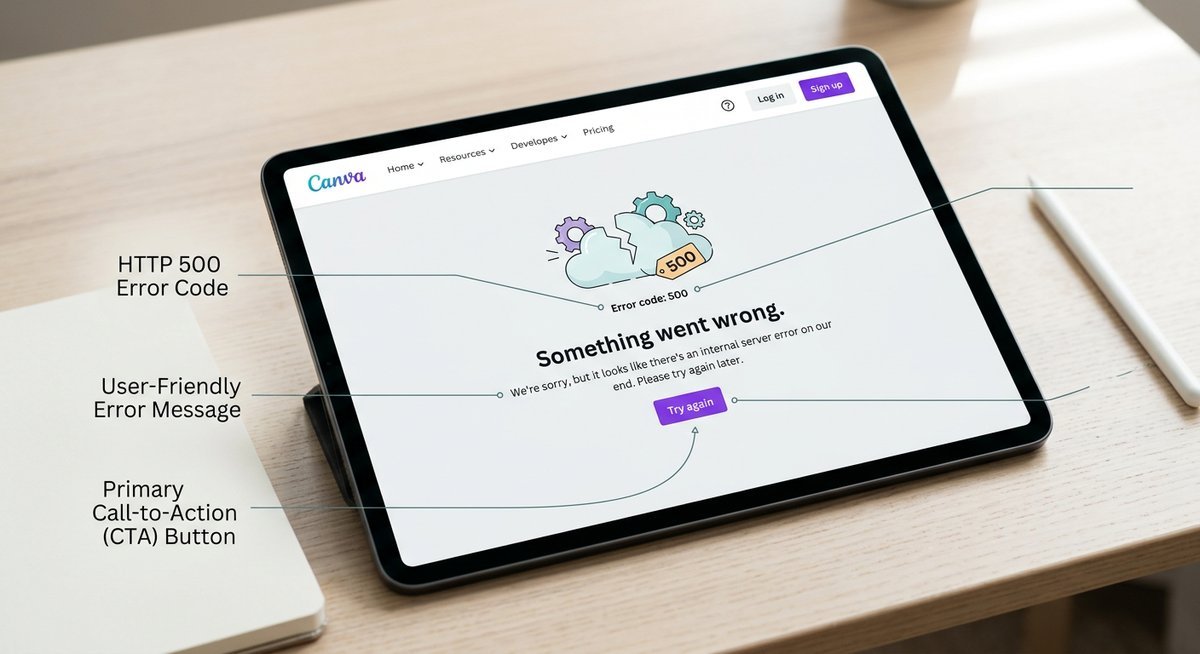
HTTP 500 in Plain English
The 500 code belongs to the 5xx family of HTTP responses — exclusively server-side errors. That distinction matters. A 404 means you typed the wrong URL. A 500 means the server broke while trying to help you. Your laptop, browser version, internet speed? Irrelevant.
What does an HTTP 500 error mean in practical terms? The server received your request, tried to process it, and crashed before it could respond. Why error code 500 instead of something more specific? Because the server itself does not know what went wrong — it only knows it failed. The error 500 on canva, YouTube, Outlook, or any other platform carries the same technical meaning. Nobody on the user side caused it.
How the Error Shows Up in Canva
The error does not always announce itself with a tidy “500” label. Often users land on a blank design canvas where projects refuse to load. Videos freeze mid-timeline. Images vanish. Shared Canva links return an error page instead of the expected design.
Logout loops are another telltale — Canva repeatedly kicks you back to the login screen because the session validation request itself hits a broken endpoint. Canva video not playing and Canva video not working mid-session? Same root event: a server-side failure preventing media asset requests from completing. The frustration is real, but the cause is always upstream.
| Symptom Users Report | What Is Actually Failing |
|---|---|
| Blank or frozen design canvas | Server fails to return design data |
| Images or videos will not load | Media asset requests rejected by server |
| Shared Canva links broken | Link-resolution endpoint returning 500 |
| Repeated logout loops | Session authentication requests failing |
| Canva video not playing | Video transcoding or streaming endpoint down |
Why Canva Shows a 500 Error — The Real Causes
Canva 500 errors stem from three sources: Canva’s own backend failures, outages in Cloudflare’s global CDN, and malformed browser requests caused by corrupted local data. According to Cloudflare’s 2024 transparency disclosures, its CDN handles traffic for roughly 20% of all websites — meaning a single Cloudflare incident can trigger 500 errors across thousands of platforms at once, Canva included. Figuring out which cause is active tells you whether to wait, refresh, or clear your cache.

Canva Server Overload or Backend Bugs
Traffic spikes are the most common trigger. Millions of users pile into Canva at once — a product launch, a viral social moment, the night before a university deadline — and the backend servers buckle. Every request that cannot be processed cleanly gets a 500 response.
Bad code deployments are equally destructive. One faulty backend push introducing an unhandled exception can produce the same Canva 500 internal server error across every affected endpoint simultaneously. The good news: these incidents typically resolve within minutes to a few hours once Canva’s team rolls back the offending change.
Cloudflare CDN Outages — The Cause Most Guides Miss
This is the cause most troubleshooting guides ignore completely. Canva routes its global traffic through Cloudflare’s content delivery network. Any disruption at the Cloudflare layer cascades directly into Canva 500 errors for users worldwide — even if Canva’s own servers are humming along perfectly.
On December 5, 2025, Cloudflare experienced a significant global incident affecting multiple services on its CDN, as reported by The Statesman. Users reporting canva error 500 cloudflare and canva 500 internal server error cloudflare during that window were caught in a CDN-layer failure entirely outside Canva’s control. Clearing your cache? Useless. Switching browsers? Same result. The only fix is waiting for Cloudflare’s own infrastructure team to restore service.
Browser-Side Conflicts That Mimic Server Errors
Corrupted cookies or stale cached data cause your browser to send garbled tokens to Canva’s servers. The server cannot parse the request and returns a 500 — even though the platform is working fine for everyone else. This one is on you, but it is the easiest to fix.
Browser extensions are a sneakier culprit. Ad blockers, VPN tools, and script managers strip or modify request headers in ways that break Canva’s API calls silently. You will never see a warning from the extension — just a 500 from the server. Disabling extensions one by one isolates the offender quickly.
| Cause Category | Who Controls the Fix | Typical Resolution Time | Your Action |
|---|---|---|---|
| Canva server overload or bug | Canva engineering | Minutes to a few hours | Wait and monitor canvastatus.com |
| Cloudflare CDN outage | Cloudflare infrastructure team | Minutes to several hours | Wait and check cloudflarestatus.com |
| Corrupted browser data | You | Immediate after fix applied | Clear cache, disable extensions |
How to Fix Canva Error 500: 9 Steps in Order
Always start with the status pages — not your browser settings. If Canva or Cloudflare is actively down, no cache-clearing trick in the world will help, and you will have wasted ten minutes for nothing. Work through these nine steps in order, from quickest checks to deeper resets.
Step 1 — Check Both Status Pages
Go to canvastatus.com before touching anything else. An active incident banner means the canva 500 error today is on Canva’s infrastructure and the only fix is to wait. If Canva’s status page shows all systems operational but the error persists, also check cloudflarestatus.com. A Cloudflare CDN disruption produces identical canva 500 server error responses without Canva’s own dashboard necessarily flagging it.
Step 2 — Hard-Refresh the Page
Press Ctrl+Shift+R (Windows/Linux) or Cmd+Shift+R (Mac). This forces the browser to bypass its local cache and fetch a completely fresh response from Canva’s servers. A hard refresh resolves transient 500 errors caused by a stale cached request within seconds.
Corrupted cached data can send malformed requests that Canva’s server rejects outright. Clearing cookies and cache is the single most effective browser-side fix for persistent Canva error 500 internal server error messages.
| Browser | Keyboard Shortcut | Menu Path |
|---|---|---|
| Chrome | Ctrl+Shift+Delete | Settings > Privacy > Clear browsing data |
| Firefox | Ctrl+Shift+Delete | Settings > Privacy > Clear Data |
| Safari | Cmd+Option+E | Develop > Empty Caches |
| Edge | Ctrl+Shift+Delete | Settings > Privacy > Clear browsing data |
Step 4 — Disable Browser Extensions
Ad blockers, privacy shields, and VPN extensions can intercept or modify Canva’s API requests, triggering server-side rejections that look like a canva error 500 server error. Open your browser’s extension manager, toggle all extensions off, then reload Canva. If the error disappears, re-enable extensions one at a time to isolate the culprit.
Step 5 — Try Incognito or Private Browsing
Incognito mode strips all extensions and starts with a clean session cookie. If Canva loads fine in incognito, the problem is definitively in your browser profile — a corrupted extension, cookie, or cached script. If the 500 error in canva persists even in incognito, the issue is server-side and outside your control.
Step 6 — Switch Browser or Device
Testing on a different browser (or a phone if you have been on desktop) confirms whether the canva not working error 500 is specific to your environment. Canva supports Chrome, Firefox, Safari, and Edge. The Canva mobile app connects through different endpoints, making it a useful cross-check.
Step 7 — Test Your Internet Connection
While HTTP 500 is officially a server-side error, an unstable connection can cause incomplete requests that the server rejects. Run a quick speed test. If your connection drops packets or shows high latency, switch to a wired Ethernet connection or a different Wi-Fi network before retrying Canva.
Step 8 — Sign Out and Sign Back In
A corrupted session token can cause repeated canva 500 internal error responses for your account alone while the platform works normally for everyone else. Annoying? Very. But fixable: sign out of Canva completely, close the browser, reopen it, and log back in to force a fresh authentication handshake.
Step 9 — Contact Canva Support
If nothing above resolves the error and Canva’s status page shows no active incident, the problem may be tied to your specific account or a corrupted design file. Submit a support request through Canva’s Help Center at canva.com/help/get-in-touch — include your account email, the design URL that triggers the error, and roughly when the problem started. Canva’s support team can investigate server-side logs that you have no access to.
Canva Video Not Working and Link Errors During a 500 Outage
Canva video not working, Canva video not playing, and Canva link not working are frequently reported alongside 500 errors. These symptoms share the same root cause: server-side failures preventing Canva from processing media and link-resolution requests.
The canva video upload limit is 1 GB per file for paid plans and a shorter cap for free accounts, per Canva’s Help Center. During a 500 outage, even small videos fail because the transcoding pipeline sits behind the same server infrastructure throwing errors.
Shared Canva links break during outages because the link-resolution endpoint is part of the same backend stack. Once the 500 error clears, video playback and link sharing resume automatically.
Canva error code 503 means “Service Unavailable” — the server is temporarily unable to handle the request, usually due to maintenance or overload. Unlike a 500, a 503 explicitly signals a temporary condition. Canva’s status page sometimes reports 503 errors during planned maintenance. The fix is identical: wait and check canvastatus.com.
Canva error 505 is rarer and indicates “HTTP Version Not Supported.” This occurs when a browser sends a request using a protocol version the server does not support. Updating the browser to its latest version almost always resolves it. Both 503 and 505, like 500, sit in the 5xx server-error family.
| Error Code | Official Name | What It Means | Typical Fix |
|---|---|---|---|
| 500 | Internal Server Error | Generic server failure | Wait or clear browser cache |
| 503 | Service Unavailable | Server temporarily overloaded or in maintenance | Wait for Canva to restore service |
| 505 | HTTP Version Not Supported | Browser protocol mismatch | Update browser to latest version |
Frequently Asked Questions
Why does Canva keep showing error 500?
Persistent Canva error 500 usually indicates an ongoing server-side issue, either on Canva’s own backend or on Cloudflare’s CDN. Check canvastatus.com and cloudflarestatus.com first. If both show green, clear your browser cookies and cache, then try incognito mode to rule out a browser-profile conflict.
What does Canva 500 internal server error mean?
The Canva 500 internal server error meaning is straightforward: Canva’s server encountered an unexpected condition it could not recover from. The “500” is an HTTP status code defined in RFC 9110, and the “internal server error” label confirms the fault is entirely on Canva’s end, not on your device or connection.
Is the Canva error 500 caused by Cloudflare?
Frequently, yes. Canva routes its traffic through Cloudflare’s global CDN, so any Cloudflare outage triggers Canva 500 errors worldwide. The December 5, 2025 Cloudflare incident is a confirmed example where Canva 500 internal server error cloudflare reports spiked across social media and status-tracking platforms simultaneously.
How long does a Canva 500 error last?
Most Canva 500 server error incidents resolve within minutes to a few hours, depending on the cause. Server-side bugs that Canva’s team can hotfix tend to clear faster than Cloudflare CDN outages, which require Cloudflare’s own infrastructure team to resolve. Monitor canvastatus.com for real-time updates during active incidents.
Yes. Canva video not playing and video upload failures during a 500 outage share the same root cause — the media transcoding and streaming servers sit behind the same backend infrastructure. Once the server-side issue resolves, video functionality returns automatically without any action from the user.
What is the Canva video upload limit?
Canva allows video uploads up to 1 GB per file for Canva Pro, Canva for Teams, and Canva for Education users. Free plan users face a lower file-size cap. However, during a 500 server error, even videos well within the limit fail to upload because the server cannot process any requests.
Does error 500 happen on platforms other than Canva?
HTTP 500 is a universal server-side error code used across every web platform. YouTube, Outlook, Gmail, and thousands of other services return 500 errors when their servers fail internally. An error code 500 YouTube encounter or error 500 in Outlook has the same technical meaning as on Canva — the server failed, and the fix is typically waiting for the provider to resolve it.
What causes an HTTP 500 error in general?
An HTTP 500 error is caused by any unhandled exception on the server side: database connection failures, misconfigured server software, resource exhaustion from traffic spikes, faulty code deployments, or CDN routing failures. The error 500 reasons are always server-side — the client (your browser) did nothing wrong.
How can I check if Canva is down right now?
Visit canvastatus.com for Canva’s official real-time status dashboard. For Cloudflare-related outages, also check cloudflarestatus.com. Third-party services like Downdetector aggregate user reports and can confirm whether a canva down 500 error is affecting users globally or just locally.
Getting Past the Canva 500 Error
A Canva 500 error is frustrating but almost never permanent. The cause sits on Canva’s server infrastructure or Cloudflare’s CDN — not on your end. Start with canvastatus.com and cloudflarestatus.com. If both show green, work through the browser-side fixes: hard refresh, clear cache and cookies, disable extensions, try incognito mode.
For Canva video not working, Canva link not working, or canva error code 503 and 505 variants — same diagnostic sequence. These errors share a common server-side origin, and once the infrastructure stabilizes, everything comes back online without any manual intervention. Your designs are safe. The server just needs a minute.