



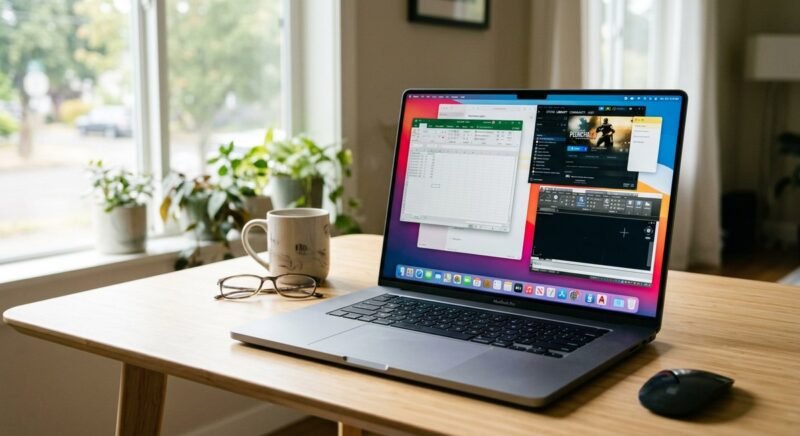
A single missing Windows app can derail an otherwise perfect Mac setup. Maybe it’s Microsoft Access for a client database, a niche accounting package your office swears by, or an older PC game you refuse to let go. The typical advice — buy Parallels, install a full Windows license, allocate 60 GB of disk space — works, but it’s expensive overkill when you only need one or two programs.
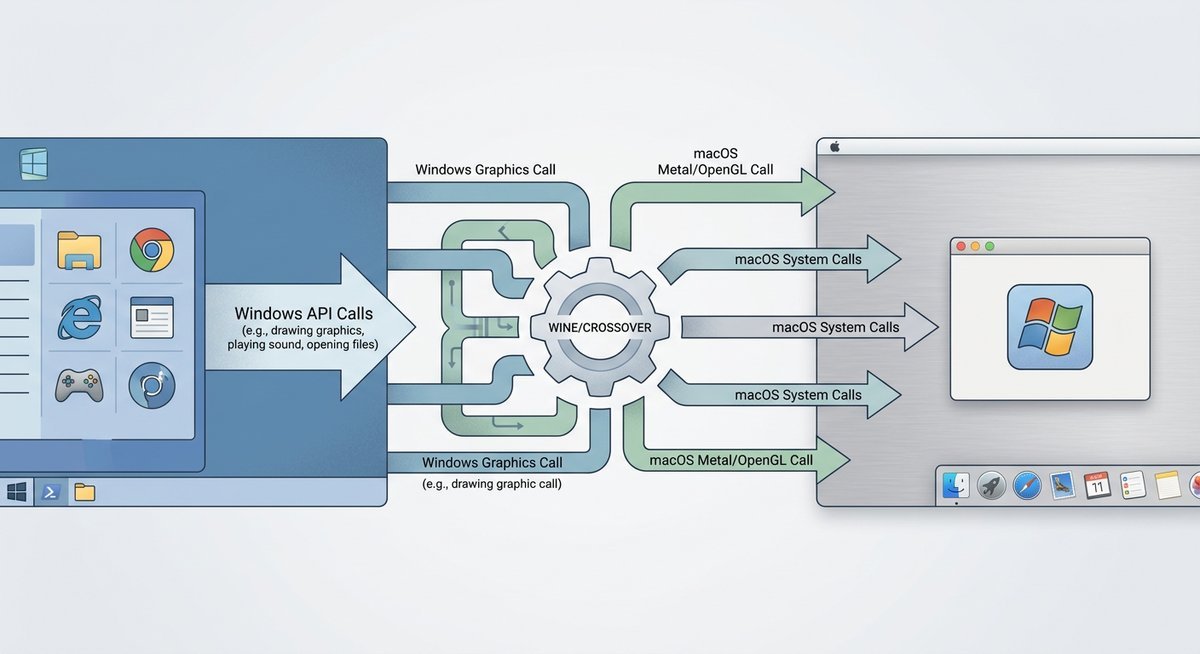
CrossOver software for Mac takes a radically different approach. Built on the open-source Wine project by CodeWeavers, CrossOver translates Windows API calls directly into macOS instructions. No Windows operating system running in the background. No license to buy. No virtual machine chewing through your RAM. The Windows app just… runs, inside a regular macOS window, as if it belongs there.
That simplicity comes with tradeoffs. CrossOver doesn’t run everything — certain apps work flawlessly, others crash on launch, and a meaningful number fall somewhere in between. Knowing exactly where your specific software lands on that spectrum is the single most important step before spending a dollar.
What Is CrossOver for Mac and How Does It Work?
CrossOver is a compatibility layer, not a virtual machine. That distinction shapes everything about the experience — from performance to pricing to what it can and can’t run.
Wine Translation vs. Virtualization
Parallels Desktop and VMware Fusion both work by running a complete copy of Windows inside a sandboxed environment. Two operating systems share your CPU, RAM, and storage simultaneously. CrossOver eliminates that overhead entirely.
Wine — a recursive acronym for “Wine Is Not an Emulator” — intercepts the instructions a Windows application sends to the Windows OS and re-routes them to macOS. No Windows kernel loads. No Windows desktop appears. The application talks to macOS as though macOS were Windows, with CrossOver acting as translator.
CodeWeavers builds CrossOver on top of Wine but adds a polished graphical installer, targeted compatibility patches for popular applications, and commercial support. Raw Wine requires users to configure prefixes, manage dependencies, and troubleshoot crashes manually. CrossOver handles most of that configuration work behind the scenes.
What Software Runs Well — and What Doesn’t
CrossOver handles a broad range of Windows software: Microsoft Office (particularly Office 2016 and 2019), legacy enterprise tools, productivity utilities, and a substantial library of PC games available through Steam. Many users rely on it for software that has no macOS equivalent — older CAD tools, niche industry applications, or Windows-only utilities that predate any Mac version.
Not every Windows application works, and pretending otherwise would be dishonest. CodeWeavers maintains the CrossOver Compatibility Center, a searchable database where each application gets a user-rated compatibility status ranging from Platinum (flawless) down to Garbage (does not run). Check that database before purchasing — it takes thirty seconds and can save you $74.
| Software Category | Examples | Typical Compatibility |
|---|---|---|
| Microsoft Office Suite | Office 2016, Office 2019 | Good to Platinum |
| PC Games (Steam) | Skyrim, StarCraft II, older titles | Varies widely by title |
| Legacy Enterprise Software | Industry-specific Windows tools, older ERP systems | Check Compatibility Center |
| Productivity Tools | Quicken, Windows-only utilities | Good for well-tested apps |
| Anti-cheat Games / 16-bit Apps | Fortnite, very old DOS-era software | Generally unsupported |
The absence of a Windows license requirement is CrossOver’s defining financial advantage. For someone who needs just one or two specific Windows applications — say, a legacy version of Quicken or a Windows-only utility for work — paying $74 once beats spending $240+ on Parallels plus a Windows license.
CrossOver vs. Parallels vs. Boot Camp vs. VMware Fusion
Four tools, four fundamentally different architectures. CrossOver translates API calls through Wine. Parallels and VMware Fusion run a complete Windows virtual machine. Boot Camp — now discontinued on Apple Silicon Macs — partitioned the drive and booted natively into Windows on Intel hardware. Choosing between them depends less on which is “best” and more on what you actually need to accomplish.
Feature and Approach Comparison
| Feature | CrossOver | Parallels Desktop | Boot Camp | VMware Fusion |
|---|---|---|---|---|
| Windows license required | No | Yes | Yes | Yes |
| Performance overhead | Low (translation layer) | Medium (VM overhead) | None (native hardware) | Medium (VM overhead) |
| macOS integration | Excellent — apps run in macOS windows | Strong (Coherence mode) | None — full reboot required | Moderate (Unity mode) |
| Apple Silicon (M1/M2/M3) | Yes (Wine + Rosetta 2) | Yes (ARM Windows) | Not available | Yes (ARM Windows) |
| Gaming capability | Moderate — many Steam titles | Good with ARM Windows | Excellent (Intel only) | Limited |
| App compatibility breadth | Selective — verify first | Near-universal | Universal | Near-universal |
| Approximate price | $74 one-time or ~$50/yr renewal | ~$100–$130/yr subscription | Free (Intel Macs only) | Free personal / ~$149 pro |
Which Option Fits Your Situation
CrossOver makes the most sense when you need a handful of specific, verified-compatible Windows applications and want to avoid the cost and complexity of running a full Windows installation. It’s the lightest, cheapest path if your apps are supported.
Parallels Desktop is the go-to when you need broad Windows compatibility — hundreds of apps, the latest software, or anything that CrossOver can’t handle. The tradeoff is the ongoing subscription cost plus a Windows license, pushing the real first-year cost past $240.
Boot Camp delivered maximum native performance but is no longer available on Apple Silicon Macs. Apple discontinued Boot Camp with the M1 transition. If you’re on an Intel Mac and need bare-metal Windows performance for demanding games or professional software, it remains an option — but it’s a dead-end technology for anyone buying a new Mac.
VMware Fusion became free for personal use following Broadcom’s acquisition of VMware. For individual users who want a full Windows VM at no cost beyond the Windows license itself, it’s a compelling option — though the “free” status is a corporate policy decision that could change.
CrossOver on Apple Silicon Macs (M1, M2, and M3)
Every Mac sold since late 2020 runs on Apple Silicon. If you’re buying CrossOver software for Mac today, you’re almost certainly running it on ARM hardware — and that introduces a layer of complexity worth understanding.
How CrossOver Handles ARM Architecture
Apple Silicon chips use ARM-based architecture rather than the x86 architecture Windows software was built for. CrossOver addresses this with a two-stage translation: Wine converts Windows API calls to POSIX/macOS equivalents, and Apple’s Rosetta 2 handles the underlying x86-to-ARM instruction translation. Two compatibility layers, stacked.
CodeWeavers has also been shipping native ARM Wine builds that can run ARM-compiled Windows binaries directly — bypassing Rosetta 2 entirely where applicable. This is still maturing, but each CrossOver release improves ARM-native coverage.
Performance: M-Series vs. Intel
In practice, Apple Silicon Macs frequently outperform older Intel Macs running CrossOver despite the added translation overhead. The raw computational power of M-series chips — particularly their memory bandwidth and single-core performance — more than compensates for the Wine-plus-Rosetta-2 pipeline. Microsoft Office, legacy enterprise tools, and many Steam games run smoothly on M1 and M2 hardware.
Gaming is more nuanced. CrossOver uses DXVK and MoltenVK to translate Windows DirectX graphics calls into Apple’s Metal API. DirectX 11 titles generally perform well. DirectX 12 support is less consistent — GPU-intensive games with complex shader pipelines may show frame rate drops or rendering artifacts that don’t appear on Intel Macs running the same game through CrossOver.
| App Category | Apple Silicon Performance | Intel Mac Performance | Notes |
|---|---|---|---|
| Microsoft Office (32-bit) | Strong | Strong | Native Mac version usually preferred, but Windows version works |
| Legacy enterprise software | Good | Good | 32-bit apps work; 16-bit apps unsupported on both |
| DirectX 11 games | Good to Strong | Moderate to Good | M-series chip speed compensates for translation overhead |
| DirectX 12 games | Variable | Variable | Check Compatibility Center per title |
| 16-bit legacy apps | Unsupported | Unsupported | Wine does not support 16-bit on 64-bit macOS |
Known Limitations on Apple Silicon
A few categories remain problematic regardless of how powerful your M-series chip is:
- Anti-cheat protected games — Kernel-level anti-cheat systems (EasyAntiCheat, BattlEye) require a real Windows kernel. CrossOver can’t provide one. Games like Fortnite and many competitive multiplayer titles are out.
- 16-bit legacy applications — Modern 64-bit macOS dropped 32-bit system support, and Wine cannot run 16-bit Windows apps on a 64-bit host. If your software predates Windows 95, CrossOver isn’t the answer.
- Hardware-level DRM — Some enterprise software uses hardware dongles or kernel-mode drivers for copy protection. These require a real Windows environment.
- Cutting-edge DirectX 12 Ultimate features — Ray tracing and mesh shaders through the DXVK-to-Metal pipeline remain experimental at best.
The Compatibility Center is non-negotiable before purchasing. Search your specific app, check the rating, read the user comments. Five minutes of research prevents a disappointing $74 surprise.
CrossOver Pricing, Plans, and Value Breakdown
CrossOver costs $74 for a one-time purchase that includes 12 months of updates and technical support. After that year, continued updates are optional — a support renewal runs approximately $50 per year. You’re never forced to renew; the software keeps working indefinitely, it just stops receiving new compatibility patches.
CrossOver Pricing Tiers
CodeWeavers offers two purchase paths: a standard license at $74 and a lifetime license at $494, which bundles permanent updates with no renewal fees. The lifetime tier makes financial sense for power users who depend on CrossOver daily and plan to stay on Mac long-term.
| Solution | Year 1 Cost | Year 2 | Year 3 | 3-Year Total | Windows License? |
|---|---|---|---|---|---|
| CrossOver Standard + renewals | $74 | $50 | $50 | ~$174 | No |
| CrossOver Lifetime | $494 | $0 | $0 | $494 | No |
| Parallels Desktop Standard | $100 | $100 | $100 | $300 + ~$140 Windows | Yes |
| VMware Fusion (personal) | $0 | $0 | $0 | ~$140 Windows only | Yes |
| Boot Camp (Intel only) | $0 | $0 | $0 | ~$140 Windows only | Yes |
CrossOver’s standard path costs roughly $174 over three years with no Windows license needed. Parallels pushes past $440 over the same period once you factor in the Windows license. For users who only need a few specific Windows applications, the total cost difference is significant.
CodeWeavers also offers a 14-day free trial with no credit card required. Test your specific apps first, confirm they work, then decide whether to buy. That trial period is the single best risk-reduction step available.
Free Alternatives: Bottles and PlayOnMac
CrossOver isn’t the only Wine-based option. Two free alternatives are worth knowing about — though both come with meaningful tradeoffs.
Bottles is an open-source Wine manager with a modern interface, originally built for Linux but now available on macOS via Homebrew. It offers per-app “bottle” environments with configurable Wine versions. The downside: no commercial support, less polished compatibility patching, and a steeper setup curve than CrossOver.
PlayOnMac has been around longer and provides a GUI wrapper around Wine with pre-configured install scripts for popular games and applications. Development has slowed considerably in recent years, and Apple Silicon support remains uneven.
Both tools use the same underlying Wine technology as CrossOver. The difference is polish, support, and targeted compatibility fixes. CrossOver’s price essentially buys you CodeWeavers’ engineering time spent making specific apps work better — plus the convenience of not debugging Wine configurations yourself. For technically comfortable users willing to troubleshoot, the free alternatives can work. For everyone else, CrossOver’s $74 buys meaningful convenience.
Common Pitfalls Before You Buy
A few recurring mistakes trip up first-time CrossOver users:
- Skipping the Compatibility Center check. The most common source of disappointment. An app rated “Bronze” or “Garbage” is unlikely to improve just because you’re running a faster Mac.
- Expecting full game compatibility. CrossOver handles many Steam titles well, but online multiplayer games with anti-cheat are almost universally blocked. Single-player and older titles are the sweet spot.
- Confusing CrossOver with Parallels. CrossOver doesn’t give you a Windows desktop. You can’t install arbitrary Windows drivers, use Windows system settings, or run Windows Update. If your workflow requires any of those, you need a virtual machine.
- Ignoring the “bottle” system. CrossOver isolates each application in its own “bottle” (a self-contained Wine prefix). Installing multiple apps into the same bottle can cause dependency conflicts. Use separate bottles unless an app specifically requires shared components.
- Forgetting to check DirectX requirements for games. DirectX 11 support is solid. DirectX 12 is a coin flip. Vulkan-based games through DXVK sometimes outperform DirectX paths. Check forum discussions for your specific title.
Frequently Asked Questions
Is CrossOver the same as Wine?
CrossOver is built on Wine but is not identical to it. CodeWeavers — which employs several core Wine developers — takes the open-source Wine codebase and adds a user-friendly installer, targeted compatibility patches, and commercial support. Revenue from CrossOver licenses directly funds Wine development, so buying CrossOver also supports the broader open-source ecosystem.
Does CrossOver work on macOS Sonoma and macOS Sequoia?
Yes. CodeWeavers actively updates CrossOver for each major macOS release. As of CrossOver 24, both macOS Sonoma (14) and macOS Sequoia (15) are officially supported. Always update to the latest CrossOver version after a macOS upgrade to ensure compatibility.
Can I run Microsoft Office through CrossOver instead of buying Office for Mac?
You can, but the better question is whether you should. The native macOS version of Microsoft Office is mature and well-supported. Running Windows Office through CrossOver makes sense mainly if you need a specific Windows-only Office feature — such as certain Access database functions or Excel VBA macros that behave differently on Mac — or if you already own a Windows Office license and want to avoid buying another one.
How does CrossOver handle Windows game performance compared to Parallels?
For supported titles, CrossOver often delivers comparable or better frame rates than Parallels because it doesn’t carry the overhead of running an entire Windows OS. The catch is compatibility: Parallels with a full Windows installation can run virtually any game, while CrossOver only runs games that Wine supports. For a specific game that works well in CrossOver, performance is usually excellent. For games CrossOver can’t handle at all, Parallels wins by default.
Is there a free trial of CrossOver for Mac?
Yes. CodeWeavers provides a 14-day free trial that requires no credit card. Download it from codeweavers.com, install it, and test your specific applications before committing to a purchase.
Will CrossOver run my specific Windows application?
The only reliable way to know is to check the CrossOver Compatibility Center at codeweavers.com/compatibility. Search for your application by name, review the rating and user comments, and — if the trial is available — test it yourself during the 14-day free trial period.
Does CrossOver slow down my Mac?
CrossOver’s resource footprint is significantly lighter than running a full virtual machine. Because it doesn’t load a Windows operating system, there’s no constant background memory or CPU drain. The translation overhead exists but is generally small enough that most users won’t notice it during normal productivity app usage. Gaming is the exception — GPU-intensive titles will consume substantial resources regardless of the approach used.
The Bottom Line on CrossOver Software for Mac
CrossOver occupies a specific and valuable niche: it’s the cheapest, lightest way to run verified-compatible Windows applications on a Mac without touching a Windows license. For the right use case — a couple of legacy apps, a handful of supported Steam games, a Windows-only utility you can’t replace — it’s genuinely the best option available.
For everything else, it’s the wrong tool. Broad Windows compatibility still requires Parallels or VMware Fusion with a full Windows installation. CrossOver’s strength is precision, not breadth.
Start with the Compatibility Center. Check your apps. Download the 14-day trial. If your software lands in Platinum or Gold territory, CrossOver software for Mac will likely serve you well for years at a fraction of what the alternatives cost. If your app shows Bronze or worse, save the $74 and look at Parallels instead.
Every CrossOver license sold funds CodeWeavers’ ongoing contributions to the open-source Wine project. The company employs several core Wine developers and pushes thousands of patches upstream each year. Buying CrossOver doesn’t just solve your immediate compatibility problem — it helps improve Windows compatibility for the entire open-source community.