


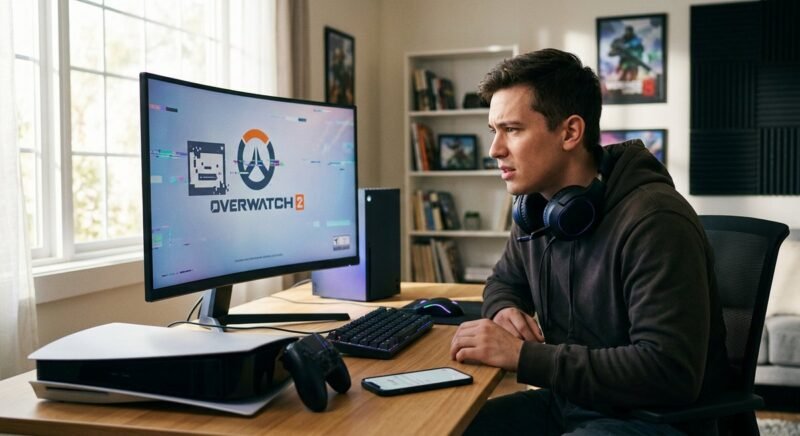
Error BN-115 slams the door shut right at the Overwatch 2 login screen — a grey pop-up reading “Login failed. Please try again later. (BN-115)” with zero explanation of what went wrong. It is fixable in most cases, and clearing it rarely takes more than a few minutes once you isolate the cause.
BN-115 is a Battle.net authentication error. Overwatch 2 tried to verify your credentials with Blizzard Entertainment’s servers and got nothing back. Sometimes that is entirely Blizzard’s fault — a server outage hitting thousands of players at once.
Other times, a stale DNS cache, a misbehaving VPN, or corrupted game files on your machine are silently killing the connection before it reaches Blizzard’s login infrastructure. Knowing which scenario you are in before you start troubleshooting is the single biggest time-saver.
Every platform where Overwatch 2 runs is covered below — PC via Battle.net, PS4, PS5, Xbox Series X|S, Xbox One, and Nintendo Switch — along with a quick diagnostic framework, a breakdown of related error codes like BZ-600 and BN-V114, and clear guidance on when to stop troubleshooting and contact Blizzard Support directly.
What Is Error BN-115 in Overwatch 2?
BN-115 means Overwatch 2’s login request never got a valid response from Blizzard’s authentication servers — the handshake between your game client and Battle.net broke down somewhere in transit. The fix depends entirely on where it broke: either Blizzard’s servers are down (and you wait), or something on your end — DNS, VPN, corrupted files — is blocking the request before it arrives.
The Root Cause
Every time Overwatch 2 launches, the game sends an authentication request to Blizzard Entertainment’s login infrastructure. BN-115 triggers when that request fails — either because Blizzard’s servers rejected it, never received it, or your local network dropped it before it arrived. Corrupted game files can also produce the error by sending a malformed request that the server refuses outright.
No other major error code in Overwatch 2 maps to this exact authentication failure point, which is why BN-115 is distinct from general connectivity errors like LC-208 or the more common Overwatch 2 login failed messages players see during maintenance windows.
Server Outage vs. Your Connection
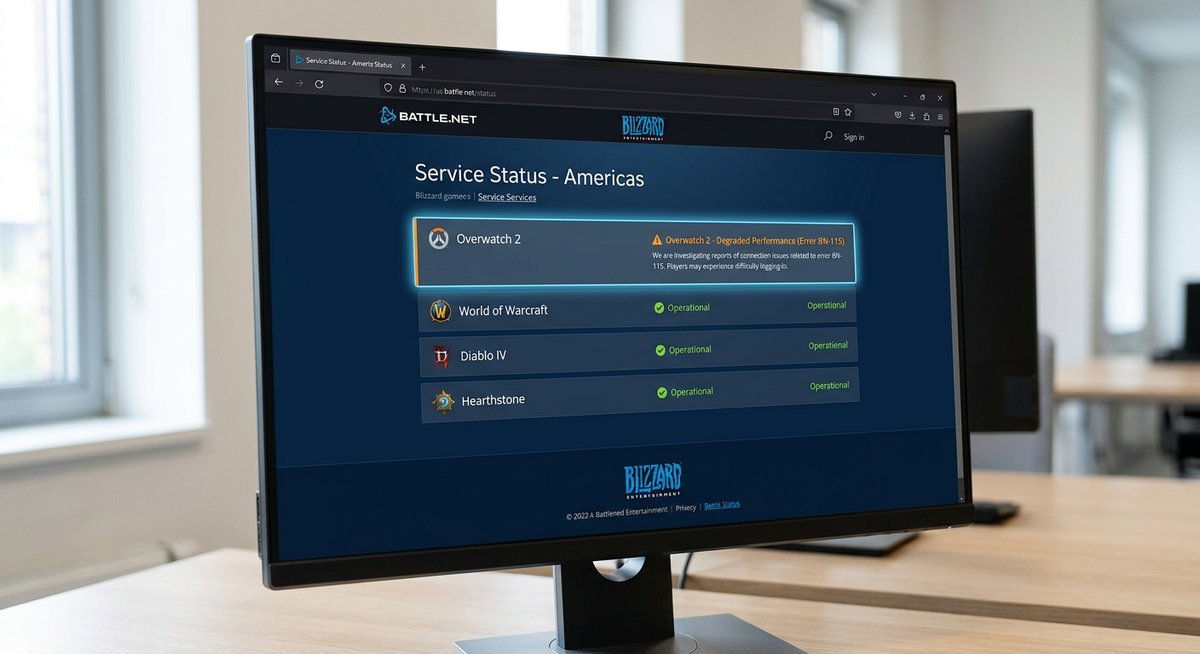
Before touching a single setting, check the official Blizzard server status page. If Overwatch 2 shows a degraded or offline indicator there, no local troubleshooting will resolve BN-115 — the problem is on Blizzard’s end, and waiting is the only option.
| Scenario | Likely Cause | Action Required |
|---|---|---|
| All players affected | Blizzard server outage | Check Blizzard server status; wait for resolution |
| Only you affected | Local network or account issue | Network connection troubleshooting steps below |
| Affects one account, not others on same network | Account-specific authentication block | Contact Blizzard Support directly |
Distinguishing between these two scenarios upfront saves significant time. A widespread Blizzard outage typically generates a spike of reports on Downdetector within minutes — cross-referencing both sources gives a near-instant answer.
How to Fix BN-115 on PC (Battle.net)
Most PC cases of error BN-115 resolve with one of five steps: confirming server status, fully restarting the Battle.net client, flushing your DNS cache, disabling any active VPN or proxy, or running a scan-and-repair on the game files. Work through them in order — each step takes under two minutes, and the majority of players fix the Overwatch 2 login failed state before reaching step three.
Step 1 — Check Blizzard Server Status
Before touching a single setting, visit status.blizzard.com and check whether Blizzard Entertainment is reporting an active incident for Overwatch 2 or Battle.net authentication. According to Blizzard Entertainment’s support documentation (2024), server-side incidents are posted to the status page within minutes of detection. If an outage is listed, no local fix will work — the only option is to wait for Blizzard to resolve it.
Step 2 — Restart the Battle.net Client
Clicking the X on the Battle.net window does not fully close the application — the client continues running in the system tray. Right-click the Battle.net icon in the Windows system tray, select Exit, then wait ten seconds before relaunching.
A full process termination clears any stale authentication token that may be triggering the Battle.net authentication error. This single step resolves a surprising number of BN-115 cases.
Step 3 — Flush DNS and Reset Network
Open Command Prompt as Administrator and run the following commands in sequence:
ipconfig /flushdns
netsh winsock reset
The first command clears your local DNS resolver cache, forcing Windows to fetch fresh server address records. The second resets the Winsock catalog, which repairs corrupted network connection entries that can silently block Battle.net’s login handshake. Restart your PC after both commands complete.
Step 4 — Disable VPN or Proxy
VPNs and proxy servers reroute your traffic through intermediate nodes, which frequently causes Battle.net’s authentication system to reject the connection as suspicious or region-mismatched. Temporarily disable any active VPN client — including browser-based VPN extensions — then relaunch Battle.net.
If the error clears, the VPN was the culprit. Add a Battle.net exception in your VPN software or switch to a server closer to your actual region to prevent it from recurring.
Step 5 — Scan and Repair Game Files
Corrupted local game files can prevent a clean network connection troubleshoot from completing successfully. In the Battle.net client, click the Overwatch 2 icon, select the gear icon next to the Play button, and choose Scan and Repair. The client will verify every local file against Blizzard’s servers and replace anything damaged — a process that typically takes three to eight minutes depending on drive speed.
| Step | Fix | Time Required | Fixes Server-Side Outage? |
|---|---|---|---|
| 1 | Check Blizzard server status | ~1 min | N/A — confirms if waiting is the only option |
| 2 | Fully restart Battle.net client | ~1 min | No |
| 3 | Flush DNS + Winsock reset | ~2 min | No |
| 4 | Disable VPN or proxy | ~1 min | No |
| 5 | Scan and Repair game files | 3–8 min | No |
How to Fix BN-115 on Console (PS4, PS5, Xbox, Switch)
Console players hitting error BN-115 should check both Blizzard server status and their platform’s own network service before touching any settings — two separate services have to be healthy for Overwatch 2 to complete its Battle.net authentication handshake on console. If either is down, no local fix will help.
PS4 and PS5 Fix
Start with a full power cycle — hold the power button until the console beeps twice and shuts off completely. Rest mode does not clear the network stack the same way a cold boot does, so skipping this step wastes time.
- Hold the power button until the console fully powers off (not rest mode).
- Check the PlayStation Network Service Status page and the Blizzard Server Status page simultaneously — both need to show green.
- Go to Settings → Network → Set Up Internet Connection, select your connection, choose Custom, and set the DNS manually: Primary
8.8.8.8, Secondary8.8.4.4(Google’s public DNS servers). - Relaunch Overwatch 2 and attempt login.
Switching to Google’s public DNS servers bypasses ISP-level DNS resolution delays that can disrupt the Blizzard authentication flow — a fix that resolves the Overwatch 2 login failed screen for a notable share of PS4 and PS5 players even when servers appear healthy.
Xbox (Series X|S and One) Fix
Xbox consoles cache network configuration data aggressively. A standard restart does not flush that cache — a hard reset does.
- Hold the Xbox button on the console for 10 seconds until the console powers off completely.
- Unplug the power cable for 30 seconds, then reconnect and boot.
- Navigate to Settings → General → Network Settings → Advanced Settings and select Alternate MAC Address → Clear. The console will restart automatically.
- Check Xbox Live Service Status alongside Blizzard server status before logging back in.
Clearing the alternate MAC address forces the router to assign a fresh DHCP lease, which resolves network connection troubleshooting scenarios where the console is holding a stale IP that conflicts with Blizzard’s authentication endpoints.
Nintendo Switch Fix
The Nintendo Switch adds a third service layer: Nintendo Switch Online must also be operational for Overwatch 2’s login to succeed.
- Hold the power button for 3 seconds and select Power Options → Restart.
- Check the Nintendo Online service status page in addition to Blizzard server status.
- Go to System Settings → Internet → Internet Settings, select your network, and choose Change Settings → DNS Settings → Manual. Set Primary DNS to
8.8.8.8and Secondary to8.8.4.4. - Reconnect to Wi-Fi manually and relaunch the game.
Universal Console Step — Reinstall as a Last Resort
Reinstalling Overwatch 2 is worth attempting only after every step above has failed and Blizzard’s servers are confirmed healthy. A corrupted local install can produce a persistent BN-115 error that mimics a server-side authentication failure.
Set realistic expectations: reinstalling does not resolve server outages, account-level flags, or platform network issues. Overwatch 2’s base installation runs roughly 50 GB, so factor in download time before committing. If the error returns immediately after a clean reinstall, the problem is account-side or server-side — not the local game files.
| Platform | Key Reset Step | Extra Status Page to Check | DNS Fix Applicable |
|---|---|---|---|
| PS4 / PS5 | Full cold boot (double-beep shutdown) | PlayStation Network Service Status | Yes — 8.8.8.8 / 8.8.4.4 |
| Xbox Series X|S / One | Hard reset + clear alternate MAC address | Xbox Live Service Status | Yes — via Advanced Network Settings |
| Nintendo Switch | Full restart + manual Wi-Fi reconnect | Nintendo Online Service Status | Yes — via Internet Settings → Manual DNS |
When BN-115 Won’t Go Away
Persistent BN-115 after every troubleshooting step points to an account-level issue rather than a network or server problem. One reliable test: try logging in with a different Battle.net account on the same machine. If the second account works, the error is tied to your specific account — not your hardware or ISP.
Contact Blizzard Support directly with three things ready: your Battle.net email, the exact platform and region, and a list of every fix you already attempted. According to Blizzard’s official troubleshooting documentation (2024), authentication-related tickets receive initial responses within 24 hours during normal support volume periods. Account merges, recent name changes, and console-to-PC migrations are known triggers for persistent BN-115 flags that only Blizzard’s account team can clear.
Related Battle.net Error Codes
BN-115 is one of several authentication and connectivity error codes in the Battle.net ecosystem. Players searching for seemingly unrelated codes often land here because the troubleshooting steps overlap significantly — but the root causes differ.
| Error Code | What It Means | Key Difference from BN-115 |
|---|---|---|
| BN-V114 / bn-v114 | Battle.net version mismatch — your client is outdated | Requires a Battle.net client update, not a network fix |
| BZ-600 / error bz 600 | General Battle.net connection failure | Broader than BN-115; covers any connection drop, not just authentication |
| BCNE / err bcne | Battle.net client network error | Usually tied to firewall or antivirus blocking Battle.net processes |
| Error 80061b | Console-specific Battle.net linking failure | Involves the console-to-Battle.net account link, not the login handshake |
| Error 111 K1 | Regional connectivity timeout | Points to regional routing issues rather than authentication failure |
| Error 11 BFT | Battle.net token verification failure | Related to session tokens expiring mid-game rather than login |
A common source of confusion: search queries like “error b11,” “error 11b,” “error 11xb,” and “error 115b” are almost always misspellings of BN-115 rather than distinct error codes. Blizzard’s error naming convention uses a letter prefix (BN, BZ, LC) followed by a number — so “BN-115” is the correct format. If your error screen shows “BN-115” but you arrived here searching for “err 115” or “error code 115,” the fixes above apply directly.
Portuguese-speaking players searching “erro bn 115 overwatch” or “erro bn 115 overwatch 2” face the identical error — the code is language-independent, and every fix works regardless of your game client language setting. The same applies to abbreviated searches like “OW2 error BN-115” — Overwatch 2 uses the same Battle.net authentication pipeline across all regions and language variants.
Frequently Asked Questions
What is error BN-115 in Overwatch 2?
Error BN-115 is a Battle.net authentication error that fires when Overwatch 2 cannot complete a login handshake with Blizzard Entertainment’s servers. The error can originate on Blizzard’s end during a server outage, or on your end due to a local network or client issue. Checking Blizzard server status first tells you which scenario you’re dealing with.
Is BN-115 a Blizzard server outage or a problem with my account?
Either is possible. Check the official Blizzard server status page at status.blizzard.com first — if an active incident is listed for Overwatch 2 or Battle.net, the error is on Blizzard’s end and no local fix will resolve it. If servers show green across the board, the problem is local to your network or device.
How do I fix the BN-115 error on PS4 or PS5?
Power-cycle the console with a full shutdown (not rest mode), verify both PlayStation Network and Blizzard server status are green, then update your DNS settings to Google’s public DNS servers — 8.8.8.8 (primary) and 8.8.4.4 (secondary) — under Settings → Network → Set Up Internet Connection. Those three steps resolve the majority of console-side BN-115 login failures.
Does reinstalling Overwatch 2 fix the BN-115 error?
Rarely, and only when corrupted local game files are the confirmed root cause. A reinstall does nothing against a server-side outage or an account-level authentication block. Exhaust every other troubleshooting step before committing to a reinstall — the Overwatch 2 download exceeds 50 GB on most platforms.
How long does BN-115 last if it’s a server outage?
Blizzard Entertainment typically resolves minor authentication incidents within one to three hours. Larger outages affecting multiple games or regions can persist longer. Monitoring Downdetector’s Overwatch page alongside Blizzard’s official status page gives the fastest real-time read on restoration progress.
Can a VPN cause the BN-115 error?
Yes. VPNs reroute your traffic through intermediate servers, and Battle.net’s authentication system may reject the connection as suspicious or region-mismatched. Disable your VPN temporarily, relaunch Battle.net, and test. If BN-115 clears, add a Battle.net exception in your VPN client or switch to a server in your actual region.
What is error BZ-600 and is it the same as BN-115?
Error BZ-600 is a broader Battle.net connection failure — it fires on any connection drop, not specifically authentication. BN-115 is narrower: it only triggers when the login handshake fails. The DNS flush and network reset steps overlap between both errors, but BZ-600 more frequently points to firewall or ISP-level blocking rather than Blizzard server outages.
What does “error bin” mean in Overwatch?
“Error bin” is almost always a mistyping of “error BN” — specifically BN-115. Blizzard does not have a standalone “bin” error code. If your screen displays “BN-115,” the troubleshooting steps in this guide apply directly regardless of how the search query was typed.
Conclusion
BN-115 boils down to a broken handshake between your game client and Blizzard’s login servers. Either Blizzard’s infrastructure is having a bad day, or something local — DNS, VPN, corrupted files — is intercepting the connection.
Check Blizzard’s status page before doing anything else. Spending 30 minutes flushing DNS while Blizzard’s authentication servers are already down is wasted effort. Confirm the servers are green, then work through the platform-specific steps.
If the error sticks to one specific account after every fix — while other accounts on the same network log in fine — that is the clearest signal to contact Blizzard Support with your platform, region, and a summary of what you already tried. Most BN-115 cases resolve well before reaching that point.