




FictionLab is an AI-powered roleplay and storytelling platform where users can build custom scenarios, hold ongoing conversations with AI characters, and generate images directly inside their stories. Knowing how to use FictionLab effectively unlocks a surprisingly deep toolset — one that goes well beyond basic chatting.
The platform lets you craft detailed narrative setups, choose from multiple AI language models, run group chats with several characters at once, and branch conversations at any point to explore alternate story directions. Image generation is built in, not bolted on — a feature that sets FictionLab apart from many competitors yet rarely gets explained anywhere.
This walkthrough covers everything from creating an account and downloading the app on Android or iOS, to advanced controls like hidden characters, force character, private scenarios, and subscription management. Whether you’ve just signed up or you’ve been using FictionLab for a while and want to unlock features from the complete FictionLab AI platform guide, the complete picture is laid out here — setup through power-user tools, nothing skipped.
Getting Started: Sign Up, Login, and Download FictionLab
Creating a FictionLab account takes under two minutes — visit fictionlab.ai, enter an email address and password, confirm via the verification link sent to your inbox, and you’re in. The platform also offers Google-based social login as a faster alternative, skipping the manual email confirmation step entirely.
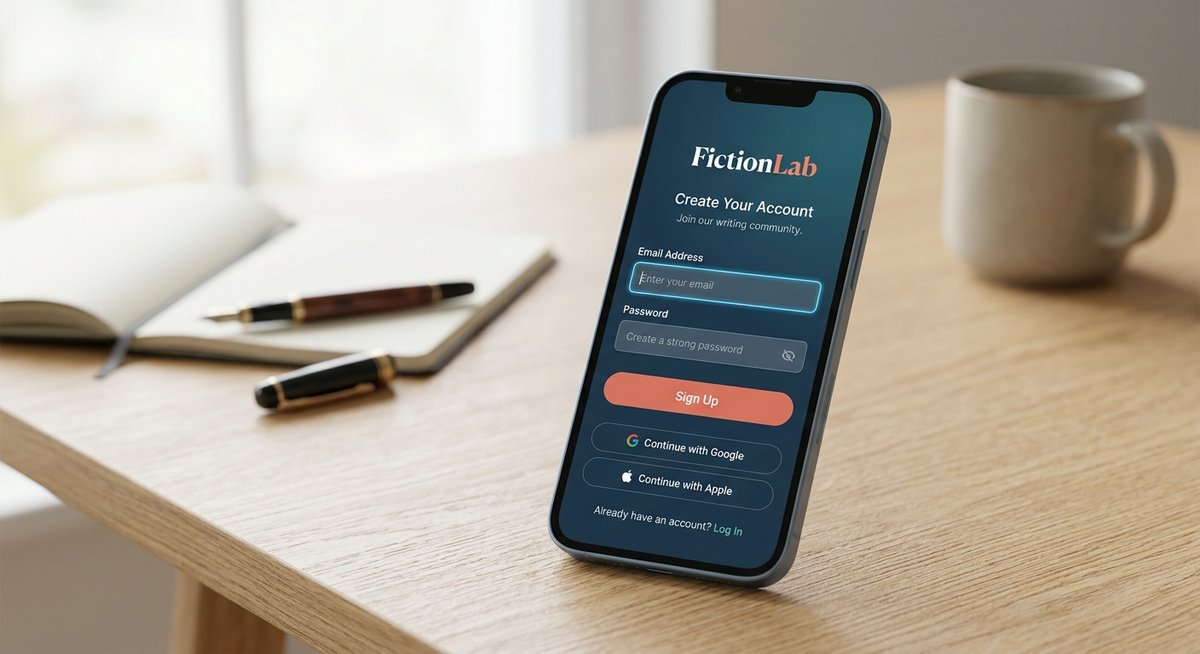
How to Create a FictionLab Account
Head to fictionlab.ai and click the Sign Up button in the top-right corner. You’ll be prompted to enter a valid email address and create a password — FictionLab recommends at least eight characters for security.
Once submitted, check your inbox for a confirmation email and click the verification link inside. After confirming, your account is active and ready. Prefer a quicker route? The Continue with Google option on the sign-up page authenticates through your existing Google account without a separate password.
How to Log In and Reset Your Password
Returning users log in at fictionlab.ai using the same email and password set during registration. The Google login button appears here too, so social-auth users can bypass the password field entirely.
Locked out? Use the Forgot Password link directly below the login form. Follow these steps to regain access:
- Click Forgot Password on the login page.
- Enter the email address associated with your account.
- Open the password reset email sent by FictionLab (check spam if it doesn’t arrive within two minutes).
- Click the reset link in the email — it typically expires after 24 hours.
- Enter and confirm your new password, then log in normally.
How to Download the FictionLab App (Android & iOS)
Yes — FictionLab does have a dedicated mobile app, available on both major platforms. Android users can install it directly from the Google Play Store by searching “FictionLab AI.” For devices that restrict Play Store access, a direct APK download is available through the FictionLab website, allowing manual sideloading.
iPhone and iPad users will find the app on the Apple App Store — search “FictionLab” and look for the official listing. The iOS version mirrors the web experience, including scenario creation, character chat, and image generation features.
| Platform | Install Method | Notes |
|---|---|---|
| Android | Google Play Store | Standard install; recommended method |
| Android | Direct APK (sideload) | Available via fictionlab.ai; requires enabling unknown sources in device settings |
| iOS / iPhone / iPad | Apple App Store | Full feature parity with web version |
| Desktop / Browser | Web browser (fictionlab.ai) | No install required; works on any device with modern browser |
How to Create and Manage Scenarios in FictionLab
Scenarios are the foundation of everything in FictionLab — they define the world, tone, and rules your AI characters operate within. Creating one takes under two minutes, but the quality of your setup directly determines how coherent and immersive the resulting story becomes. A well-written scenario with clear custom instructions will consistently outperform a blank or vague one.
How to Create Your First Scenario
The scenario creation flow is straightforward, but each field does real work. Skipping the opening context, for example, leaves the AI without narrative grounding — responses become generic fast.
- From the FictionLab home screen, tap or click New Scenario.
- Enter a title — keep it descriptive enough that you’ll recognize it later (e.g., “Victorian Detective Agency” rather than “Story 1”).
- Write a description summarizing the premise. One to three sentences is enough.
- Select a genre and tone from the available options (e.g., fantasy, thriller, romance, horror). This signals the AI toward appropriate vocabulary and pacing.
- Write the opening context — a paragraph or two establishing the setting, time period, and situation at the start of the story.
- Add custom scenario instructions in the dedicated field. These are persistent directives the AI reads before every response. Use them to enforce rules like “never break character,” “keep responses under 200 words,” or “the protagonist does not know magic exists.”
- Tap Save to finalize the scenario.
Custom instructions are arguably the most powerful part of the setup. They function like a system prompt — shaping tone, restricting certain behaviors, and keeping the narrative consistent across long sessions.

How to Duplicate, Delete, and Set a Scenario to Private
FictionLab gives you three key management actions for any scenario you own. None of them are buried — all three are accessible from the scenario’s options menu (typically a three-dot or gear icon on the scenario card).
| Action | What It Does | Best Used When |
|---|---|---|
| Duplicate | Creates an identical copy of the scenario, including instructions and setup | You want to run a variation without losing the original |
| Delete | Permanently removes the scenario and its chat history | Clearing out test scenarios or abandoned stories |
| Private | Hides the scenario from public browsing and community discovery | Personal or mature content you don’t want publicly visible |
Duplicating is especially useful for template-style scenarios — build one solid framework once, then duplicate and tweak for each new story. Deletion is permanent, so FictionLab typically prompts for confirmation before removing a scenario.
The private toggle is worth enabling by default if your scenario involves sensitive themes. Public scenarios can appear in community browse feeds, which may not be appropriate for every use case.
How to Chat With Characters in FictionLab
Once a scenario is saved, the chat interface is where FictionLab’s storytelling engine actually runs. Opening a scenario drops you directly into a conversation window — type your first message in the input field at the bottom and hit send to begin. The AI responds in character immediately, drawing on the persona, backstory, and scenario context you configured.
Starting a Chat and Choosing an AI Model
Before sending that first message, check the model selector — typically accessible via a dropdown near the top of the chat interface. FictionLab supports multiple large language models, and the choice matters more than most users initially realize.
Higher-tier models generally produce longer, more nuanced responses with better narrative consistency. Lighter models respond faster and consume fewer tokens, which is useful for quick back-and-forth exchanges rather than deep prose storytelling.
| Model Tier | Best For | Trade-off |
|---|---|---|
| Standard / Fast | Casual chat, quick replies | Less creative depth |
| Advanced / Premium | Rich narrative, complex characters | Slower, higher token cost |
Switch models mid-conversation if a scene demands it — FictionLab retains chat history regardless of which model is active.
Narration Voice, Translation, and Chat Settings
The settings panel inside an active chat exposes several controls that meaningfully shape the experience. Narration style toggles let you shift between first-person immersion and third-person storytelling — a small change that dramatically alters the feel of a scene.
Non-English users can enable the translation option, which processes responses into a target language without breaking character voice. Response length and memory context depth are also adjustable here; increasing memory context helps the AI recall earlier plot points, which is critical for long-running scenarios.
How to Use Hidden Character and Force Character
Hidden character is one of FictionLab’s most underused features. Activating it inserts an AI persona that shapes the narrative tone, pacing, or plot direction from behind the scenes — it influences responses without appearing as a named participant in the conversation. A practical use case: set a hidden character as a “dungeon master” persona to keep a fantasy scenario on track without breaking immersion.
Force character does the opposite job. It overrides natural turn order and compels a specific character to respond next, regardless of what the narrative flow would otherwise produce. Use it when a scene stalls and you need a particular character to react — say, forcing the villain to speak after a long silence rather than waiting for the AI to route the dialogue organically.
Both features are accessible through the character management menu within an active chat session.
How to Set Up a Group Chat in FictionLab
Group chat in FictionLab lets multiple characters share a single conversation thread — a feature no competitor guide currently explains in any detail. To configure one, open the scenario settings and use the “Add Character” option to include two or more personas before starting the chat.
- Open your scenario and navigate to the character roster.
- Tap Add Character for each additional persona you want in the conversation.
- Configure each character with a name, backstory, and personality traits.
- Save the scenario and start the chat — all added characters will participate automatically.
The AI rotates between characters based on narrative flow, though you can use force character to override the order when necessary. Group dynamics emerge naturally when each character has a distinct voice and set of motivations defined in their setup.
How to Generate Images in FictionLab
FictionLab’s image generation feature lets users create AI-generated visuals directly inside a scenario — no third-party tool required. The generator is accessible mid-chat, meaning you can produce character portraits, scene illustrations, or atmospheric artwork without ever leaving the conversation. It’s one of the platform’s most searched capabilities and, surprisingly, one of the least documented anywhere online.
How to Use the FictionLab AI Image Generator
To generate an image, open any active scenario and locate the image generation icon in the chat toolbar — typically represented by a camera or picture frame symbol. Tap or click it to open the image prompt panel. From there, type a description of what you want to visualize, such as a character’s appearance or a specific scene setting, then confirm to generate.
- Open your scenario and enter the chat view.
- Tap the image generation icon in the toolbar.
- Enter a descriptive prompt (character details, environment, mood, lighting).
- Select a style preset if available, then tap Generate.
- Save or insert the image directly into the conversation thread.
In practice, more specific prompts produce noticeably better results. Describing hair color, clothing, and scene lighting in a single prompt outperforms vague one-word inputs by a significant margin.
| Prompt Type | Example | Expected Output Quality |
|---|---|---|
| Vague | “A warrior” | Generic, inconsistent results |
| Descriptive | “A female warrior with silver armor, red hair, standing in a foggy forest at dusk” | Detailed, scene-accurate image |
| Style-directed | “Anime style, soft lighting, close-up portrait of a young mage” | Stylistically consistent output |
Image generation is available on both the free tier and the Plus plan, though Plus subscribers typically receive higher resolution outputs and faster generation times. If the icon isn’t visible in your toolbar, check that image generation is enabled under your account settings.
Frequently Asked Questions
Does FictionLab Have a Mobile App?
Yes. FictionLab has a dedicated app on both Android (Google Play Store, plus direct APK download) and iOS (Apple App Store). The mobile versions include full feature parity with the web interface, including scenario creation, character chat, and image generation.
Does FictionLab Support Personas?
FictionLab includes a persona system that lets you define how the AI addresses and interacts with you. Set your persona under account or scenario settings to establish your character’s name, role, and traits — the AI will reference these consistently throughout conversations.
Can FictionLab Generate Images?
Built-in AI image generation is available directly inside any active scenario. Tap the image icon in the chat toolbar, enter a descriptive prompt, and generate character portraits, scene illustrations, or atmospheric artwork without leaving the conversation.
Does FictionLab Have Unlimited Messages?
The free tier has a daily message cap. Paid tiers (Plus and Premium) offer substantially higher message allowances, with Premium providing the largest daily allocation. Exact limits depend on the subscription level and may vary.
How Does FictionLab Work?
FictionLab routes your messages through large language models (LLMs) that generate character responses based on your scenario setup, custom instructions, persona settings, and conversation history. Story cards and memory cards inject persistent context, keeping characters and plotlines consistent across long sessions.
What Are FictionLab Custom Scenario Instructions?
Custom scenario instructions are persistent directives the AI reads before every response — functioning like a system prompt. Use them to enforce rules (never break character), set tone (keep responses dark and gritty), or establish world constraints (magic does not exist in this setting).
Making the Most of FictionLab
FictionLab’s interface is simple enough to start using immediately, but the depth is in the details — custom scenario instructions, memory card management, model selection, and group chat configuration are where the platform separates itself from basic AI chat tools. Most new users plateau at basic one-on-one conversations and never discover features like hidden characters, force character, or branching narratives.
The single highest-impact action for improving your FictionLab experience: write detailed custom instructions for every scenario. A scenario with clear rules, tone directives, and world context will consistently outperform a blank setup — regardless of which model tier you’re using. Pair strong instructions with the right model selection for the session type, and FictionLab becomes a genuinely powerful collaborative storytelling engine.