




FreeTube is a free, open-source desktop YouTube client built specifically for users who want to watch YouTube without handing Google their viewing history, IP address, or personal data. The complete FreeTube privacy and feature overview explains how the dual API architecture protects user data. It pulls video content directly through YouTube’s internal API or via a local RSS feed, meaning no ads, no tracking, and no Google account required. That combination is why it has quietly built a loyal following among privacy-conscious users, developers, and anyone exhausted by YouTube’s increasingly aggressive ad experience.
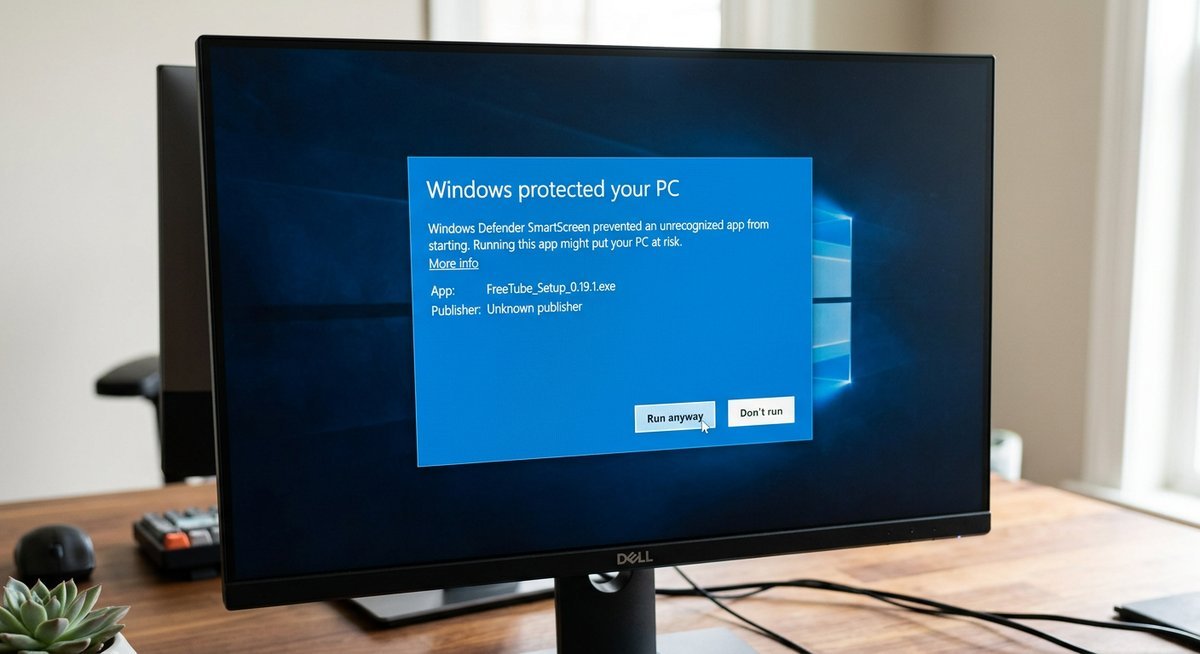
Installing FreeTube is straightforward, but the process varies enough across operating systems that a wrong turn — downloading from a third-party mirror, ignoring a misunderstood security warning, or grabbing the wrong build for your hardware — can derail the whole thing. Fake APKs impersonating FreeTube exist in the wild, and Windows Defender will flag the legitimate installer with a security warning that looks alarming but isn’t.
Every platform covered here — Windows (including 32-bit and older versions), macOS (Intel and Apple Silicon), Linux (Flatpak, Snap, AppImage, .deb, and AUR), and beyond — links exclusively to the official FreeTube GitHub releases page. No third-party sources. No guesswork.
What Is FreeTube and What Do You Need Before Installing?
FreeTube is a free, open-source desktop application that lets you watch YouTube content without ads, without tracking, and without a Google account. Built on Electron, FreeTube is available for Windows, macOS, and Linux — and an unofficial Android port exists separately. It is not a browser extension, not a web app, and not available through the official Google Play Store.
The project is maintained on GitHub by a volunteer community. As of its most recent stable releases, FreeTube supports local subscriptions, a built-in SponsorBlock integration, and two playback methods: the Invidious API and the local YouTube extractor.
System Requirements by Platform
FreeTube runs on surprisingly modest hardware. Windows 7 and Windows 8 are supported alongside Windows 10 and 11, and 32-bit builds exist for older machines — a detail most competing guides omit entirely. No Google account is required on any platform.
| Platform | Minimum Version | Architecture | Google Account Required? |
|---|---|---|---|
| Windows | Windows 7 | 32-bit & 64-bit | No |
| macOS | macOS 10.13 High Sierra | Intel x64 & Apple Silicon (ARM64) | No |
| Linux | Any modern distro (kernel 3.10+) | x64, ARM64 | No |
| Android (unofficial) | Android 5.0 (Lollipop) | ARM | No |
Where to Find the Official Download
The only verified, safe source for FreeTube installers is the official GitHub releases page at github.com/FreeTubeApp/FreeTube/releases. Every other site — mirror downloads, APK repositories, and third-party app stores claiming to offer FreeTube — should be treated as suspect until independently verified.
Fake APKs impersonating FreeTube have circulated on unofficial Android app stores, and some mirror sites bundle outdated or modified builds. Downloading from anywhere other than the official GitHub repository puts your device at risk. The FreeTube project does not maintain any standalone download website separate from GitHub.
How to Install FreeTube on Windows
FreeTube installs on Windows in under two minutes — but almost every first-time user hits a SmartScreen warning that looks alarming and isn’t. Download the correct installer from the official FreeTube GitHub releases page, run it, dismiss the false-positive security prompt, and the app is ready to use. No account, no license key, no bundled software.
Downloading the Right Windows Installer
Three Windows builds are available on the GitHub releases page at github.com/FreeTubeApp/FreeTube/releases. Choosing the wrong one wastes time, so match the file to your hardware before clicking anything.
| File Name Pattern | Who It’s For | Notes |
|---|---|---|
freetube-x.x.x-setup-x64.exe | Most users — 64-bit Windows 10/11 | Standard installer; installs to Program Files |
freetube-x.x.x-setup-ia32.exe | Older 32-bit hardware or 32-bit Windows 7/8 | Smaller feature parity; same core app |
freetube-x.x.x-win-x64-portable.zip | Users who want zero system installation | Run from USB or any folder; settings stored locally |
Not sure whether your Windows installation is 32-bit or 64-bit? Open Settings → System → About and check the “System type” field. The overwhelming majority of machines purchased after 2010 are 64-bit.
Scroll past the changelog on the GitHub releases page to reach the Assets section — that’s where the actual download links live. Ignore any site that isn’t the official GitHub repository; third-party mirrors have no verification process and have historically bundled unwanted software alongside legitimate open-source apps.
Running the Installer and Fixing Windows Defender Warnings
The SmartScreen warning is not evidence of malware. If you encounter actual errors after installation, the FreeTube troubleshooting guide covers 403 errors, API failures, and playback issues. FreeTube is open-source and auditable, but Microsoft’s SmartScreen flags any executable that lacks a paid Extended Validation (EV) code-signing certificate — a certificate that costs hundreds of dollars annually and that most independent open-source projects reasonably skip. The warning is a cost artifact, not a security finding.
- Locate the downloaded
.exefile in your Downloads folder and double-click it. - When the blue “Windows protected your PC” dialog appears, do not click Close.
- Click More info — a small text link below the warning message.
- A new button labeled Run anyway will appear at the bottom of the dialog. Click it.
- If a User Account Control (UAC) prompt follows, click Yes to allow the installation.
- The installer completes silently in seconds. FreeTube launches automatically on first install.
How to Install FreeTube on macOS
FreeTube runs on macOS 10.13 (High Sierra) and later, and the GitHub releases page offers two separate .dmg files — one for Intel Macs and one for Apple Silicon. Picking the wrong build won’t brick anything, but you’ll get a performance hit, so it’s worth the ten-second check to confirm your chip before downloading.
Choosing the Right macOS Build
Apple began shipping its own ARM-based chips with the M1 in late 2020. Any Mac purchased after that date almost certainly runs Apple Silicon — but if there’s any doubt, click the Apple menu in the top-left corner, select About This Mac, and look at the Chip or Processor line.
| Your Mac’s Chip | File to Download | Filename Contains |
|---|---|---|
| Intel Core i5/i7/i9 | Intel (x64) build | x64.dmg |
| Apple M1, M2, or M3 | Apple Silicon (ARM64) build | arm64.dmg |
Both files live on the official FreeTube GitHub releases page under the latest release tag. Download only from there — third-party mirror sites have no verification process and carry real malware risk.
Opening FreeTube Past Gatekeeper
macOS Gatekeeper blocks apps that aren’t notarized by Apple or distributed through the Mac App Store. FreeTube is legitimate open-source software — it simply hasn’t paid for Apple’s notarization process. The warning is expected, not a red flag.
- Double-click the downloaded
.dmgfile to mount it. A Finder window opens showing the FreeTube icon alongside an Applications folder shortcut. - Drag the FreeTube icon into the Applications folder.
- Eject the mounted disk image by right-clicking it in the Finder sidebar and selecting Eject.
- Open the Applications folder and double-click FreeTube. macOS will display: “FreeTube cannot be opened because it is from an unidentified developer.”
- Do not click Move to Trash. Instead, open System Settings → Privacy & Security and scroll down to the Security section.
- You’ll see a message referencing FreeTube with an Open Anyway button. Click it.
- A final confirmation dialog appears — click Open. FreeTube launches, and macOS remembers the exception going forward.
On macOS Monterey and earlier, the same option appears in System Preferences → Security & Privacy → General. The path changed with Ventura’s redesigned Settings app, but the underlying mechanism is identical.
How to Install FreeTube on Linux
FreeTube offers five distinct installation methods on Linux — Flatpak, Snap, AppImage, .deb package, and AUR — and the right choice depends entirely on your distro and how much you value automatic updates versus portability. For most desktop users on Ubuntu, Fedora, or Linux Mint, Flatpak via Flathub is the cleanest path. It sandboxes the app, updates automatically, and works across virtually every major distribution without touching system packages.
Linux Installation Methods Comparison Table
No single method suits every setup. The table below cuts through the noise so you can match your distro to the fastest, safest install path without digging through documentation.
| Method | Best For | Auto-Updates | Sandboxed | Command / Source |
|---|---|---|---|---|
| Flatpak (Flathub) | Ubuntu, Fedora, Mint, most distros | Yes | Yes | flatpak install flathub io.freetubeapp.FreeTube |
| Snap (Snap Store) | Ubuntu and Snap-enabled distros | Yes | Yes | sudo snap install freetube |
| AppImage | Any distro, no install needed | No (manual) | No | Download from GitHub releases page |
| .deb package | Debian, Ubuntu, Linux Mint | No (manual) | No | sudo dpkg -i freetube_*.deb |
| AUR | Arch Linux, Manjaro, EndeavourOS | Yes (via AUR helper) | No | yay -S freetube-bin |
Flatpak via Flathub (Recommended for Most Users)
Flatpak is available by default on Fedora and Linux Mint, and takes roughly two minutes to set up on Ubuntu. The sandboxing layer also means FreeTube runs in an isolated environment — a meaningful privacy advantage for an app built around privacy in the first place.
- Install Flatpak if your distro doesn’t include it:
sudo apt install flatpak(Debian/Ubuntu) orsudo dnf install flatpak(Fedora). - Add the Flathub repository:
flatpak remote-add --if-not-exists flathub https://dl.flathub.org/repo/flathub.flatpakrepo - Install FreeTube:
flatpak install flathub io.freetubeapp.FreeTube - Launch it:
flatpak run io.freetubeapp.FreeTube
Updates happen automatically through Flatpak’s built-in update mechanism. Run flatpak update to check manually, or let your desktop environment handle it — GNOME Software and KDE Discover both pull Flatpak updates automatically.
FreeTube on Chromebook, Steam Deck, and Other Platforms
FreeTube runs on several platforms beyond the big three desktop operating systems. Chromebook, Steam Deck, Raspberry Pi, and Docker all work — each with minor setup differences worth knowing upfront.
Chromebook
ChromeOS supports Linux apps through Crostini. Enable the Linux development environment in Settings → Advanced → Developers → Linux development environment, then install FreeTube via Flatpak or the .deb package. Performance depends on the Chromebook’s hardware — ARM-based models need the ARM64 build.
Steam Deck
Switch to Desktop Mode, open the Discover store or a terminal, and install via Flatpak. FreeTube is a keyboard-and-mouse application at its core, but the Steam Deck’s trackpads and on-screen keyboard make it usable for browsing and playback. Controller support is minimal — expect to use the touchscreen or trackpads for navigation.
Raspberry Pi and Docker
Raspberry Pi 4 and newer models can run FreeTube through the ARM64 AppImage or a Flatpak installation on Raspberry Pi OS. Performance is adequate for 720p playback but struggles with 1080p on Pi 4 hardware. Docker users can run FreeTube headlessly or pair it with a VNC server, though this setup is more suited to development and testing than daily viewing.
Updating and Uninstalling FreeTube
FreeTube does not auto-update outside of Flatpak and Snap. Manual update: download the latest release from GitHub and install it over the existing version. On Linux, flatpak update handles Flatpak installs. To uninstall on Ubuntu: flatpak uninstall io.freetubeapp.FreeTube or sudo apt remove freetube for .deb installs. On Windows, use Settings → Apps to uninstall normally. macOS: drag FreeTube from Applications to Trash.
Frequently Asked Questions
Can I install FreeTube on Windows 7 or Windows 8?
Yes. FreeTube provides 32-bit builds (ia32) that run on Windows 7, Windows 8, and 32-bit Windows 10. Download the file labeled setup-ia32.exe from the GitHub releases page. Feature parity with the 64-bit version is identical.
Is the FreeTube .exe safe? Windows Defender flagged it.
The Windows SmartScreen warning is a false positive. FreeTube’s executable is unsigned because the project does not pay for a Microsoft code-signing certificate — an expense most open-source projects skip. The code is fully auditable on GitHub. Download exclusively from the official releases page to eliminate supply chain risk.
Does FreeTube have an official Android APK?
No official Android version exists. An unofficial community fork called FreeTube Android (by MarmadileManteater on GitHub) provides an APK, but it is not maintained by the core FreeTube team. For Android, NewPipe and LibreTube are more established alternatives.
How do I update FreeTube on Linux?
Flatpak users run flatpak update. Snap users get automatic updates. For AppImage and .deb installs, download the latest version from GitHub and replace the existing file or reinstall. There is no built-in auto-updater for non-sandboxed install methods.
Can I install FreeTube via Homebrew on macOS?
Yes. Run brew install --cask freetube in Terminal. Homebrew handles the download, installation, and Gatekeeper bypass automatically. Updates are managed through brew upgrade --cask freetube.
Does FreeTube support hardware acceleration?
FreeTube uses Electron’s Chromium engine, which supports hardware-accelerated video decoding by default. If playback stutters, check Settings → Player Settings and ensure hardware acceleration is enabled. On Linux, GPU driver compatibility varies — Wayland users may need to launch with --enable-features=UseOzonePlatform --ozone-platform=wayland flags.