




FreeTube stops working for one of three reasons: YouTube has temporarily blocked your IP address, the app’s Local API can no longer parse YouTube’s updated JavaScript player, or you’re running an outdated build that hasn’t caught up with a recent YouTube-side change. Any of these can hit without warning, turning a working installation into a wall of error messages overnight.
The frustration is real, but the fixes are systematic. HTTP 403 errors, cryptic JavaScript failures like “l is not a function,” buffering that won’t resolve, silent videos, and a blank screen on launch all have distinct causes — and distinct solutions. Lumping them together and telling users to “reinstall the app” is why most troubleshooting threads go nowhere.
What follows breaks down every major FreeTube error by type, explains exactly what’s triggering it, and walks through the specific steps to resolve it — including the ones no official documentation covers, like IP block recovery, switching Invidious instances under load, and surviving a YouTube cipher update while waiting for a patch. Most issues clear up in under five minutes once you know which lever to pull.
HTTP 403 / Bad HTTP Status Errors (Most Common)
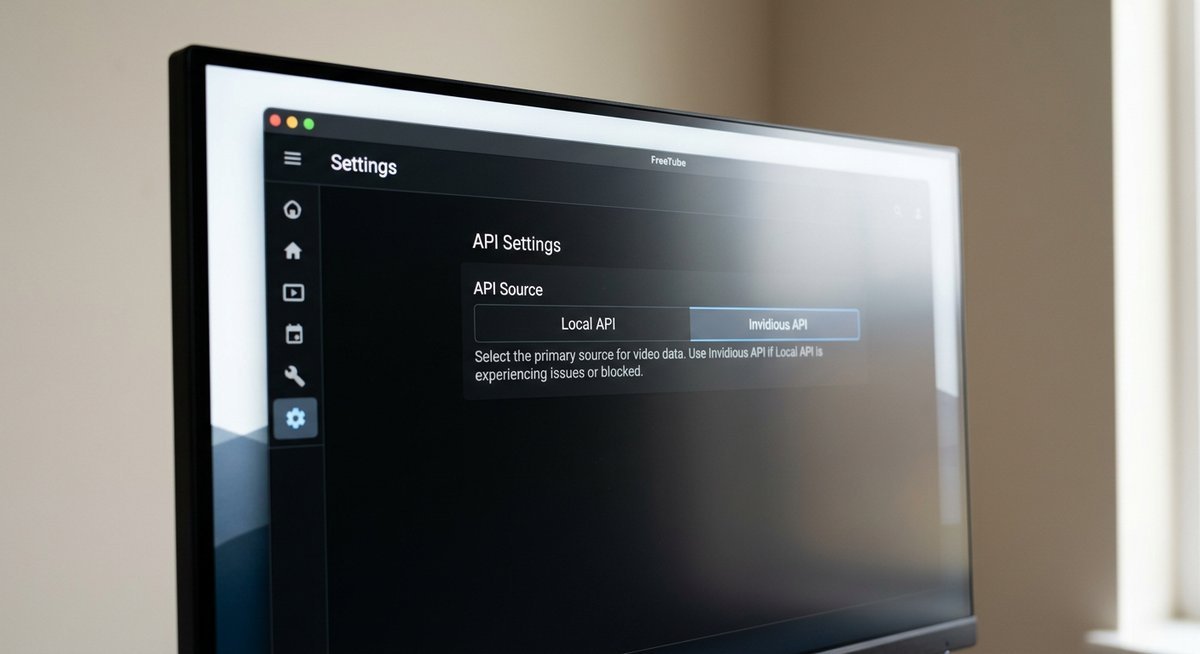
A 403 error in FreeTube means YouTube’s servers actively refused the request — not that something failed in transit. Switching from the Local API to an Invidious API instance in Settings → Player Settings resolves this in the majority of cases within seconds. If that doesn’t work, clearing the cache and rotating your IP via VPN will handle the rest.
What Causes a 403 Error in FreeTube
FreeTube’s Local API bypasses the official YouTube Data API entirely, querying YouTube’s servers the same way a browser would — but without cookies, sessions, or the behavioral fingerprint YouTube expects from a real user. YouTube’s automated systems detect this pattern and rate-limit or outright block the originating IP address, especially on shared networks like university Wi-Fi, corporate offices, or residential connections with multiple active users.
The block is almost always temporary, typically lasting 24 to 48 hours. Heavy use — bulk subscriptions refreshing simultaneously, rapid searching, or leaving FreeTube polling in the background — accelerates how quickly YouTube flags the IP. Users on VPNs with shared exit nodes are particularly vulnerable, since thousands of requests may already be originating from that IP before FreeTube sends a single one.
How to Fix HTTP 403 Errors
- Switch to Invidious API: Open Settings → Player Settings, find the “API to use when fetching videos” option, and select Invidious. This routes requests through a third-party Invidious instance instead of hitting YouTube directly, bypassing the IP block entirely.
- Change your Invidious instance: If you’re already on Invidious and still seeing 403s, the instance itself may be overloaded or blocked. Visit the official Invidious instance list at api.invidious.io and select a healthy instance with a green status indicator.
- Clear FreeTube’s cache: Navigate to Settings → Data Settings → Clear Cache. Stale cached responses can replay a 403 even after the underlying block has lifted.
- Use a VPN to rotate your IP: If Local API is your preference and you want to keep using it, a VPN assigns your traffic a new IP address, effectively resetting YouTube’s rate-limit counter for your connection.
- Wait it out: For temporary blocks, doing nothing for 24–48 hours is a legitimate fix. YouTube’s automated blocks on residential IPs are rarely permanent.
| Fix | Time to Apply | Effectiveness |
|---|---|---|
| Switch to Invidious API | Under 1 minute | High — bypasses block entirely |
| Change Invidious instance | 2–3 minutes | High — resolves instance-level blocks |
| Clear cache | Under 1 minute | Medium — resolves stale cached 403 responses |
| Use a VPN | 2–5 minutes | High — assigns a fresh IP address |
| Wait 24–48 hours | Passive | High — YouTube blocks on residential IPs are rarely permanent |
Video Playback Problems (Buffering, No Sound, 360p Cap)
Most FreeTube playback degradation traces back to one of two root causes: the Local API failing to negotiate higher-quality streams with YouTube, or an overloaded Invidious proxy throttling delivery. Identifying which is responsible takes about 60 seconds and determines the entire fix path.
Stuck at 360p or Low Quality Cap
When FreeTube’s Local API can’t fully parse YouTube’s stream manifest, it falls back to the lowest reliably available resolution — usually 360p. The video plays, so nothing looks broken, but quality never improves regardless of your connection speed.
The fastest fix is switching your API source. Go to Settings → Player Settings → API to Use and select Invidious. If you’re already on Invidious, check Settings → Player Settings → Default Quality — a manual cap there overrides everything else. Also worth checking: FreeTube’s experimental settings include a Force Local Backend toggle that can resolve stream negotiation failures without abandoning the Local API entirely.
Buffering and Slow Playback
Buffering while on the Invidious API almost always means the instance you’re hitting is under load. Invidious instances are community-run servers, and popular ones regularly handle thousands of concurrent proxy requests — latency spikes are common, especially during peak hours.
Switch to a less-trafficked instance via Settings → Player Settings → Invidious Instance using the official Invidious instance health list. If buffering persists across multiple instances, revert to the Local API on a fast connection — it streams directly from YouTube’s CDN rather than proxying through a third-party server. As a quick diagnostic, drop quality one step: if buffering stops, the issue is bandwidth; if it continues, the API is the bottleneck.
No Sound on Videos
FreeTube can silently select a video-only stream — no audio track included — particularly when legacy formats are unavailable. The result is perfectly smooth video with complete silence, which is easy to misdiagnose as a system audio problem.
Navigate to Settings → Player Settings and confirm Audio Only mode is disabled. Then toggle the Use Legacy Formats option, which forces FreeTube to request DASH streams that bundle audio and video together. If the problem persists after that, verify your OS audio output device is correctly selected — FreeTube inherits the system default and won’t override it.
“URL Deciphering Failed” Error
This error means FreeTube’s Local API holds a cached version of YouTube’s JavaScript cipher that no longer matches what YouTube is currently serving. YouTube rotates its player cipher periodically, and any FreeTube build that hasn’t caught up will fail to decode stream URLs entirely.
Update FreeTube immediately via the official GitHub releases page — the fix is almost always already shipped in the latest build. If you’re already on the newest version and the error persists, switch to the Invidious API as a temporary workaround; Invidious handles deciphering server-side, bypassing the broken local cipher until the FreeTube team pushes a patch.
JavaScript Function Errors (“x is not a function”)
Switch to the Invidious API the moment you see any “x is not a function” error — that single change resolves the problem in under 60 seconds. These errors (“l is not a function,” “d is not a function,” “rk is not a function,” “rfk is not a function,” “y is not a function”) all share one root cause and one reliable fix path.
Why These Errors Appear
YouTube periodically updates its internal JavaScript player without any public notice, silently renaming or restructuring the function references that FreeTube’s Local API depends on to parse video metadata and stream URLs. When those function names change, FreeTube’s parser tries to call a reference that no longer exists — hence “x is not a function.” The error isn’t on your end. Every Local API user hits it simultaneously, and it persists until the FreeTube development team ships a patch that maps to YouTube’s updated player code.
In practice, these errors cluster around FreeTube’s GitHub Issues tracker in waves, with multiple users reporting identical cryptic variable names within hours of a YouTube player update. The variable letters differ (l, d, rk, rfk, y) depending on which build of FreeTube you’re running and which specific function YouTube renamed.
Immediate Workaround and Permanent Fix
The workaround is instant. The permanent fix requires a FreeTube update.
- Open FreeTube and go to Settings → Player Settings.
- Under “API to use,” switch from Local API to Invidious API.
- Select a responsive Invidious instance from the official list at api.invidious.io.
- Restart FreeTube and attempt playback — the JavaScript errors will not appear via Invidious.
- Check the FreeTube GitHub releases page (github.com/FreeTubeApp/FreeTube/releases) for a new build. Once a patched version drops, reinstall and switch back to Local API if preferred.
| Error Message | API Affected | Fix | Permanent Resolution |
|---|---|---|---|
| “l is not a function” | Local API | Switch to Invidious | Update FreeTube |
| “d is not a function” | Local API | Switch to Invidious | Update FreeTube |
| “rk is not a function” | Local API | Switch to Invidious | Update FreeTube |
| “rfk is not a function” | Local API | Switch to Invidious | Update FreeTube |
| “y is not a function” | Local API | Switch to Invidious | Update FreeTube |
YouTube changes its internal API structure frequently and without warning. When these changes break FreeTube’s parsing code, the result is a JavaScript error referencing a function name that no longer exists in the expected format. The FreeTube development team typically patches these within days — checking the GitHub issues page and the project’s Matrix chat room is the fastest way to confirm whether a fix is already in progress.
Video Playback, Buffering, and Audio Issues
FreeTube playback failures fall into three categories: videos not loading at all, videos buffering excessively, and audio not working. Each has different root causes and fixes.
Videos Not Playing or Not Loading
If FreeTube shows a blank player or a “Video Unavailable” message, the most likely cause is a stale API connection. Switch between Local API and Invidious API in Settings → Player Settings → Preferred API. If neither works, the Invidious instance may be down — try changing to a different instance from the official list at api.invidious.io.
Legacy format errors (“legacy formats are not available”) indicate that YouTube has deprecated the video format FreeTube is requesting. Updating to the latest FreeTube version resolves this in almost every case.
Buffering and Low Resolution
Excessive buffering typically points to ISP-level throttling of YouTube connections or an overloaded Invidious instance. Try switching to Local API if you are on Invidious, or use a VPN to bypass ISP throttling. Low resolution playback happens when FreeTube defaults to a lower quality stream — manually select your preferred resolution in Settings → Player Settings → Default Quality.
No Sound
Missing audio usually means FreeTube selected a video-only stream without a corresponding audio track. Proper FreeTube configuration of player settings and external players prevents most playback issues from recurring. Check that Settings → Player Settings → Preferred Audio Format is set to “Best” rather than a specific codec. On Linux, PulseAudio/PipeWire conflicts can also cause silent playback — verify your system audio output is correctly routed.
Captions Not Working and External Player Errors
Caption failures occur when the selected Invidious instance does not serve caption data properly. Switching to Local API typically resolves this. External player errors (VLC, mpv) usually indicate the player path is misconfigured in Settings → External Player — the path must point to the actual executable, not a shortcut or alias.
App Crashes, Blank Screen, and “Object Has Been Destroyed”
A blank screen on launch often means corrupted settings data. Delete the FreeTube settings folder (located at ~/.config/FreeTube/ on Linux, %APPDATA%/FreeTube/ on Windows) and restart the app. The “object has been destroyed” error and “cannot be closed” issues are Electron framework bugs that appear occasionally — force-quit the app via Task Manager or kill command and relaunch.
Frequently Asked Questions
Why has FreeTube stopped working completely?
YouTube periodically changes its internal API structure, breaking FreeTube’s ability to fetch video data. Understanding how FreeTube’s dual API architecture works helps explain why these breaks happen and how the fallback system provides resilience. Check the FreeTube GitHub issues page for active reports. If a new release is available, updating usually fixes the problem within the same day the patch ships.
Is FreeTube a virus or malware?
No. FreeTube is fully open-source under AGPLv3, auditable on GitHub. Windows Defender and some antivirus tools flag it as suspicious because the executable is unsigned — this is a false positive, not a security threat. Download only from the official GitHub releases page.
What does “URL deciphering failed” mean?
This error appears when FreeTube cannot decode the video stream URL from YouTube’s response. It typically follows a YouTube API change. Switch to Invidious API as a temporary fix, and check for a FreeTube update — the development team usually patches URL deciphering failures quickly.
Why are Trending and Most Popular tabs not working?
YouTube’s trending and popular video endpoints require region-specific API calls that occasionally break when YouTube changes its content delivery structure. Switching your preferred API or changing the Invidious instance region in settings can restore these features. Trending data availability also depends on the specific Invidious instance’s configuration.
What does “YouTube watch session expired” mean?
This error indicates YouTube has invalidated the temporary session token FreeTube uses to stream video. Restarting FreeTube generates a fresh session. If the error persists, switch API modes or try a VPN — YouTube may be rate-limiting your IP address.