




Chatrandom is designed to get users into a random video chat within 30 seconds of opening the site — but that speed comes with a learning curve around filters, app installation, and account management that the platform does not explain well. The official help page covers the basics; the details that actually matter — how to use the gender filter without paying, how to install the APK on Android outside Google Play, how to delete your account when you are done — require more digging.
Google Play shows over 10 million Chatrandom app downloads on Android alone, yet the most common negative reviews cite confusion about premium-locked features and difficulty canceling subscriptions. Getting the setup right from the start avoids both of those pain points.
Download & Install — Web, Android APK & iOS App
Chatrandom runs on three platforms: any modern web browser (Chrome, Firefox, Safari, Edge) with zero installation, a native Android app available on Google Play and as a direct APK download, and an iOS app on the Apple App Store. The web version handles the most traffic, but the mobile apps offer push notifications and slightly better video performance on cellular connections.
Web Browser — No Download Required
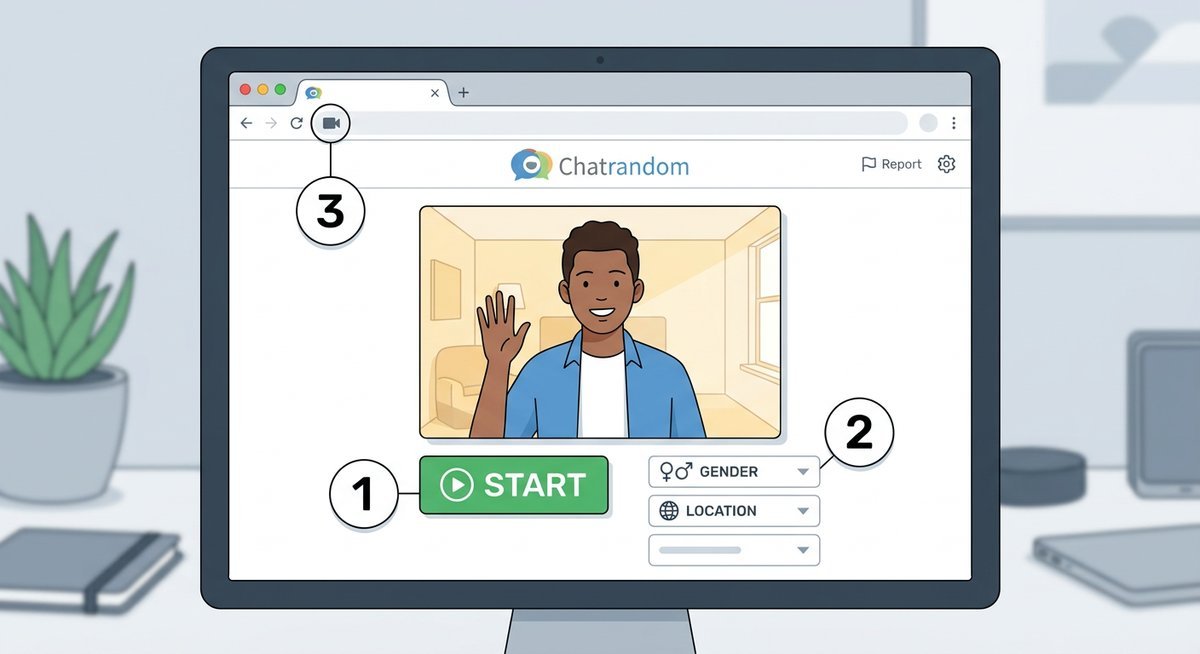
Navigate to chatrandom.com in any desktop or mobile browser. The site uses WebRTC for video connections, so no plugins, extensions, or software installations are necessary. The browser will prompt for camera and microphone permissions on first visit — both must be granted for video chat to function. Denying either permission blocks the session entirely — and resetting these permissions is the most common fix when video chat stops working.
Mobile browsers (Chrome on Android, Safari on iOS) work with the Chatrandom website directly, though the experience is less polished than the dedicated apps. If you want to join Chatrandom quickly without installing anything, the web browser is the fastest path — open the URL, allow permissions, click Start.
Android App & APK Download
The official Chatrandom Android app is available on Google Play with a 3.4-star rating across hundreds of thousands of reviews. Installation follows the standard Google Play process: search “Chatrandom,” tap Install, and open the app once the download completes.
For users in regions where Google Play restricts the app or who prefer sideloading, the Chatrandom APK can be downloaded from third-party APK repositories. Sideloading requires enabling “Install from unknown sources” in Android settings. A critical warning: downloading Chatrandom APK files from unofficial sources carries real security risks. Stick to well-known APK mirrors like APKMirror that verify file signatures against the Google Play version. Avoid any site offering a “Chatrandom mod APK” or “premium APK” — these are almost universally repackaged with malware or adware. Users looking for an older version of the app should search APKMirror’s version history rather than trusting random download sites.
iOS App — iPhone & iPad
The Chatrandom iOS app is available on the Apple App Store and works on both iPhone and iPad. Apple’s stricter content review guidelines mean the iOS version may restrict certain features that are available on Android or the web — specifically around unmoderated or adult-oriented content sections.
Installation is standard: search “Chatrandom” in the App Store, tap Get, and authenticate with Face ID or your Apple ID password. The app requires iOS 14 or later. Premium subscriptions purchased through the iOS app are billed through Apple’s subscription system, which means cancellation must go through Settings > Apple ID > Subscriptions rather than Chatrandom’s website directly.
Login, No-Login & Account Options
Chatrandom does not require an account to start a random video chat — on the web version, clicking Start without signing up works immediately. Registration is optional and unlocks profile features, saved preferences, and the ability to maintain a consistent identity across sessions. Most casual users never create an account, relying on Chatrandom’s core anonymous video chat features without any registration.
Using Chatrandom Without Registration
The no-login experience covers every core feature: random one-on-one video chat, text chat sidebar, basic gender filter (with usage limits on free tier), and the skip/report system. No email address, no phone number, no social media login required. This makes Chatrandom one of the few random video chat platforms where you can genuinely use the service without handing over any personal information — a feature that matters to privacy-conscious users.
The limitation of no-registration use: preferences are not saved between sessions, and any premium subscription requires an account to attach to. Users who want chatrandom without login for privacy reasons can use the web version in a private/incognito browser window for an even more anonymous session.
Creating an Account & Signing In
Account creation uses email registration or social login (Google, Facebook). The Chatrandom sign-up process takes under a minute. Once registered, login persists across the web and mobile apps tied to the same account. Registered users can save filter preferences, maintain a profile, and manage premium subscriptions through the account dashboard.
Gender Filter, Browser Extensions & Camera Controls
The gender filter is Chatrandom’s most-discussed feature — and its most contentious paywall boundary. Free users get limited access to gender filtering that resets after a set number of uses per session, while premium subscribers get unrestricted filtering across all sessions. Third-party browser extensions have emerged to work around these restrictions, though they come with significant caveats.
On the free tier, the gender filter allows users to specify a preferred match gender, but the platform imposes usage limits — after a certain number of filtered matches, the filter either resets or prompts an upgrade to Chatrandom Plus. According to user discussions on Reddit’s r/chatrandom and related subreddits, the free filter typically allows 5-15 filtered connections before hitting a cooldown, though the exact limit varies and Chatrandom does not publish it officially.
Premium removes this restriction entirely. The gender filter works consistently on every match without cooldowns, interruptions, or upgrade prompts. For users who specifically want to filter by gender on every connection, this is the primary reason to consider a paid Chatrandom Plus subscription.
Chatrandom Filter Extensions
Third-party browser extensions claiming to unlock or enhance Chatrandom’s gender filter exist in Chrome Web Store and Firefox Add-ons. These extensions typically work by modifying the page’s JavaScript to bypass client-side filter limits. Two important warnings: first, Chatrandom’s terms of service prohibit the use of third-party tools that modify platform behavior, and accounts caught using them risk banning. Second, many of these extensions request broad browser permissions that create genuine privacy and security risks — installing them means giving unknown developers access to your browsing data.
Camera Flip, OBS & Video Controls
The flip camera function switches between front and rear cameras on mobile devices during an active Chatrandom session. On the app, this is a single-tap control visible in the video interface. On the web version, camera selection goes through the browser’s device settings rather than Chatrandom’s interface directly.
For users who want to use OBS (Open Broadcaster Software) or other virtual camera software with Chatrandom — common among streamers who want to add overlays or use a specific video source — the process requires setting OBS as a virtual camera and selecting it in the browser’s camera permissions when Chatrandom requests access. OBS virtual camera compatibility works in Chrome and Firefox but may require additional configuration in Safari.
Account Management — Cancel Subscription & Delete Account
Canceling a Chatrandom subscription and deleting a Chatrandom account are two separate actions that users frequently confuse. Canceling stops future billing but preserves the account. Deleting removes the account and all associated data permanently. The process differs depending on whether the subscription was purchased through the website, Google Play, or the Apple App Store.
How to Cancel a Chatrandom Subscription
- Web purchase (via Segpay): Log into your Chatrandom account, navigate to Account Settings > Subscription, and select Cancel. Alternatively, contact Segpay (Chatrandom’s payment processor) directly through their customer portal. Cancellation takes effect at the end of the current billing cycle.
- Google Play purchase: Open Google Play > tap your profile icon > Payments & Subscriptions > Subscriptions > Chatrandom > Cancel Subscription. The subscription remains active until the paid period ends.
- Apple App Store purchase: Go to iPhone Settings > tap your name > Subscriptions > Chatrandom > Cancel Subscription. Apple does not process refunds through the app; refund requests go through reportaproblem.apple.com.
How to Delete Your Chatrandom Account
Account deletion requires contacting Chatrandom’s support team directly through the contact form at chatrandom.com/contactus/. There is no self-service delete button in the account dashboard — a common frustration documented in user reviews. Include your registered email address in the request. Under GDPR (for EU users) and CCPA (for California residents), Chatrandom is legally required to process deletion requests within 30 days of receipt.
Frequently Asked Questions
Can you use Chatrandom without creating an account?
Chatrandom works without any registration on the web version — navigate to chatrandom.com, grant camera permissions, and start chatting immediately. No email, phone number, or social login required. Account creation is optional and only needed for saving preferences or managing a premium subscription. The mobile apps similarly allow guest usage without sign-up.
Does Chatrandom work on iPad?
Chatrandom is compatible with iPad through both the iOS app (available on the App Store) and the Safari mobile browser. The app provides a better experience with optimized video sizing for the larger screen. Users running iPadOS 14 or later can install the Chatrandom app directly from the App Store.
Can you use a VPN with Chatrandom?
VPNs work with Chatrandom and serve two purposes: bypassing regional blocks in countries that restrict the site at the ISP level, and adding a layer of IP-based privacy. Connect to a VPN server before opening Chatrandom. Some VPN connections may increase latency during video calls, so choosing a server geographically close to your actual location minimizes performance impact. Chatrandom does not actively block VPN IP addresses.
How do you use OBS virtual camera with Chatrandom?
Install OBS Studio, start a virtual camera from the OBS Controls panel (Start Virtual Camera button), then open Chatrandom in Chrome or Firefox. When the browser requests camera access, select “OBS Virtual Camera” from the device dropdown instead of your physical webcam. This allows custom video sources, overlays, or scene compositions to display as your Chatrandom video feed.