

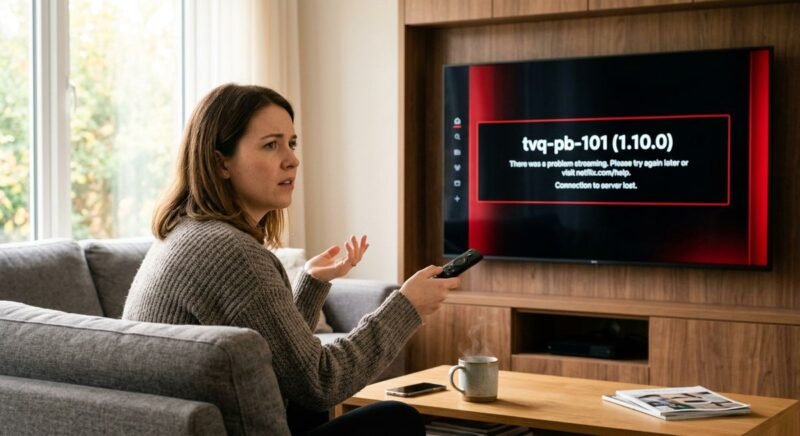
Your show cuts to black. A gray screen replaces it with “tvq-pb-101” and a vague apology. Netflix error code tvq-pb-101 means the app on your device lost contact with Netflix’s servers — or never made contact in the first place.
The good news: it is almost always fixable at home, usually in under five minutes. The bad news: most troubleshooting guides online just list five random steps and hope one sticks. That wastes your time.
A smarter approach: first, a diagnostic checklist identifies whether the fault lives in your app, your home network, or your ISP. Then, device-specific fixes for Smart TVs, Roku, Fire Stick, Apple TV, PlayStation, Xbox, and Chromecast walk you through exactly what to do. A prevention section at the end keeps tvq-pb-101 from returning.
What Is Netflix Error Code tvq-pb-101 and Why Does It Happen?
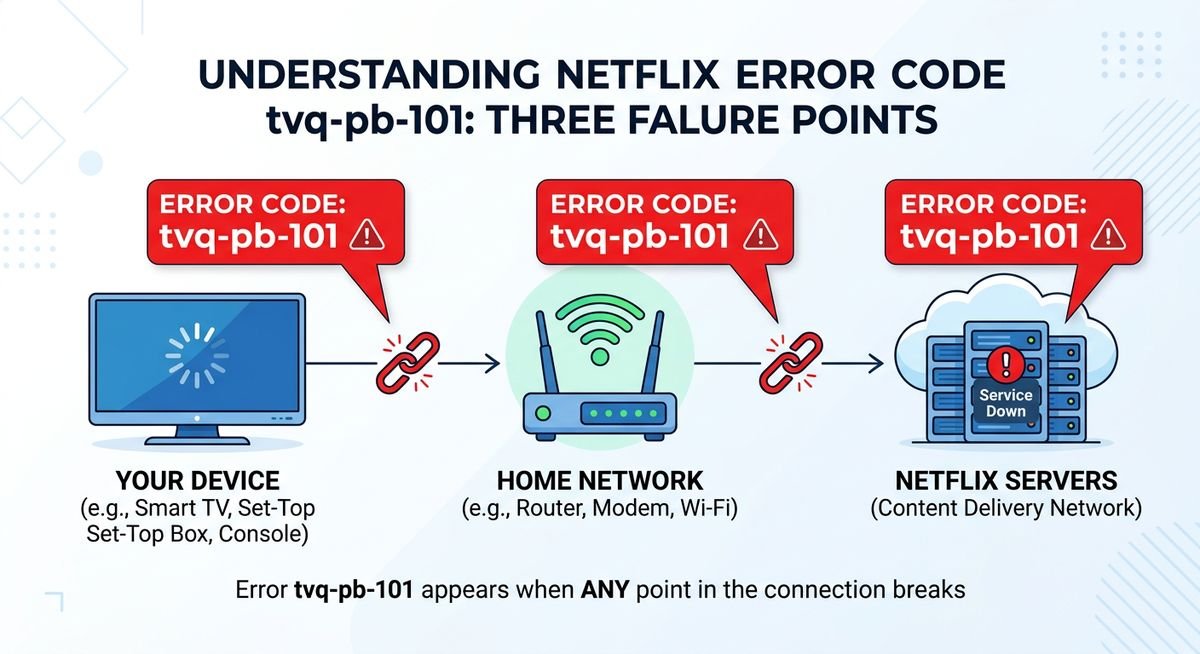
The Four Root Causes
Netflix’s streaming architecture requires a continuous, authenticated link between your device and Netflix’s content delivery network. Error tvq-pb-101 fires when that link snaps. Four things cause the snap:
| Root Cause | What Goes Wrong | Most Affected Devices |
|---|---|---|
| Unstable internet connection | Stream authentication drops mid-handshake | All devices |
| Corrupted app cache or data | Stale session tokens block server authentication | Smart TVs, Fire Stick, Android |
| Outdated app or firmware | App can no longer meet Netflix’s current API requirements | Smart TVs, older Roku models |
| DNS resolution failure | Device cannot locate Netflix’s servers despite having internet | Routers, all connected devices |
Corrupted app cache is more common than people expect. Over time, locally stored session tokens and playback metadata drift out of sync with Netflix’s server-side records. The result: a perfectly good internet connection that still cannot authenticate a stream. DNS failures are subtler — your router resolves google.com just fine, but chokes on Netflix’s CDN addresses.
What About tvq-pb-101 (5.6.1), (2.8), and (5.2.4)?
Search results for this error often show different version numbers in parentheses. Those are not different errors. The suffix reflects the version of the Netflix app installed on your particular device. Netflix appends it so their own support teams can identify which platform reported the fault.
For you, it means nothing changes. The diagnostic steps and fixes below apply regardless of the version number on your screen.
Quick Diagnostic Checklist: App, Network, or ISP?
Before touching a single setting, run through these four steps. Skipping straight to device fixes wastes time — the problem can sit outside your device entirely — on Netflix’s servers or your ISP’s infrastructure — where no amount of cache-clearing helps.
Step 1 — Check Netflix Server Status
Visit downdetector.com/status/netflix or Netflix’s own Help Center status page. If a widespread outage is in progress, no local fix will work. The problem is not yours to solve. Outages are rare, but ruling this out takes thirty seconds and eliminates an entire category of causes.
Step 2 — Test Your Internet Connection
Open a browser and run fast.com — Netflix’s own speed measurement tool. Netflix requires a minimum of 3 Mbps for standard definition and 25 Mbps for 4K Ultra HD. While you are there, check whether YouTube or another streaming app loads normally. If YouTube works but Netflix does not, the issue is almost certainly app-level or DNS-related, not bandwidth.
Step 3 — Isolate the Device
Open Netflix on a second device connected to the same Wi-Fi — a phone, tablet, or laptop. If Netflix works there, the problem is isolated to your original device’s app or cached data. If Netflix fails on every device in the house, the fault is upstream: your router, modem, or ISP.
Step 4 — Decide Whether to Call Your ISP
Use the table below to route yourself to the right fix. This is the decision point that most guides skip entirely.
| Speed Test Result | Netflix on Other Devices | Likely Cause | Next Action |
|---|---|---|---|
| Passes (meets minimums) | Works fine | App cache or corrupted data | Go to device-specific fixes below |
| Passes (meets minimums) | Also fails | DNS resolution failure | Change DNS on your router to 8.8.8.8 / 8.8.4.4 |
| Fails or no internet | Also fails | Router, modem, or ISP outage | Restart modem and router; call ISP if unresolved |
| Fails or no internet | Works fine | Device Wi-Fi issue | Reconnect device to Wi-Fi; try the 5 GHz band |
A passing speed test combined with Netflix failures on multiple devices is the classic fingerprint of a DNS problem. Switching your router’s DNS to Google (8.8.8.8) or Cloudflare (1.1.1.1) often resolves tvq-pb-101 instantly in that scenario.
How to Fix tvq-pb-101 — Step-by-Step by Device
The fastest resolution depends on your device. Jump to your category below — each set of steps runs from least disruptive to most disruptive. Start at the top and stop when Netflix works again.
Smart TVs (Samsung, LG, Sony, Hisense)
Smart TVs are the most common source of tvq-pb-101 reports. They store Netflix app data aggressively, and a corrupted cache can survive a standard remote-button restart. That is why the first step is a real power cycle.
- Unplug the TV from the wall for 60 seconds. Do not use the remote’s standby button — that leaves volatile memory intact. Pull the power cord, wait a full minute, then plug back in.
- Clear the Netflix app cache. Go to Settings > Apps > Netflix > Clear Cache.
- Sign out and back in. Inside the Netflix app, navigate to Get Help > Sign Out. This forces a fresh authentication handshake.
- Uninstall and reinstall Netflix. Settings > Apps > Netflix > Delete, then download it again from your TV’s app store.
- Check for firmware updates. Outdated firmware is a documented cause of streaming authentication failures on every major Smart TV brand.
| Brand | Cache Clear Path | Firmware Update Path |
|---|---|---|
| Samsung | Settings > Apps > Netflix > Clear Cache | Settings > Support > Software Update |
| LG | Settings > App Management > Netflix > Clear Cache | Settings > About > System Update |
| Sony | Settings > Apps > Netflix > Clear Cache | Settings > Device Preferences > About > System Update |
| Hisense | Settings > Application Manager > Netflix > Clear Data | Settings > About TV > Firmware Update |
Streaming Sticks and Boxes (Roku, Fire Stick, Apple TV, Chromecast)
These smaller devices have less storage overhead than Smart TVs, so cache corruption tends to resolve faster. The trade-off: some models (especially older Rokus) stop receiving Netflix app updates before the hardware itself dies.
Amazon Fire Stick / Fire TV:
- Restart the device: Settings > My Fire TV > Restart.
- Clear Netflix data: Settings > Applications > Manage Installed Applications > Netflix > Clear Data.
- Uninstall and reinstall the Netflix app from the Amazon Appstore.
Roku:
- Restart: Settings > System > System Restart.
- Remove the Netflix channel from the home screen, then re-add it from the Roku Channel Store.
- Perform a factory reset only as a last resort: Settings > System > Advanced System Settings > Factory Reset.
Apple TV:
- Force-quit Netflix: double-press the TV button, swipe up on the Netflix preview.
- Delete and reinstall: hold the Siri Remote touchpad on the Netflix icon > Delete App, then download again from the App Store.
- Restart the Apple TV: Settings > System > Restart.
Chromecast:
- Reboot the Chromecast by unplugging it for 30 seconds.
- On your phone, clear data for the Netflix app (Settings > Apps > Netflix > Clear Data on Android; delete and reinstall on iOS).
- Factory reset the Chromecast as a last resort: hold the reset button for 25 seconds until the LED blinks.
Game Consoles (PlayStation, Xbox)
Consoles handle Netflix as a standalone app, and their network stacks behave differently from dedicated streaming devices. Error tvq-pb-101 on PlayStation or Xbox often traces to DNS misconfiguration — many users set custom network profiles for gaming that inadvertently break streaming.
PlayStation 4 / PS5:
- Close Netflix completely: press the PS button, highlight Netflix, press Options > Close Application.
- Restart the console: Settings > Power > Restart PS5 (or hold the power button on PS4 until it beeps twice).
- Delete and reinstall: go to the Game Library, highlight Netflix, press Options > Delete, then re-download from the PlayStation Store.
- Test your connection: Settings > Network > Test Internet Connection. If it fails, reset DNS to automatic or use 8.8.8.8.
Xbox One / Xbox Series X|S:
- Force-quit Netflix: press the Xbox button, highlight Netflix, press Menu > Quit.
- Hard restart: hold the Xbox button on the console for 10 seconds until it powers off, then unplug for 30 seconds.
- Reinstall Netflix: My Games & Apps > Netflix > Menu > Uninstall, then find it again in the Microsoft Store.
- Check network: Settings > General > Network Settings > Test Network Connection.
Mobile Devices (iPhone, iPad, Android)
Mobile devices rarely throw tvq-pb-101 because their Netflix apps update automatically and cellular networks bypass home router issues. When it does happen, it is almost always a Wi-Fi problem or an outdated app version.
- Switch from Wi-Fi to cellular data (or vice versa) to confirm whether the error follows the network or the device.
- Force-close the Netflix app. On iPhone, swipe up from the bottom and flick the Netflix card away. On Android, go to Settings > Apps > Netflix > Force Stop.
- Update the app. Open the App Store (iOS) or Google Play Store (Android) and check for a pending Netflix update.
- Delete and reinstall. This clears all cached data in one step and is the fastest path to a clean slate on mobile.
How to Prevent Netflix Error Code tvq-pb-101 From Coming Back
Fixing the error once is good. Keeping it from reappearing is better. These four habits cover the most common recurring triggers.
- Restart your router once a month. Consumer routers accumulate stale DNS cache entries and routing table bloat over time. A monthly power cycle — unplug for 30 seconds, plug back in — clears both.
- Set your router’s DNS to a public resolver. ISP-provided DNS servers are the single most common source of intermittent tvq-pb-101 recurrences. Switch to Google DNS (8.8.8.8 / 8.8.4.4) or Cloudflare DNS (1.1.1.1 / 1.0.0.1) in your router’s settings. This protects every device on your network at once.
- Enable auto-updates for the Netflix app. On most devices, this is the default. But Smart TVs often require manual confirmation. Check your TV’s app settings and make sure Netflix updates are not paused.
- Keep firmware current. Smart TVs and streaming sticks push firmware updates quietly, but they require the device to be powered on and connected to Wi-Fi. If you turn your TV off at the wall every night, it never gets the update. Leave it in standby mode overnight once a week.
Frequently Asked Questions
What does Netflix error code tvq-pb-101 mean?
It means the Netflix app on your device could not establish or maintain a connection to Netflix’s servers. The root cause is usually an unstable internet connection, corrupted app cache, outdated firmware, or a DNS resolution failure on your router.
Is tvq-pb-101 (5.6.1) a different error from tvq-pb-101 (2.8)?
No. The number in parentheses is the version of the Netflix app installed on your device. The error itself is identical — the same troubleshooting steps apply regardless of the version suffix displayed on screen.
How do I fix Netflix error tvq-pb-101 on a Samsung TV?
Unplug the TV from the wall for 60 seconds (do not use the remote standby). Then clear the Netflix app cache via Settings > Apps > Netflix > Clear Cache. If the error persists, uninstall Netflix and reinstall it from the Samsung app store, and check for a firmware update under Settings > Support > Software Update.
Why does tvq-pb-101 keep coming back?
Recurring instances of netflix error code tvq-pb-101 almost always point to a DNS issue on your router or firmware that is not updating properly. Set your router’s DNS to 8.8.8.8 (Google) or 1.1.1.1 (Cloudflare), restart the router monthly, and confirm that your device’s firmware and Netflix app are both up to date.
Can my ISP cause tvq-pb-101?
Yes. If your ISP’s DNS servers fail to resolve Netflix’s CDN addresses, every device on your home network will throw netflix error code tvq-pb-101 — even though other websites load normally. Switching to a public DNS resolver (Google or Cloudflare) bypasses the ISP’s DNS entirely and is the fastest fix.
Does tvq-pb-101 mean my Netflix account is banned?
No. This error has nothing to do with your Netflix account status, payment, or password. It is strictly a connectivity issue between your device and Netflix’s servers. Your account is fine.
Should I factory reset my device to fix tvq-pb-101?
Only as a last resort. Factory resets erase all your apps, settings, and saved logins — not just Netflix. In almost every case, clearing the Netflix app cache, reinstalling the app, or fixing your DNS settings resolves the error without a full reset.
Getting Back to Your Show
Netflix error code tvq-pb-101 looks alarming, but it breaks down to four possible causes — bad connection, stale cache, old firmware, or broken DNS. The diagnostic checklist narrows it to one. The device-specific steps fix it. And the prevention habits keep it gone.
If you have worked through every step for your device and the error still appears, contact Netflix Support directly. They can check server-side logs tied to your account and identify edge cases — like ISP-level throttling or a device that has been deauthorized — that no amount of local troubleshooting will surface.